In short
- Infinity sends an offline conversion into Google Ads when someone who clicked one of your adverts completes a conversion activity, such as a call or a goal.
- Set-up has two parts: create an offline conversion action in Google Ads named Infinity Calls, then add Google Ads under Settings > Integrations in the Infinity Platform.
- Trigger it when a call happens or a goal fires, and narrow it with criteria such as call duration, channel or tracking pool.
- You can send no value, a transaction value or a goal value.
- Google Ads only accepts conversions with a gclid, so calls to fixed numbers are not sent.
- Check it is working with the Integrations Run Report or the Call and Goal log.
Google Ads offline conversions let Infinity send a conversion event into Google Ads after an end user has clicked on one of your Google Ads adverts and completed a conversion activity. This guide explains how the integration works, how to create the conversion action in Google Ads, and how to configure the integration in the Infinity Platform.
How Google Ads offline conversions work
When an end user who has clicked on a Google Ads advert completes a conversion activity, we will pass that offline conversion event into Google Ads. You can then link offline conversion events back to the Google Ads activity that helped drive that conversion event, and get a full picture of the impact of your Ads activity.
You can also set campaign types in Google Ads and report on them in Infinity, alongside your Google Ads offline conversions, such as Performance Max or Discovery Ads.
To view granular PPC data in Infinity, we recommend that you implement our tracking template using Custom ValueTrack Parameters within Google Ads; here is our guide to do so.
Before you start
- To set up Google Ads offline conversions, you need a Google Ads account that you can sign in to from Infinity. Depending on whether this is the first Google Ads integration you have set up, you may be asked to sign in to your Google account.
- To send unredacted caller data, you need permission to view PII data yourself.
Step 1: create a conversion action in Google Ads
The starting point for Google Ads offline conversions is to create a conversion action for offline conversions in Google Ads. The video below walks through the Google Ads set-up.
Watch the video: Configuring the integration in Google Ads
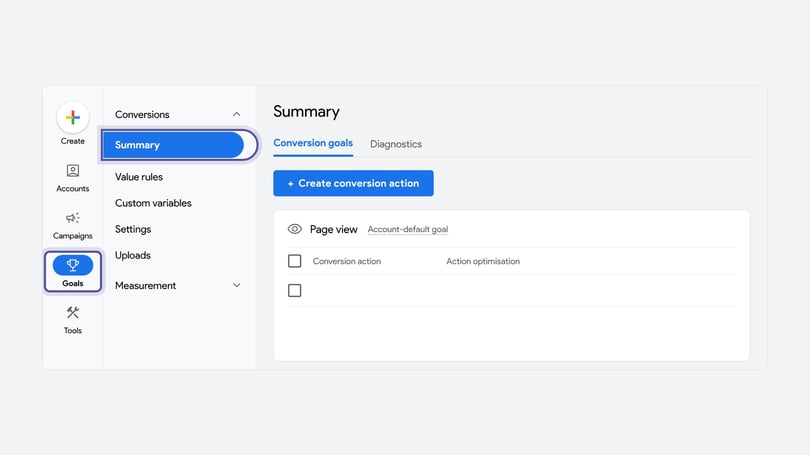
Navigate to ads.google.com, log in to your account, and select Goals from the left-hand side of the screen. Then select Summary from the Conversions menu, as shown below.
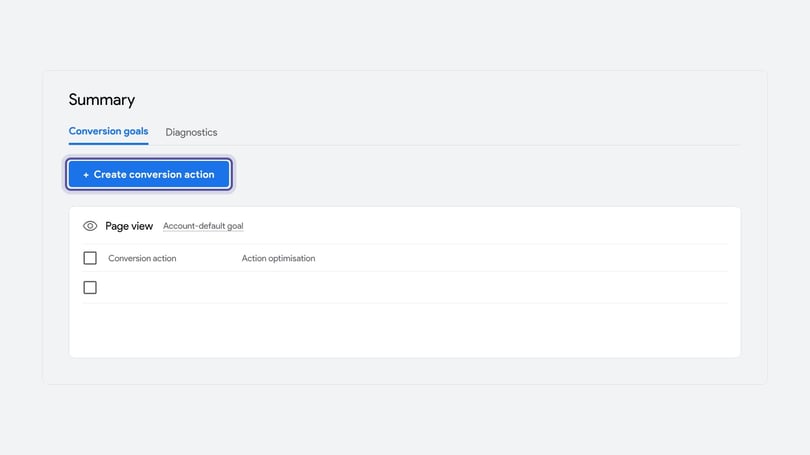
Create a new conversion action by selecting the blue + New conversion action button.
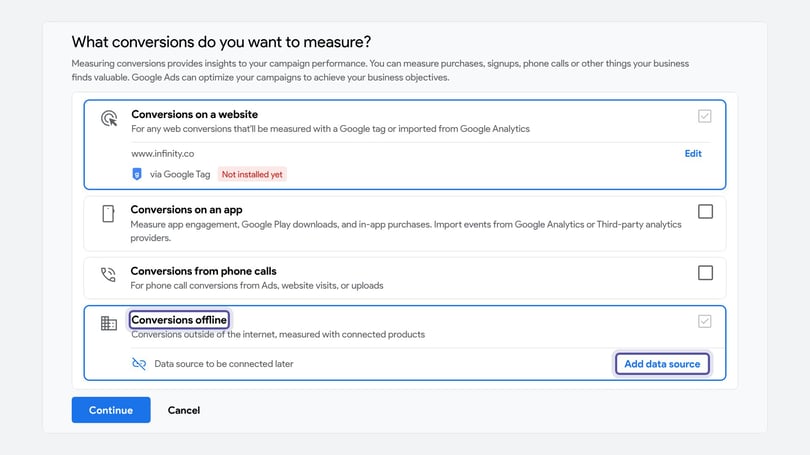
Click Conversions offline and Add data source.
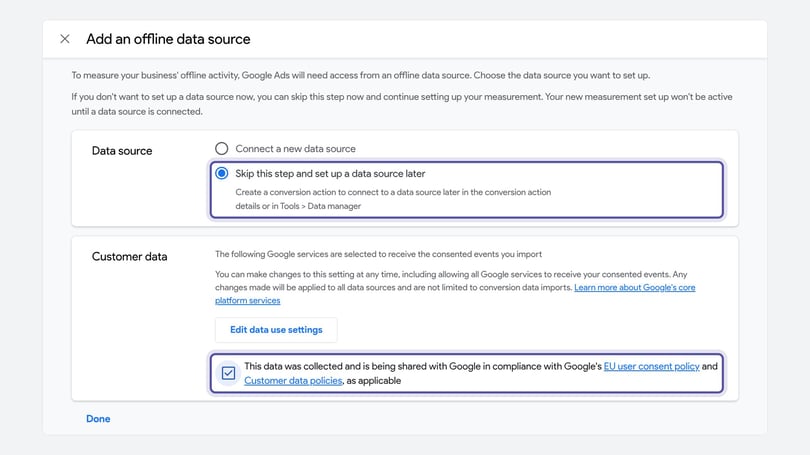
Click Skip, then tick the checkbox and click Done.
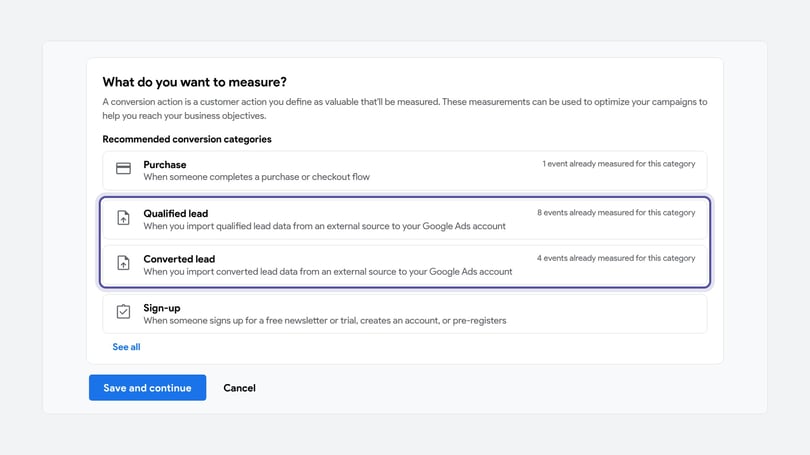
Click Qualified Lead or Converted Lead.
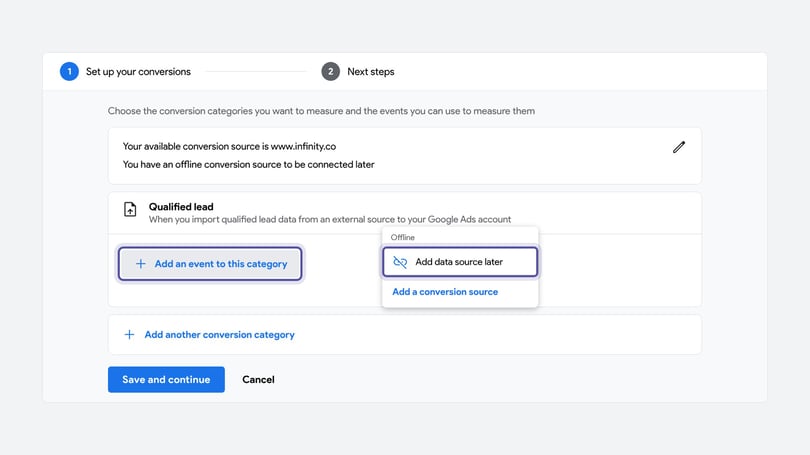
Click Add an event to this category and Add data source later.
Click Settings to amend the conversion, and set the conversion name to Infinity Calls.
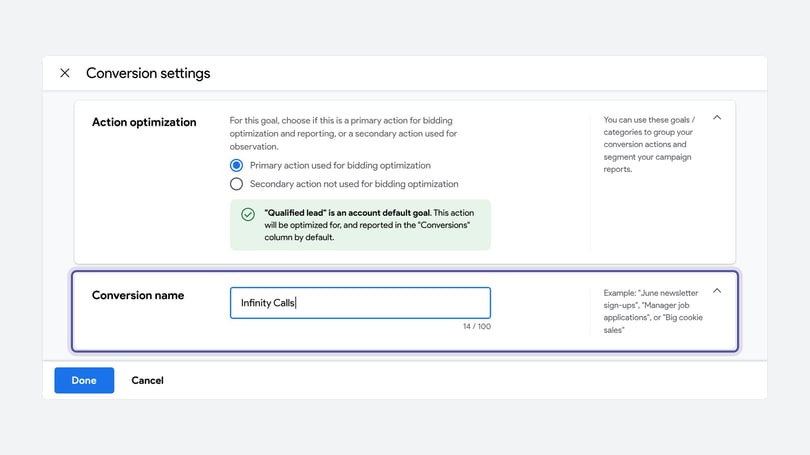
Click Done to complete the set-up. This saves your conversion, and you can now set it up in Infinity.
Step 2: configure Google Ads offline conversions in the Infinity Platform
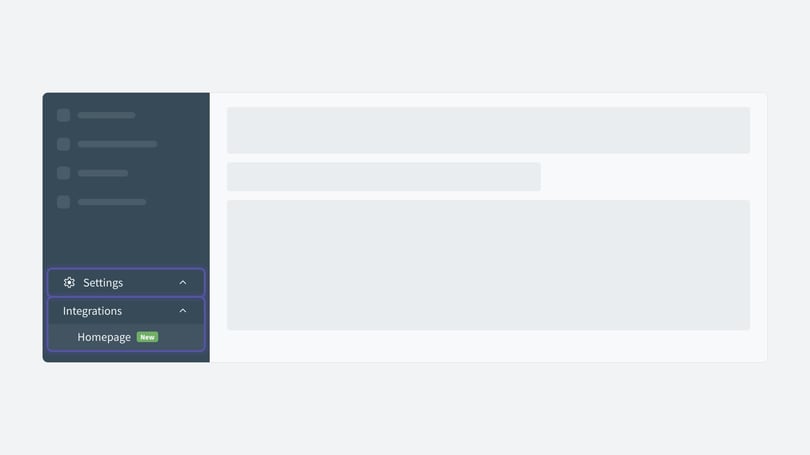
Log in to the Infinity Platform and select Settings from the bottom of the left-hand navigation. Then select Integrations, as shown below.
From the Integrations homepage, find Google Ads. You will then see this screen.
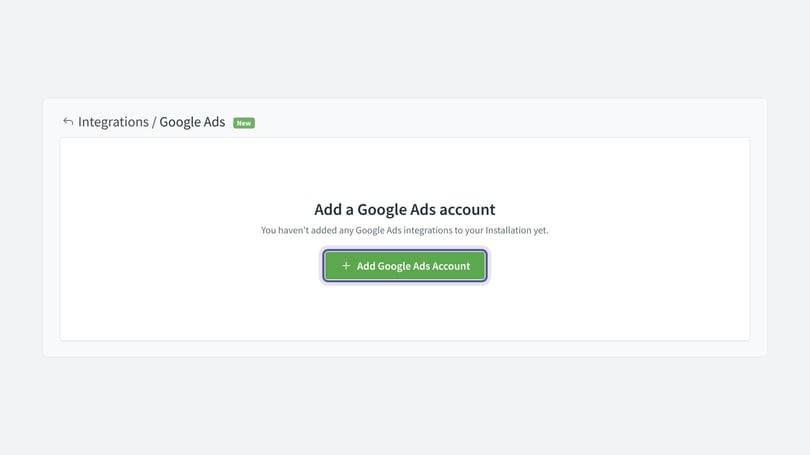
If you have existing integrations, you will see them in a list. Click the three dots icon to edit, delete or disable an existing integration. To create a new integration, click the green Add Google Ads Account button. You will see this screen.
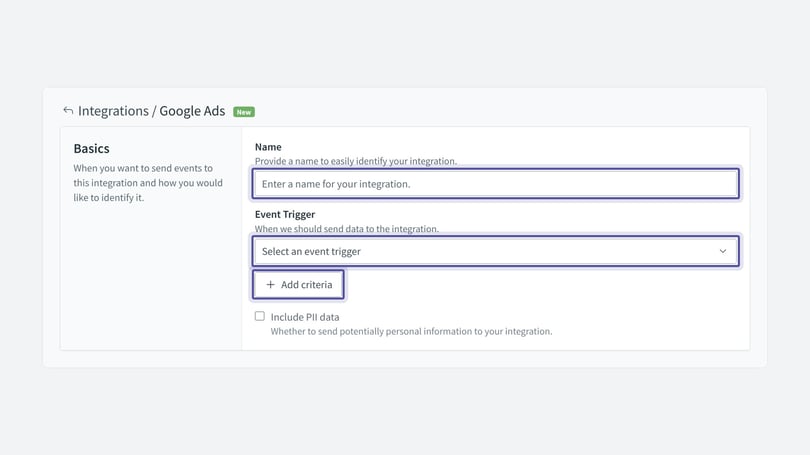
The form has several sections: Basics, Ads Account and Conversion. We will start with the Basics.
Basics
- Give your integration a name. Choose something meaningful that you will easily be able to identify later.
- Choose the trigger for the integration. This is typically either when a call has happened or when a goal is fired. Choose the option that suits you, then refine the firing criteria.
- Use + Add criteria to add more criteria for your event trigger. You can choose from a wide range of criteria. Use the search to find your field, then add an operand and a value.
- You can choose from a wide variety of fields, such as Call Duration, Channel, Tracking Pool and Goal. Operands include Is, Is Not, Is Empty and Is Not Empty. These let you trigger events based on the presence of specific values, or on a value having been captured for that field.
Call Ads
If you have enabled forwarding of Call Ads data from within Google Ads to Infinity, this is typically included as part of any call triggers. If you have an existing integration that does not include the Ads call data and you want to exclude it, use the field Source Detection Mode with the operand is not to exclude the calls to fixed numbers (your call ads or call extension calls).
To target just the calls to fixed numbers that you use for call ads and call extensions, use the field, operand and value combination Source Detection Mode is fixed, as shown below.
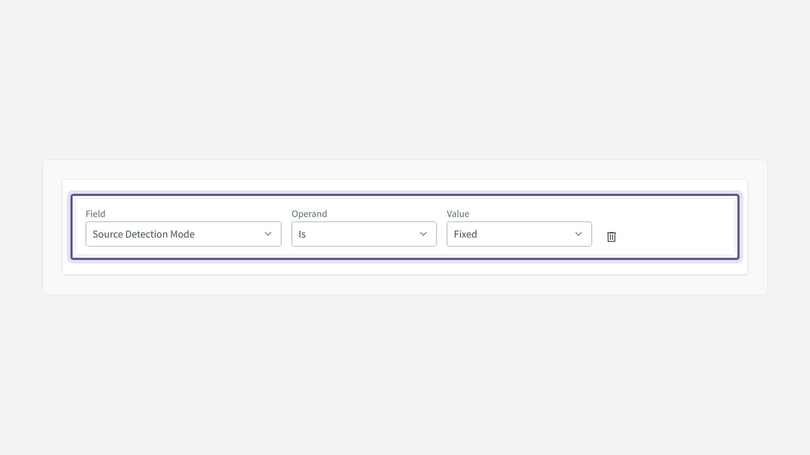
Once you are happy with your trigger, move to the final part of the Basics section, PII data.
PII data
By default, sensitive data such as caller IDs is redacted from events. If you want to send the data unredacted, tick the box to include PII data. You will need to have permission to view PII data yourself to make this change.
Ads account
Depending on whether this is the first integration you have configured, you may be asked to sign in to your Google account to configure the integration.
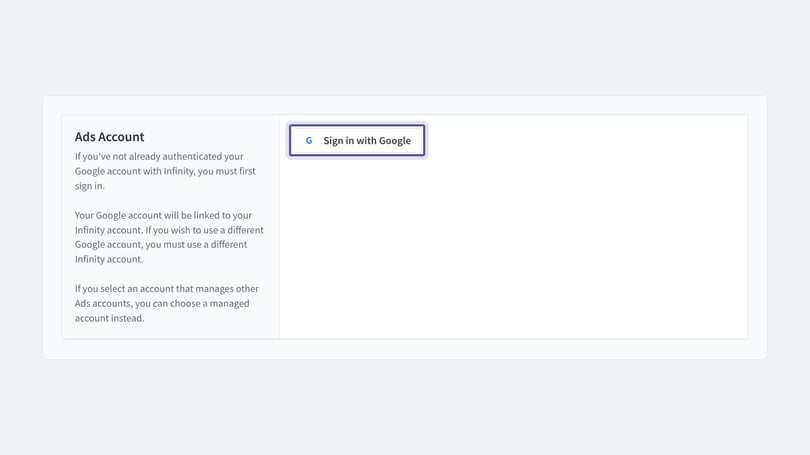
Once you have signed in, use the dropdown to select the account you want to push events to using this integration. The events that Infinity passes into your Google Ads account on your behalf are Google Ads offline conversions.
Manager accounts: Google requires that, if you have a manager-level account hierarchy and have opted in to manager-level conversion tracking (also known as cross-account conversion tracking), offline conversions must be sent into the manager account, not the client account. Make sure you are targeting the correct account in the dropdown.
Once you have selected the correct account, move to the next section to configure the criteria for the integration.
Access to the Google account
When you edit an existing Google Ads offline conversions integration, we check whether you are the user who authenticated the integration. If you are not, you will see a message in the Ads Account section telling you who created the integration, with the option to log in to take over the integration.
Conversion settings
Once you have chosen the correct account to submit Google Ads offline conversions to, move to the final section, Conversion.
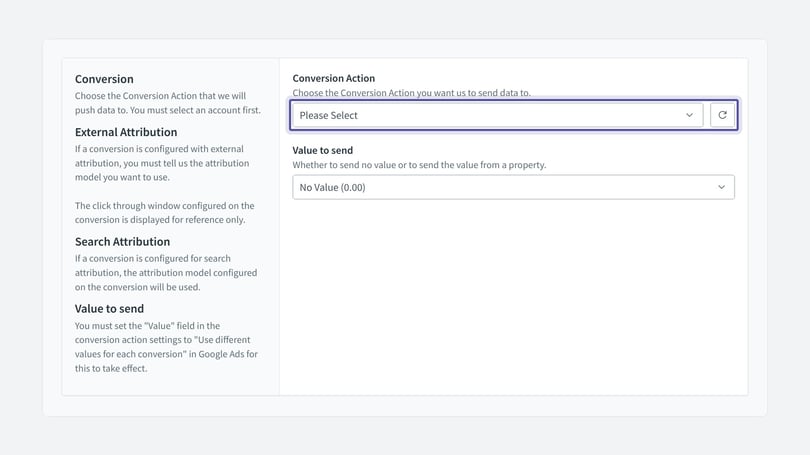
- Use the dropdown to select the conversion action you want to send conversions to. This is typically the conversion action you created in Google Ads earlier in this guide.
- The rest of the form changes to reflect how that conversion action and its attribution settings have been configured in Google Ads.
If you set Search Attribution as the attribution model in Google Ads, you will see that presented to you, and it cannot be changed. If you set External Attribution as the attribution in Google Ads, you will see that confirmed, together with the conversion window you defined for the conversion action.
Value to send
You can pass a value for each Google Ads offline conversion. You must already have configured this in the conversion action field in Google Ads to use it. The Value to send setting determines how the values from Infinity are populated. There are three options:
- No Value (default)
- Transaction Value
- Goal Value
Value setting in Google Ads: If you use either Transaction Value or Goal Value, the value setting in the conversion action in Google Ads must be set to use different values for each conversion for this to take effect.
For the avoidance of doubt, while this setting determines how the field is populated, you must make sure you are capturing the value through your goals, call rating, CRM integration or Smart Match.
Need more help?
If you are still stuck with Google Ads offline conversions, get in touch with your account team or email support@infinity.co. These guides may also help: