GA4 call tracking with Infinity sends the calls, goals and call ratings we track into Google Analytics 4 (GA4) as custom events, linked to the right user and session. That means you can report on phone calls alongside the rest of your website data. This guide covers getting your measurement ID and API secret from GA4, adding the integration in the Infinity Platform, building your events, sending transaction data, testing that it all works, and the full list of fields you can send as parameters.
Google Tag Gateway: Infinity now supports Google Tag Gateway (GTG). If you're using or planning to move to GTG, Google's newer way of serving analytics through your own domain, you're all set. Infinity's tracking integrates fully with GTG, so your calls and visitor data will continue to match up accurately with your GA4 reporting. No configuration changes are needed on your end.
Before you start
You'll need:
- Our latest tracking script. GA4 call tracking only works with the latest script. If you're not sure which script you're using, contact support@infinity.co and the team will advise.
- A Google Analytics 4 account and app, with a data stream to send GA4 call tracking data to. You can create the data stream during Step 1 if you don't have one.
- Access to Settings > Integrations in the Infinity Platform.
How GA4 call tracking works
In the Build your events section of the integration, you set what data to send to GA4 and when to send it. Data is sent to GA4 as a custom event, which contains an event name and a set of parameters that you define. Infinity also sends the Session ID and Client ID, so each event is associated with the correct user and session data in GA4.
Step 1: get your measurement ID and API secret from GA4
To configure the integration, you need two values from your Google Analytics account: the measurement ID and the API secret value.
Watch the video: Configuring the GA4 integration
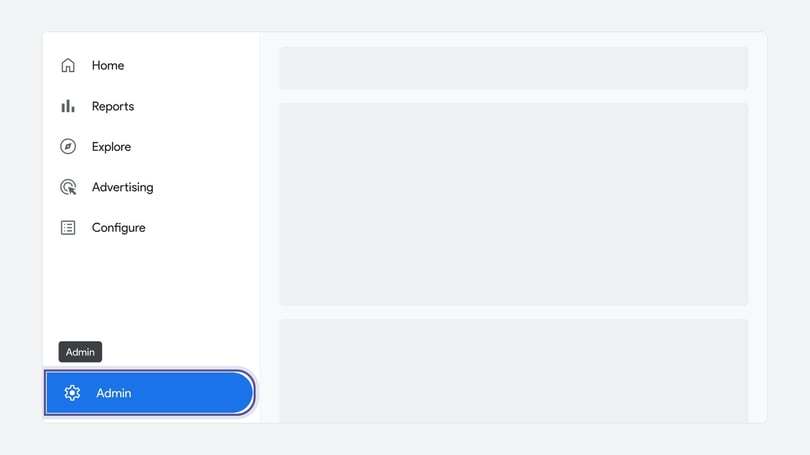
Log in to your Google Analytics 4 account. You'll need to have created an account and app in GA4. Select Admin from the lower left of the screen.
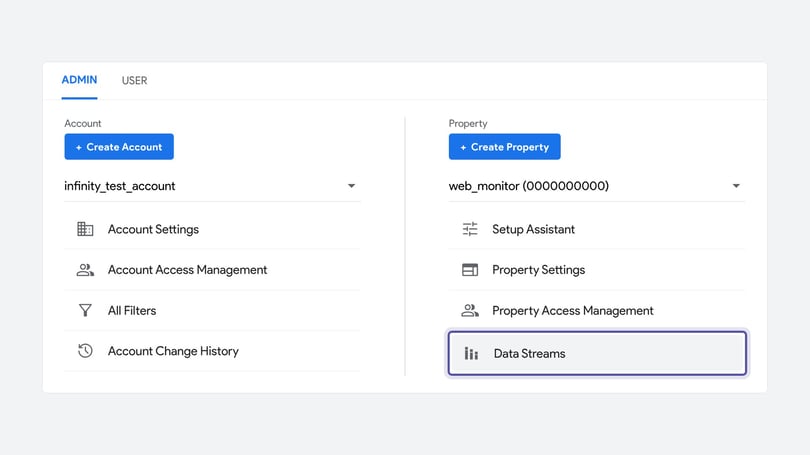
From the Property list, select Data Streams. Then, from the Data Streams list, select the stream you want to send data to. You may need to create one first.
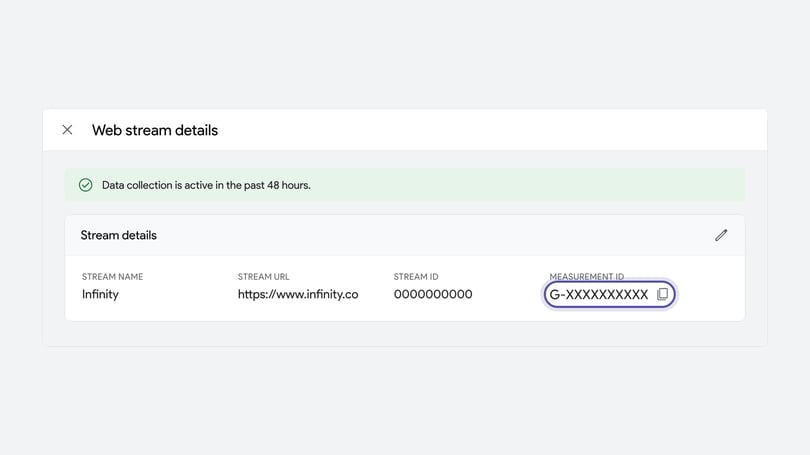
Make a record of the Measurement ID.
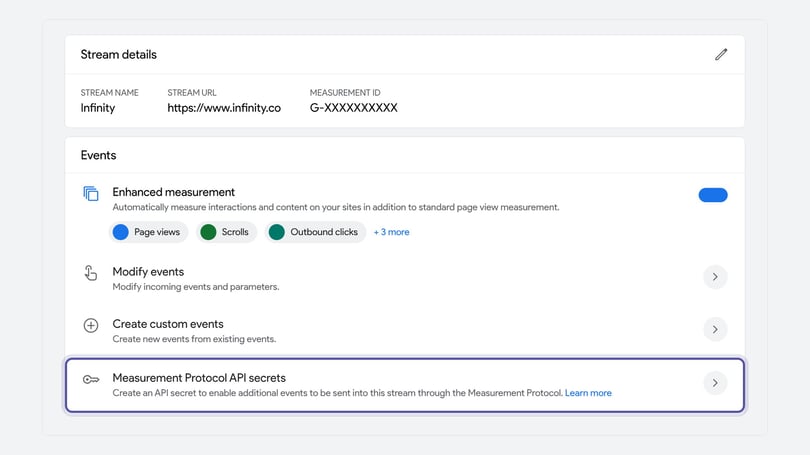
Select Measurement Protocol API Secrets.
Press Create and give the secret a name that relates to Infinity, for example "Infinity Integration". Then press Create again. This is your API secret.
Step 2: add the GA4 integration in the Infinity Platform
To set up GA4 call tracking, head to the Infinity Platform, go to Settings > Integrations and select Google Analytics 4.
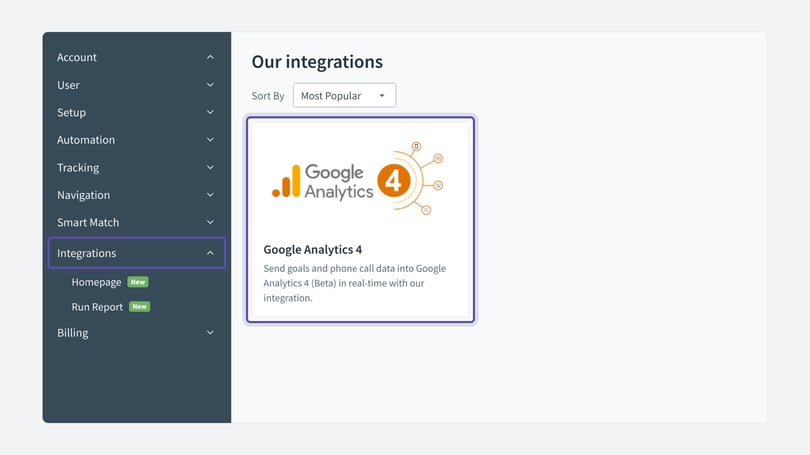
- Select Add Google Analytics Account.
- Use the Name field to identify this instance of the integration easily.
- Enter the API secret (Secret Value) and Measurement ID from the GA4 Admin section into the matching fields.
You can set up more than one GA4 integration. For example, you might set up three: one to send call data, one to send outcome data, and one to send call data to a different measurement ID used for a development website. You could name them:
- GA4 Phone Calls
- GA4 Outcomes
- GA4 Dev Phone
Step 3: build your events
In GA4 call tracking, the Build your events section sets the data to send to GA4 and specifies when to send it. You choose the event name, the event trigger and the parameters for each event.
Event name
You can specify the name of the event that gets sent to GA4. The default is infinity_call, but you'll want to change it depending on the trigger. For example, infinity_call_over_1_minute, infinity_inbound_sale or infinity_outbound_sale.
Note: To meet GA4's requirements, an event name can only contain alphanumeric characters and underscores. Anything else is removed. If you enter a space, it's replaced with an underscore.
Event trigger
The event trigger sets when data is sent to GA4.
- Choose the trigger type. The options are When a call has happened, When a goal is fired and When a call has been rated.
- Narrow when events are sent by adding additional criteria filters. For example, a criterion with Field: Call Duration (seconds), Operand: Greater than and Value: 5 only sends events when the call duration is greater than 5 seconds.
- To exclude fixed number calls from being sent to GA4, select the field Source Detection Mode, operand is not and value fixed.
How fixed number calls appear in GA4
For fixed number calls, where there is no online data, we send a unique ID as the client ID. This lets fixed number calls be recorded in GA4, but the standard GA4 marketing data shows as (not set) in the standard reports. That's because, unlike Google Universal Analytics, GA4 doesn't currently let us override the marketing data it usually determines from the client and session IDs.
Instead, you can send the Infinity data as parameters and create custom reports. The Parameters section below lists every field you can send. We recommend configuring the custom parameters channel and conversion page URL, plus any campaign information you want to report on. If you'd rather keep fixed number calls out of your GA4 call tracking altogether, add the Source Detection Mode filter to the event trigger, as described above.
Set up parameters
Watch the video: Setting up GA4 parameters
You can choose what data to send to GA4, up to 20 parameters per event. We highly recommend configuring custom parameters to prevent any 'not set' events in GA4.
- To report on standard fields, they must be sent with the event as a parameter. We recommend sending the parameters page_location and page_title.
- In the parameters section, select a Field. Each field relates to the tracking data the Infinity system produces once a call is made. Fields such as Call Duration (in seconds), Ad Group and Conversion Page URL are available. The full list is in the Parameters section below.
- The Parameter Name is how you want the value to be collected when it's sent to GA4. Parameter names can only contain alphanumeric and underscore characters.
Note: You can map most of your data to parameters sent to GA4, but these don't automatically appear in reports other than the Realtime or debug reports. To view them, set up custom dimensions and metrics. Google's guide, GA4 Custom dimensions and metrics, explains how.
Parameters
Please follow this section if you want to set up GA4 call tracking with Infinity. GA4 allows you to send additional event parameters for reporting, and up to 20 parameters can be sent.
In Universal Analytics, you could easily report on call events alongside information such as browser and page title, because Google pulled that data from the session data it held. GA4 works differently. To report on these standard fields, they must be sent with the event as a parameter. We recommend sending the parameters page_location and page_title.
Under the parameters section, select a Field. Each field relates to the tracking data Infinity produces once a call is made. The Parameter Name is how you want the value collected when it's sent to GA4. Parameter names can only contain alphanumeric and underscore characters.
You can map most of your data to parameters sent to GA4. However, these don't automatically appear in reports other than the Realtime or debug reports. To view them, set up custom dimensions and metrics. We recommend including channel and URL as custom dimensions. If Infinity is unable to collect the session ID, you can still report on the channel in GA4, instead of seeing 'not set'.
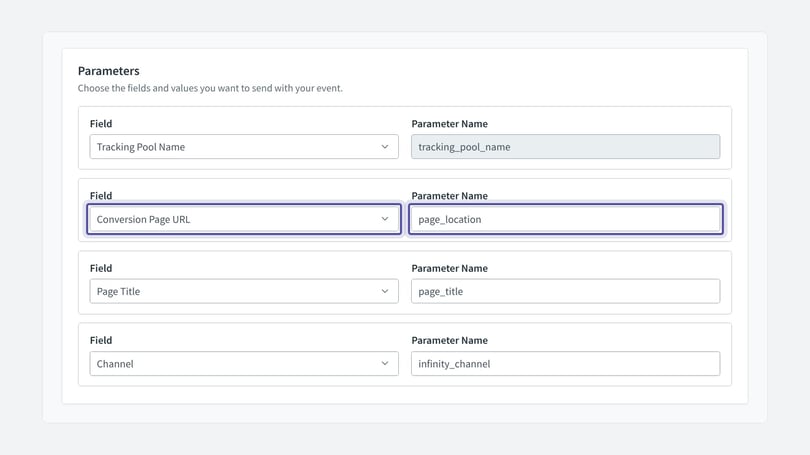
The table below defines the parameters available through Infinity.
Send transaction data to GA4
You can set up a parameter called value and map it to a goal value. Google Analytics then shows this value in its reports in the Event value field. However, this does not then appear in the Total Revenue field.
To see Infinity data within the Monetisation reports, Infinity needs to send purchase events. Transaction data is another part of your GA4 call tracking set-up. Contact your customer success manager if you'd like to set this up.
See and test your GA4 call tracking data
It can take up to 48 hours for Google Analytics to process and report on the events we send. There is also a real-time option that shows all events from the previous 30 minutes. After you've configured the integration, make a test call and check that the event appears there.
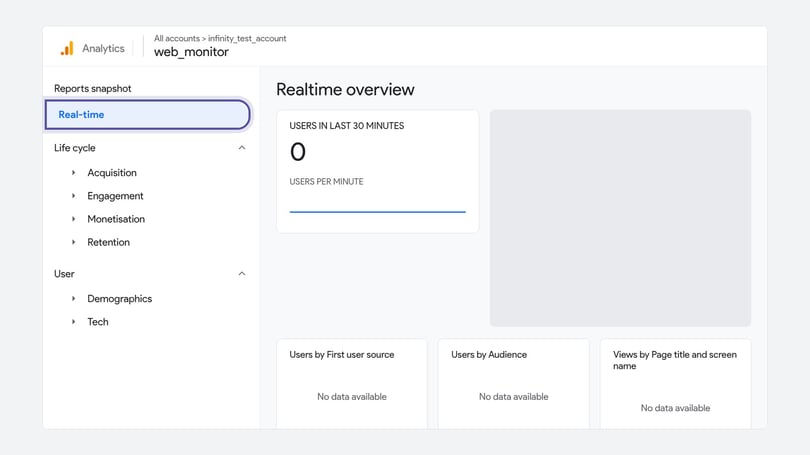
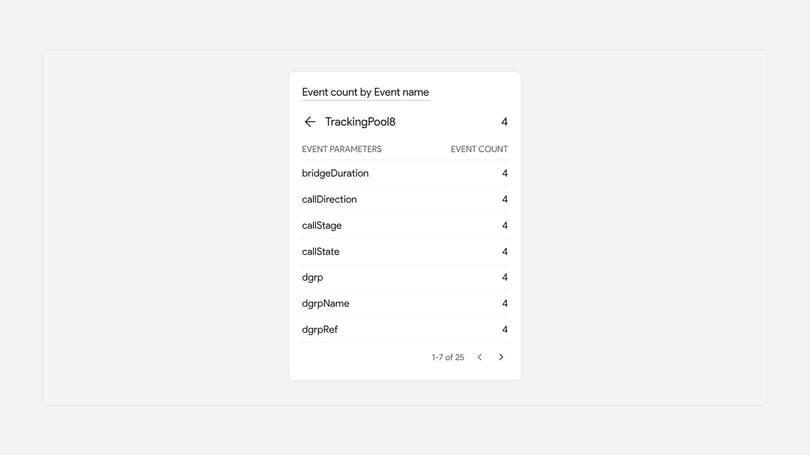
We advise you to set up Custom Definitions. Watch our video or read our GA4 reporting considerations guide.
Need more help?
Our GA4 reporting considerations guide explains how to get the most from your GA4 call tracking reports. If you're still stuck, get in touch with your account team or email support@infinity.co and we'll help you get set up.