In short
- GA4 shows Infinity call events as (not set) when they are sent without a real GA4 client ID, because GA4 cannot link them to a user and does not let Infinity override its own dimensions.
- The GA4 client ID is often missing when a visitor has not given cookie consent, and Infinity fixed number calls always use a client ID that GA4 does not recognise.
- Infinity events sent through the GA4 measurement protocol always show country as (not set), though GA4 does populate page dimensions if you send the page_location and page_title parameters.
- To stop unmatched void outcomes reaching GA4 as (not set), add the criteria Outcome Type is not Void to the Infinity GA4 event trigger.
- GA4 ignores any Infinity event with a timestamp more than 72 hours in the past, so outcome data must be uploaded to Infinity promptly with accurate dates.
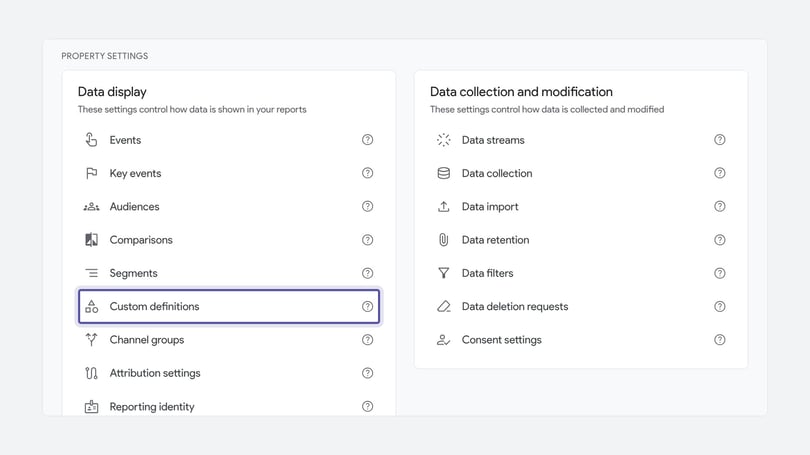
- To report around (not set) values, send Infinity data such as channel as event parameters, then create matching custom dimensions in GA4 under Admin > Custom Definitions.
If you see GA4 not set call events in your reports, the call or event was sent without a real GA4 client ID, so GA4 can't attach its own country, campaign or other user data to it. This guide explains why it happens, what GA4 can and can't report on Infinity events, and the workarounds, including custom dimensions.
GA4 not set call events: why it happens
The short answer is that it's normally because the event hasn't been sent with a 'real' GA4 client ID and we can't override existing GA dimensions in your reports like we could with UA/GA3. To understand this, we need to look at how events in GA4 are processed and what our integration does.
GA4 allows you to report on events alongside various dimensions such as first user campaign, first session campaign, browser, country, and more.
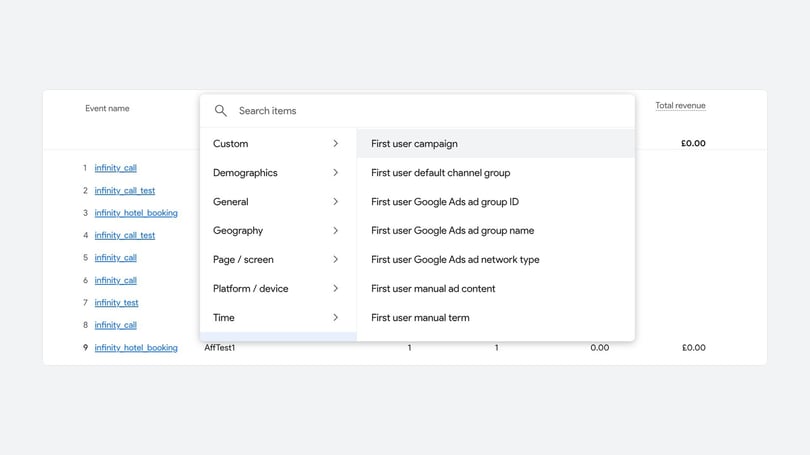
For most of these dimensions, GA4 looks up the values based on the user or session data it has associated with that event.
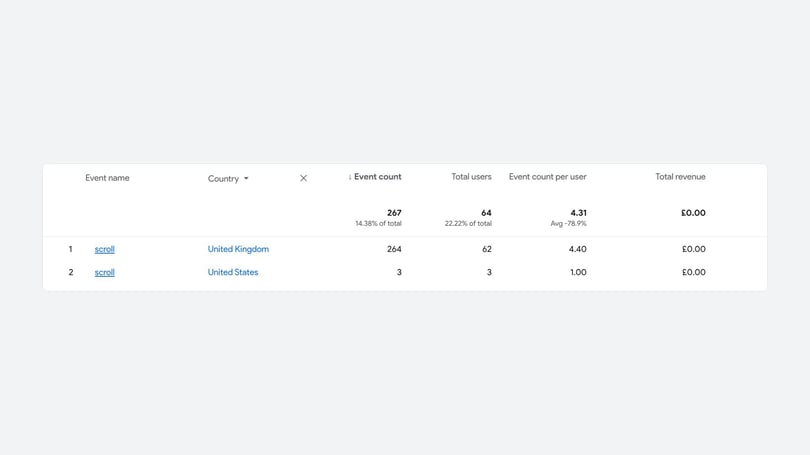
For example, with the scroll event, the GA4 client ID and session ID are sent in the event request from the browser when someone scrolls. In the reports, GA4 uses these IDs to look up the relevant data, such as the country for that session, as seen below.
The same client ID lookup happens when reporting on Infinity events, which is why GA4 not set call events appear when the lookup fails. When an event is sent from Infinity to GA4 it needs to have a client ID for it to be processed by GA4. This is because GA4 wants to tie the event to its user data. Without a client ID, GA4 would ignore the event, so we must send one.
For online calls we try to collect the client ID from the web session, and you can see this on the call log, as seen below.
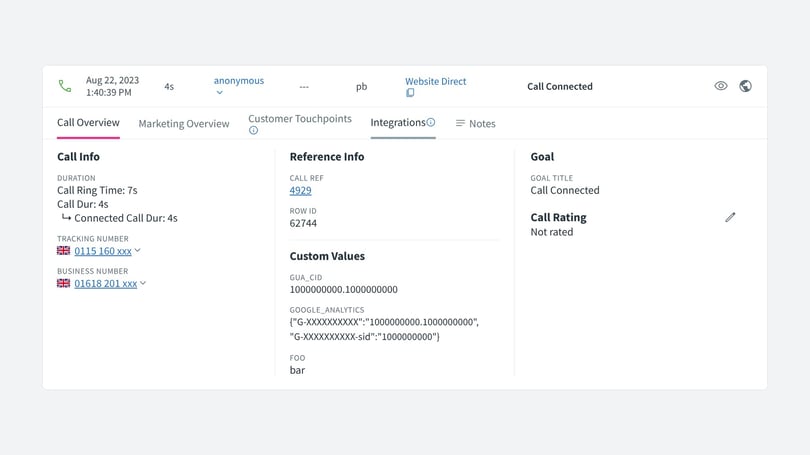
However, we've seen instances where the client ID hasn't been collected due to the visitor not giving consent within their cookie policy for the GA4 code to run. This may be because they have explicitly declined cookies, or because the cookie consent pop-up is small and shown at the bottom of the page, so some visitors continue browsing and ignore it. When the Infinity GA4 integration runs, we don't have the client ID for these calls, so we use our own Infinity ID instead. This allows GA4 to process and report on the event, but it can't link the event to a GA4 user. We're populating the client ID in the event with a value, as GA4 requires this to process the event, but it will never be able to tie this event back to its user data.
Significantly, when an event is sent, GA4 doesn't allow us to override its data. We can't populate its country dimension, or its first user campaign dimension. It does not allow it. This is different to Universal Analytics, where we could specify the campaign data. Because we can't overwrite GA4's data, and because it can't associate the event with a user, it just says '(not set)'.
The exact same behaviour also applies to fixed numbers. For the event to show in GA4, we generate a client ID that GA4 doesn't recognise, so it reports '(not set)'. And for most of their dimensions, we are not able to set the values like we could in Universal Analytics.
To help overcome this, some customers set up two Infinity GA4 integrations, one for online calls and one for fixed numbers, using different event names. To do this, you would set up a filter on the event trigger and set the field 'Source Detection Mode' to either fixed or not fixed.
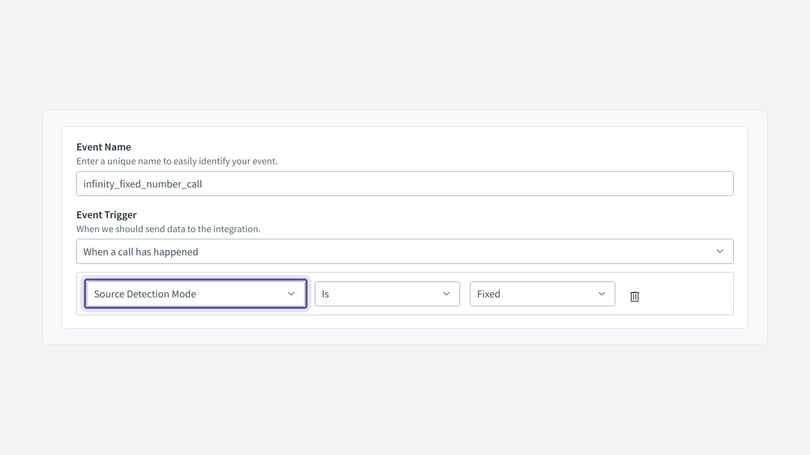
Even when a valid GA4 client ID and session ID is sent, some data points will still be '(not set)'. In a previous screenshot you can see the scroll event from the browser being associated with a country. In the screenshot below, events sent from Infinity always show the country as '(not set)'. This is a difference in how GA4 works when events are sent from the browser compared with using its measurement protocol API.
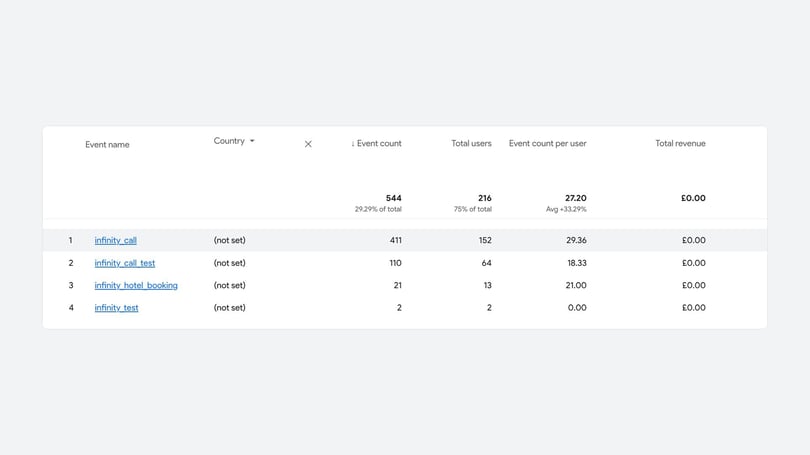
There are some data points GA4 does allow us to specify on the event. You can configure the integration to send the parameters page_location and page_title, and it will populate the relevant dimensions. We don't send these parameters by default.
In rare cases, you may see the user-level data populated, such as 'first user campaign', but session data, such as 'session campaign', showing '(not set)'. This could happen on very lengthy phone calls where the caller closed the window and the session expired. A more common explanation is if a caller calls the same tracking number they called previously from the same device, for example when they go into their call history and tap redial. In this scenario the call gets the same attribution in Infinity as the first call, which means the GA4 integration fires with the same user ID and session ID from the first call. But the session would have expired, and GA4 can only attribute events to session data if that session is still active.
Outcome data in GA4
Expired session IDs
Expired sessions are one reason for GA4 not set call events in outcome data. You may be sending events to GA4 based on outcome data you have uploaded into Infinity using our events API or Smart Match. This often happens some time after the phone call. When sending the event to GA4, we use the user ID and session ID from the phone call. As the session would have expired in GA4, dimensions such as 'session campaign' would show '(not set)'. User-scoped dimensions such as 'first user campaign' will be populated.
Void data
Void data is another cause of GA4 not set call events. Another reason for seeing '(not set)' could be that Infinity is sending outcome data to GA4 that never got matched to an Infinity call or visitor, and therefore doesn't have a valid GA4 client ID.
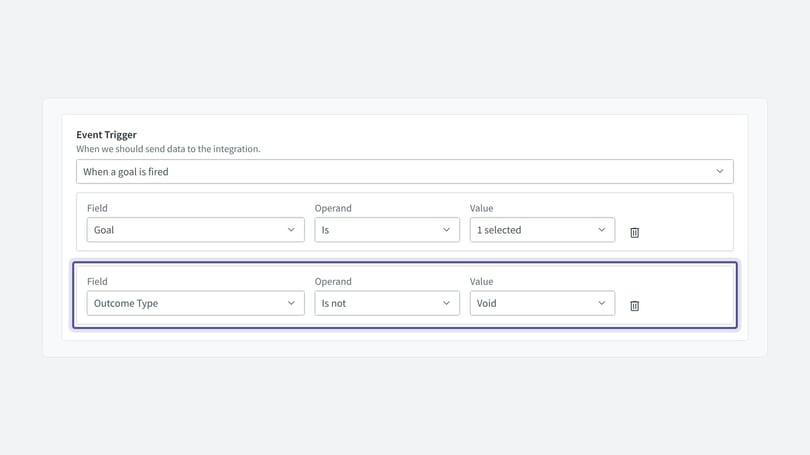
If you send outcome data using our events API or Smart Match, some outcomes may not get matched to an Infinity call or visitor. For example, you may be sending all of your sales data, but only half of it came from phone calls. When this happens, we still create goals for all the sales, but mark them as void. By default, the integration sends these void goals to GA4. As they won't have a valid GA4 client ID, the GA4 dimensions will show as '(not set)'.
To prevent this, when sending sales or other outcome data to GA4, make sure you set Outcome Type is not Void.
Missing data
GA4 is designed to process real-time events, but it does allow us to say an event happened up to 72 hours in the past. If a timestamp over 72 hours is used, GA4 ignores the event we send. Late uploads can also leave gaps that look like GA4 not set call events. This has implications for how often outcome data should be uploaded into Infinity and the date you specify for the outcomes.
For example, a call may have happened on a Monday that resulted in a lead. Then on Tuesday an outbound call resulted in a sale, and on Friday night the data is sent to Infinity with Tuesday given as the date of the sale. The timestamp in the event sent to GA4 would be Tuesday, so the event would not be processed because it is over 72 hours old.
How to work around the limitations of GA4
Custom dimensions
Rather than using the standard GA4 dimensions in reports, you can bring 'custom dimensions' into your reports. When setting up the integration in Infinity, you can choose the data you want to send and the event parameter name it will be mapped to.
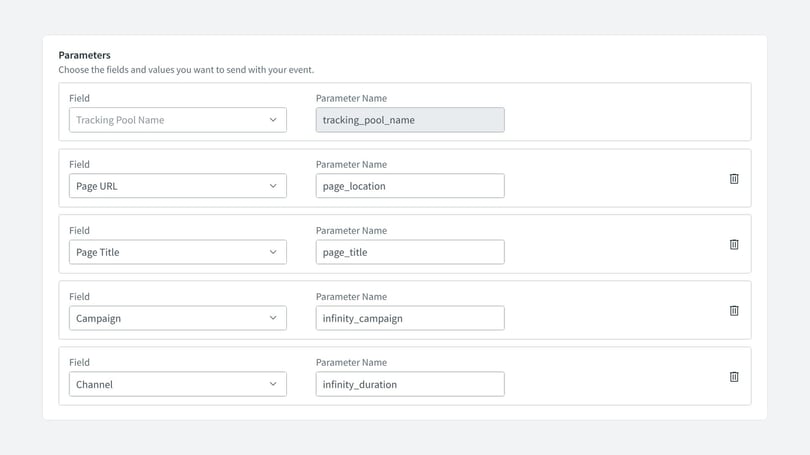
Once the data is being sent to GA4, you need to create a custom dimension based on this parameter so that it appears in the reports. This is covered in Google's Custom dimensions and metrics article, linked in the Need more help? section below.
It will then appear in the list of custom dimensions available to your reports.
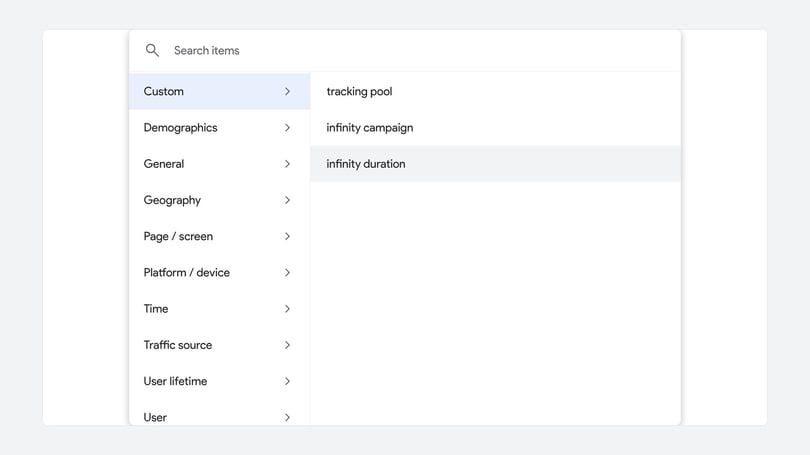
To set up custom dimensions, you'll first create them within Infinity (you must have Admin permissions before doing so) by going to Settings > Integrations > Google Analytics. From here, you can create a new integration, or if you already have the integration set up, select it and scroll to Build Your Events:
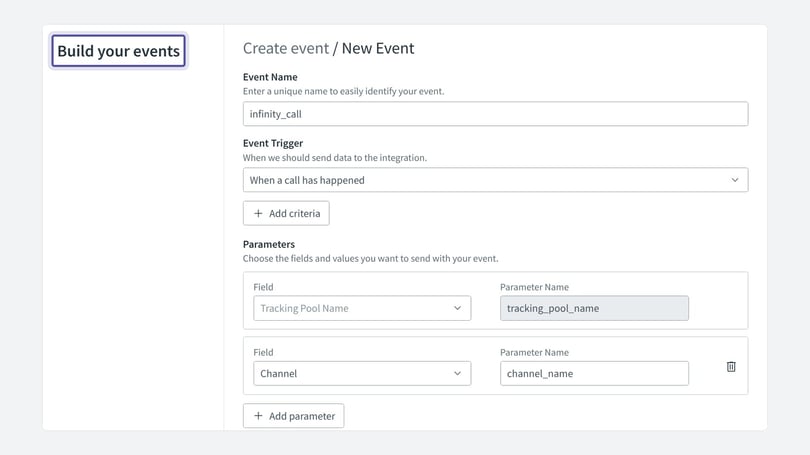
Once this has been saved, you will then create it as a custom dimension within Google Analytics. Note that once the parameter is created in Infinity, it may take a couple of hours for the parameter to appear in Google Analytics.
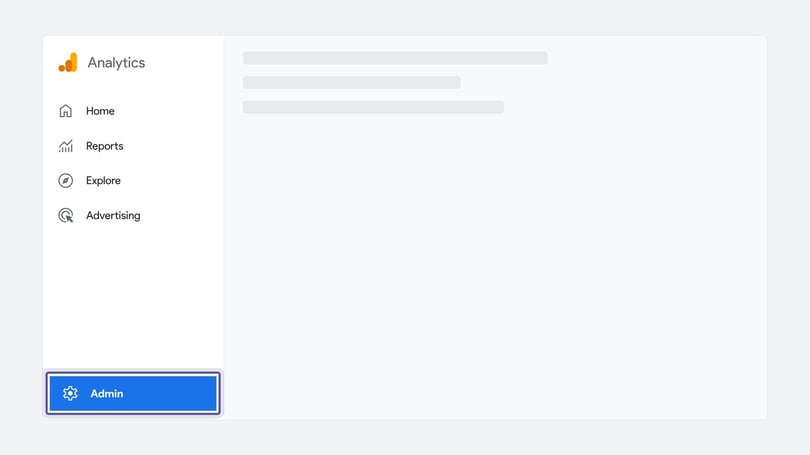
- Navigate to Google Analytics.
- Select 'Admin'.
- Select Custom Definitions.
- Create Custom Dimension.
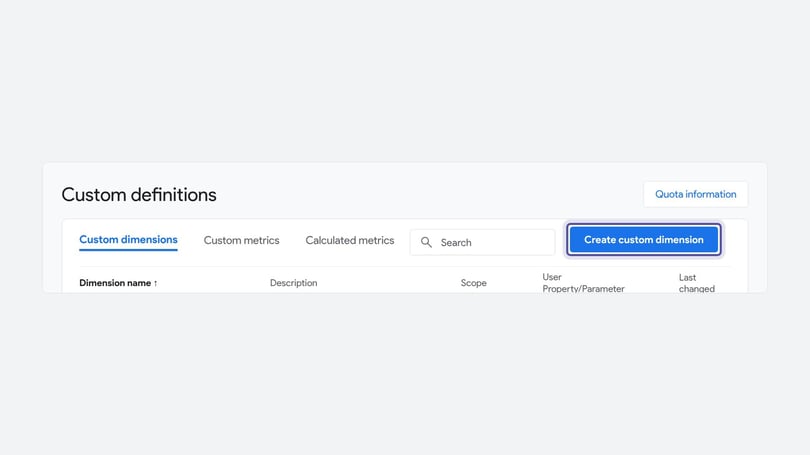
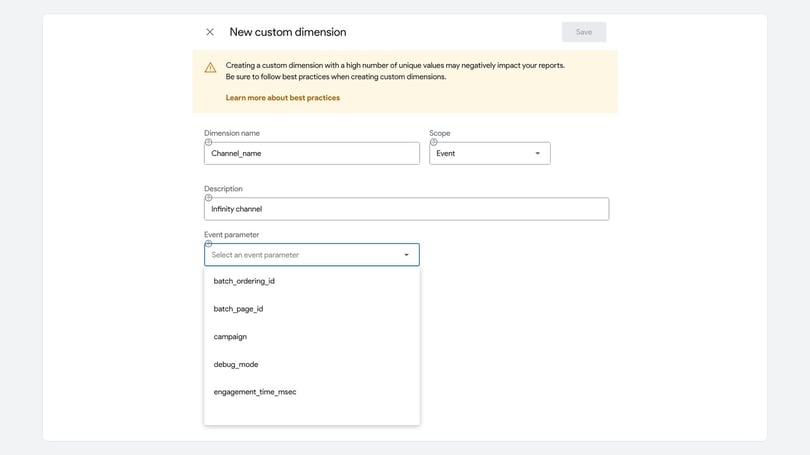
Once this is created, you will start to see '(not set)' traffic bucketed under the relevant channels within reporting in GA4.
Other integration platforms
Due to the 72-hour event timestamp limitation, GA4 may not be the best place for outcome data. It may be better to send conversion data directly to platforms like Google Ads, which can do attribution based on the gclid, which has a lookback window of up to 90 days.
Need more help?
You may find these guides useful for GA4 not set call events: Google Analytics 4 (GA4) integration explains how to configure your GA4 integration and the parameters Infinity sends.
If you're still stuck, get in touch with your Customer Success Manager or email support@infinity.co.