In short
- The Infinity Search Ads 360 integration sends calls tracked from paid search into Search Ads 360 as custom actions or transactions, with the gclid, through the Search Ads 360 API.
- Set-up needs the Infinity URL templates added in Search Ads 360, the conversion API turned on, Floodlight activities created, then Search Ads 360 added under Settings > Integrations > Homepage in the Infinity Platform.
- Infinity recommends one Floodlight activity and one Search Ads 360 integration per Infinity goal, at no extra charge, using Transaction only when values are captured through a CRM integration or Post Call Rating.
- Only email addresses with full admin access on Search Ads 360 can set up and authorise the Infinity Search Ads 360 integration.
- Search Ads 360 only accepts calls with a gclid, so fixed number calls are not sent and redirecting landing pages can strip the gclid.
- Check the Infinity Search Ads 360 integration 48 hours after set-up with an Agency Level conversions report, as these conversions do not appear in Google Campaign Manager reports.
Search Ads 360 call tracking with Infinity sends the calls we track from paid search into Search Ads 360 as custom actions or transactions, through the Search Ads 360 API. Your search reporting then includes paid search call data, which helps you fine-tune automated bidding. This guide covers the tracking templates, the conversion API, Floodlight activities, set-up in the Infinity Platform, how to check that conversions are coming through, and how to troubleshoot gaps in the data.
How Search Ads 360 call tracking works
Search Ads 360 provides a unified interface to manage your search campaigns across multiple search engines. An Infinity integration will help to streamline your search campaign management and ensure fine tuning of automated bidding.
Infinity can send call data related to paid search into Search Ads 360 by firing custom actions via the Search Ads 360 API. This enriches your reporting with paid search call data.
For every call that is tracked in Infinity, we check whether it was attributed to a Search Ads 360 tagged landing page. If it was, we send the call as a custom action or transaction, along with the gclid (Google Click ID) of the landing page.
Before you start
Access: Only email addresses with full admin access on the Search Ads 360 platform can set up and authorise this integration.
The following steps should be completed in order to configure your integration:
- Ensure you've enabled the Search Ads 360 tracking template.
- Apply the Search Ads 360 tracking templates.
- Turn on the conversion API from Search Ads 360.
- Create Floodlight activities. Search Ads 360 and its associated Google Campaign Manager advertiser share the same Floodlight settings.
- Add Search Ads 360 in the Infinity Platform.
- Test and verify that conversions are coming through.
Step 1: add the Infinity tracking templates in Search Ads 360
If you are using Google Campaign Manager, adding tags or tracking templates to your Google Campaign Manager account is an essential part of your integration. Each Search Ads 360 advertiser and its associated Campaign Manager advertiser share the same set of Floodlight settings, activities, and the tags used to report conversions. This makes it possible to track conversions from both display and search advertising using a single set of tags. See our Google Campaign Manager integration guide for that set-up.
If you only use the Search Ads 360 integration, follow the instructions below.
Please ensure you upgrade your Search Ads 360 account to use Upgraded URLs. Upgrading in Search Ads 360 will enable you to use the new Search Ads 360 tracking templates without needing to use Infinity's 'check tagging' mechanism for Google Ads and Microsoft Ads (Bing).
If you know that you do not have any URL templates in Search Ads 360, you can add one URL template for each engine account, as shown below.
Google Ads accounts
For Google Ads accounts, use the following URL template in Search Ads 360:
infinity{ifcontent:display}=ict2~net~gaw~cmp~{_campaign}~ag~{_adgroup}~ar~{creative}~kw~{ifsearch:{keyword}}{ifcontent:{placement}}~mt~{matchtype}{ifcontent:c}Microsoft Ads accounts
For Microsoft Ads, use this URL template in Search Ads 360:
infinity{IfNative:display}=ict2~net~mac~ar~{AdId}~kr~{OrderItemId}~kw~{Keyword}~mt~{MatchType}~cmp~{Campaign}~ag~{AdGroup}If you also have dynamic landing pages (that is, your landing pages contain a '?'), change the '?' in the URL template to '&'. Please contact our Support team if you have any further questions.
Step 2: turn on the conversion API and create Floodlight activities
All calls will appear in Search Ads 360 reports as Floodlight activities and need to be set up in advance. Search Ads 360 can help to set these up, and our recommendations for best practice are below.
Turn on the conversion API for an advertiser
You'll need to turn on the conversion API from your Search Ads 360 installation. Follow Google's steps to activate the conversion API in Search Ads 360.
Create Floodlight activity groups
You should set up an activity group called 'Infinity'. Google's Search Ads 360 guide to Floodlight activity groups explains how.
You may also be advised to set up an activity group called 'Sale'. From client feedback, we have found this is only useful if you are capturing values with Infinity calls via a CRM integration or Post Call Rating.
Create Search Ads 360 Floodlight call activities
Search Ads 360 may suggest that you set up three Floodlight activities, which are:
However, through client feedback we discovered that this is only useful if you send all calls from Infinity (the integration parameter under 'What do you want to send'), and are capturing transaction values against the call data. If you are not doing these things, no data will collect under Call Lead or Call Sale.
Instead, we recommend that you create one Floodlight activity per Infinity goal, and only use Transaction as the type in the instance that you are capturing actual values against the call goal. You can view your current list of Infinity goals under Settings > Goals Config.
For example:
Google's Search Ads 360 guide to creating a Floodlight conversion action has the full steps.
Step 3: configure Search Ads 360 in the Infinity Platform
Next, you need to make sure the Search Ads 360 integration has been configured within the integrations section of the Infinity Platform.
- Go to the Settings section of the Infinity Platform.
- Select Integrations > Homepage.
- Click Add Integration.
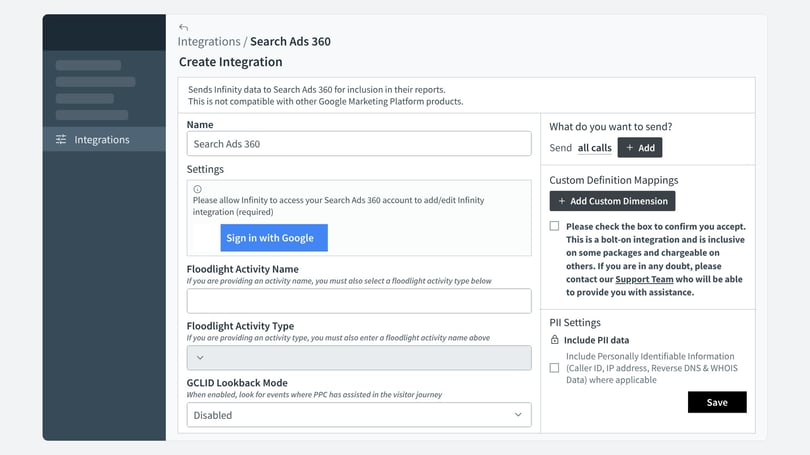
- Select Search Ads 360. A window appears. Fill in the details as described below.
Floodlight activity and what to send
- Floodlight Activity Name: enter the name exactly as it is set up in Search Ads 360.
- Floodlight Activity Type: select Action or Transaction. Only choose Transaction if you are capturing values with Infinity calls via a CRM integration or Post Call Rating.
- GCLID Lookback Mode: enable this to send calls or goals that have previous paid search clicks in their user journeys. When it is disabled, only last-click PPC is sent to Search Ads 360.
- What do you want to send: click Add and choose your criteria from the drop-down options. If you want to send a particular goal through to a specific Floodlight activity, you can make that selection here.
Custom variable mappings
You can configure your custom variable mapping. Infinity can send other custom dimensions and metrics into Search Ads 360, such as tracking pool name, visitor ID or any other field that Infinity captures with our tracking.
- Navigate to the Custom Variable Mappings section.
- Select Add Custom Dimension and select an option from the drop-down list, for example Visitor ID or Custom Field.
- Use the next drop-down to determine whether the value you're passing into Search Ads 360 is a Metric or a Dimension.
- Enter the name of the Custom Floodlight Variable exactly as it appears in Campaign Manager.
- Repeat to add as many dimensions as you need, up to a maximum of 100 per Floodlight configuration.
Save the integration
Click Save for the new integration. This returns you to the list of previously created integrations in the Infinity Platform, where your new Search Ads 360 integration will be automatically enabled.
We recommend creating one integration per Infinity goal which you wish to send through to Search Ads 360. There is no additional charge for this.
Step 4: test and verify your Search Ads 360 call tracking
Forty-eight hours after implementation, verify that conversions are coming through by pulling an Agency Level conversions report. Alternatively, if it is just one advertiser account, you can create Floodlight columns and pull an advertiser-level report that includes those Offline Conversion columns. Use this report to compare call data in Search Ads 360 with the Infinity data under the Paid Search channel.
Note: These conversions will not appear in Google Campaign Manager reports. They are only visible in Search Ads 360.
Once you are happy with the data coming through, please advise our Support team that everything is importing into Search Ads 360 as it should.
Troubleshooting Search Ads 360 call tracking
Here are some of the most common causes of Infinity call data not reaching your Search Ads 360 account, or of a disparity between Infinity and Search Ads 360 reports, so that you can get a quick resolution.
Have you added the tracking templates to your account?
If the Infinity tracking templates are correctly applied, all campaigns and keywords in your Search Ads 360 account should inherit them, so you get granular data. Without the tracking templates being added to the Search Ads 360 account, Infinity is unable to match the call data to it. See Step 1 of this guide.
Is the gclid present in the landing URLs?
Search Ads 360 only accepts data if there is a gclid. This means that fixed number calls will not be accepted. If your website has redirecting landing pages, these may strip the gclid from the session, thus preventing the call data from reaching Search Ads 360, even though the Infinity tracking templates will register a PPC call in the Infinity reports. If the final URLs in your Google Ads account include redirects, these may also strip the gclids from the session.
Are you using Infinity fixed numbers for PPC ad extensions or call extensions?
Search Ads 360 will not accept any fixed number calls, because there won't be an associated gclid. This means you may have more calls in Infinity than in Search Ads 360 if you are using Infinity fixed numbers for PPC ad extensions.
Does the date range match?
Please consider the date range you are using. Does it match between Infinity and Search Ads 360? If not, this may be the cause of differing call volumes.
Have you turned on the conversion API for an advertiser in Search Ads 360?
You need to turn on the conversion API from your Search Ads 360 installation in order for the integration to work correctly. See Step 2 of this guide.
What does the forbidden response error message mean?
This error message indicates a problem with your Google Account permissions. Review that your Google Account permissions are correct, and consider re-authenticating your Google Account to resolve the problem.
A rise in Search Ads 360 calls now that calls come from Google Campaign Manager
Now that calls are coming from Google Campaign Manager into Search Ads 360, you may see a rise in calls. This is due to the extra data that Search Ads 360 now gets for these calls from the Google Campaign Manager cookie, which it previously did not get. The two main contributions to the rise in calls are different attribution models and the added historical data.
Different attribution models can affect how the data is displayed within your Search Ads 360 account. If the data is shown with 'Last Click' attribution, the call will be assigned to the last time the visitor came to your site, even if they had visited through PPC previously.
If the attribution is set to 'Last Paid Click', Search Ads 360 will attribute the call to PPC, because the visitor had previously come through Paid Search. Search Ads 360 now has the added historical data from the Campaign Manager cookie, so it can see that the call came through PPC previously and attribute it to Paid Search. Previously, without this data, calls were seen as last click only.
A rise of 15 to 20% in Search Ads 360 is expected now that calls are coming from Google Campaign Manager, as the extra historical data gives it a much better view of where the call came from.
Why are there discrepancies between call volumes in Infinity and Search Ads 360?
Google has advised that if you are using any impacted conversions for bidding purposes, and if those conversions were under-reporting, please use best practice and adjust targets in your bid strategies to control bidding performance. If impacted conversions are missing from reporting, Google recommends adding data exclusion events for the impacted period to help mitigate any potential performance concerns.
If your integration problems persist, please contact our Support team. We're happy to help.
Need more help?
If your Search Ads 360 call tracking data isn't coming through, work through the troubleshooting section above. If you also use Campaign Manager, read our Google Campaign Manager integration guide. If you're still stuck, get in touch with your Customer Success Manager or email support@infinity.co.