Google Ads call asset tracking puts an Infinity fixed number in your Google Ads call assets, so calls from your ads are tracked in the Infinity Platform and sent back into Google Ads as conversions. You can then report on conversions from fixed numbers alongside conversions from dynamic tracking numbers, down to campaign and ad group level. This guide covers how call assets work, the five set-up steps, how to verify your numbers with Google and how to send call values.
What are Google Ads call assets?
Call assets (previously called call extensions) are an important part of campaign success. Google Ads gives people more ways to contact a business directly, through a range of phone number insertions that advertisers can include in their ads. This handy guide to Google Ads assets details the different examples.
An Infinity fixed number displays when the ad appears on a device that can make calls. Infinity can send conversion events for those calls into Google Ads. As well as conversions from dynamic tracking numbers, you can report on conversions from fixed numbers and get a more complete picture of the outcomes your paid search activity delivers. This includes Ad Group and Campaign level data.
You can also report on key details such as call duration, call start and end time, caller area code and whether the call was connected. You can use this data in automated bidding strategies to increase the likelihood of conversions.
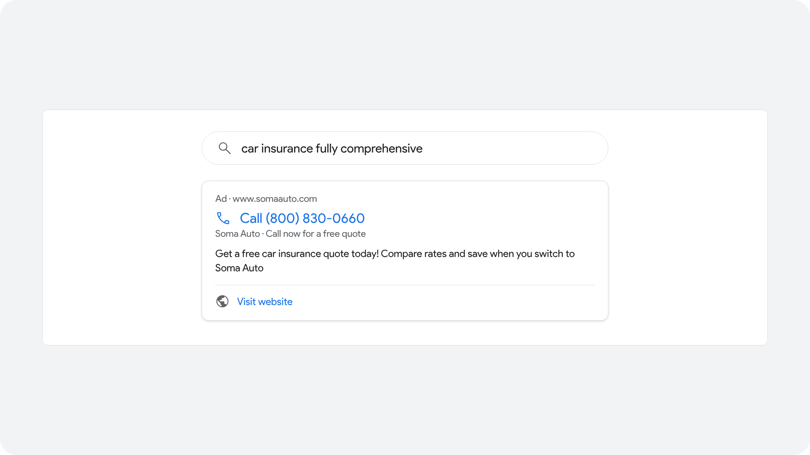
How Google Ads call asset tracking works
Google Ads call asset tracking works in three parts: the fixed number, the call asset that shows it, and the integration that passes the call back to Google Ads. When you use a call asset, Google assigns a phone number to your ad, or uses your Infinity number if you've set one up. The phone number shows with your ad on tablets, laptops and desktop computers. On high-end mobile devices, a clickable Call button shows with your ad, so callers can reach your business straight from Google without clicking through to your website. The same cost per click applies to the Call button.
Before you start
To set up Google Ads call asset tracking, you'll need:
- Access to Settings > Fixed Numbers in the Infinity Platform, to order or edit the fixed numbers you'll use.
- Access to Settings > Account Settings in your Google Ads account, to turn on call reporting.
- A Google Ads integration in the Infinity Platform, or the option to create a new one for call asset calls.
- A way to verify your fixed numbers with Google. All fixed numbers used in call assets need to be verified in Google (see Troubleshoot below).
Set up Google Ads call asset tracking: an overview
Here's a summary of the process. Detailed guidance for each step follows.
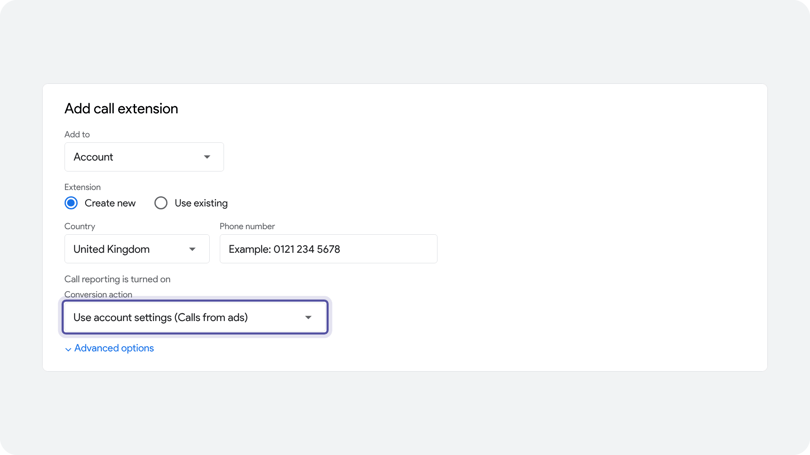
- Create one or more fixed numbers with a channel of Paid Search and a network of Google Ads, for use in your call assets.
- Insert the fixed number into the phone number field in your call asset, and choose the conversion action where you want to track the calls.
- Turn on call reporting for your Google Ads account (Settings > Account Settings > Call reporting). Then find the option to Send Google Ads call data to a call analytics provider, select On and choose Infinity from the dropdown.
- Enable the integration in Infinity by emailing support@infinity.co and asking us to enable the Enrich Call Ads Data From Google feature.
- Configure the integration in Infinity. You can include the call asset calls in your existing integration and conversion action, or create a new integration and conversion action to track them. The conversion action in Infinity must match the one selected in the call asset set-up for those numbers.
- Report on the conversion actions. You can view all of them in Google Ads, and use these insights to optimise your marketing activities and bidding strategies.
Step 1: assign fixed numbers in the Infinity Platform
The first step is to assign one or more fixed numbers for use with your paid search activity. Log in to the Infinity Platform, select Settings from the bottom of the left-hand navigation and then choose Fixed Numbers. From here, you can either order a new number or edit an existing number in Number Management.
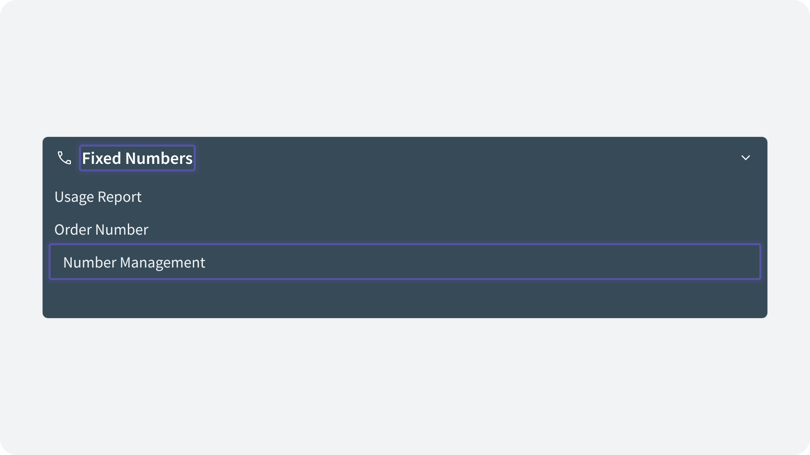
Assign the channel as Paid Search, set the Network to Google Ads, and update the campaign and ad group details as needed.
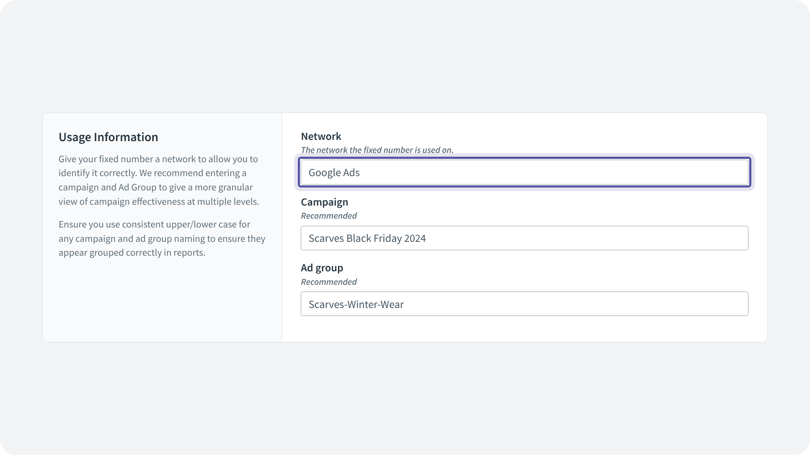
We strongly recommend that you always use the exact campaign naming convention when you set up the fixed number, so that it filters into the correct campaign in the Infinity Platform.
Step 2: add the fixed number to your call assets
Insert the fixed number into the phone number field in your call asset, and choose the conversion action where you want to track the calls.
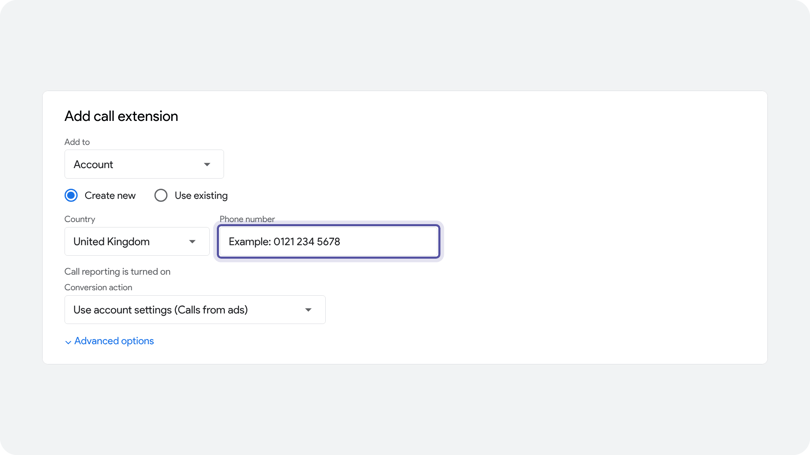
Step 3: turn on call reporting in Google Ads
The next step is to enable the additional insight from Google that Google Ads call asset tracking depends on, which is passed to Infinity. In Google Ads, go to Settings > Account Settings, and select the option called Call recordings. This option is likely to be on already if you use Google forwarding numbers in your call assets. If it isn't, turn it on. This activates the Google forwarding numbers that route calls through to Infinity for tracking, before they are routed on to your destination number.
Below that section is an option to Send Google Ads call data to a call analytics provider. Select On and choose Infinity from the dropdown.
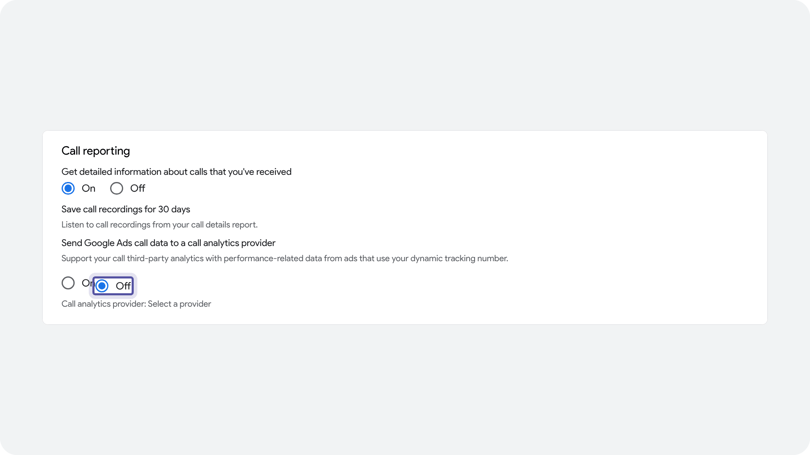
Step 4: ask us to enable the integration in Infinity
To enable the integration in Infinity, email support@infinity.co and ask us to enable the Enrich Call Ads Data From Google feature.
Step 5: configure the Google Ads integration in the Infinity Platform
An existing Google Ads integration sends conversion events into Google based on the criteria you've defined. These are pushed into a matching conversion action in Google Ads. When you add call assets to that dataset, you have two options:
- Include call asset conversions in the existing conversion action.
- Create a new conversion action specifically to capture calls.
Option 1: use your existing conversion action
This is quick and easy, and you won't need to make any changes in Infinity. The click ID in these calls is enough for Infinity to pass call data through to Google Ads using your existing integration. The calls appear in Google Ads in the conversion action you specified.
Option 2: create a new conversion action for calls
To track the calls to these fixed numbers separately, create a new conversion action in Google Ads, and create a new Google Ads integration to send the conversion events from the call assets through to Google Ads. You'll need to amend the existing integration's criteria too, so that it excludes these calls. See the Google Ads integration guide for the full set-up.
When you configure What do you want to send? in the Infinity configuration screen, select the source detection mode as part of the criteria. This sets it to fixed, so the calls from the fixed numbers in your call assets are passed into Google. We recommend starting with all calls and refining the criteria once the data is appearing in Google Ads.
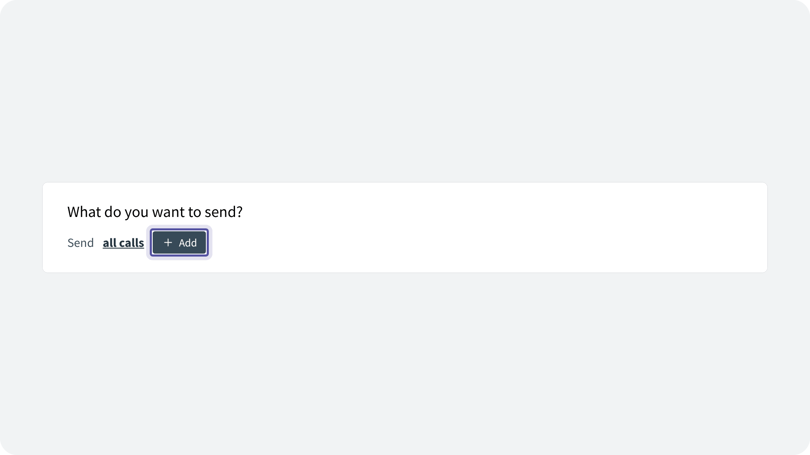
Click the +Add button to the right of all calls, select source detection mode from the dropdown, and choose is fixed. Click the green tick to accept the criteria, then save at the bottom of the form to complete the set-up.
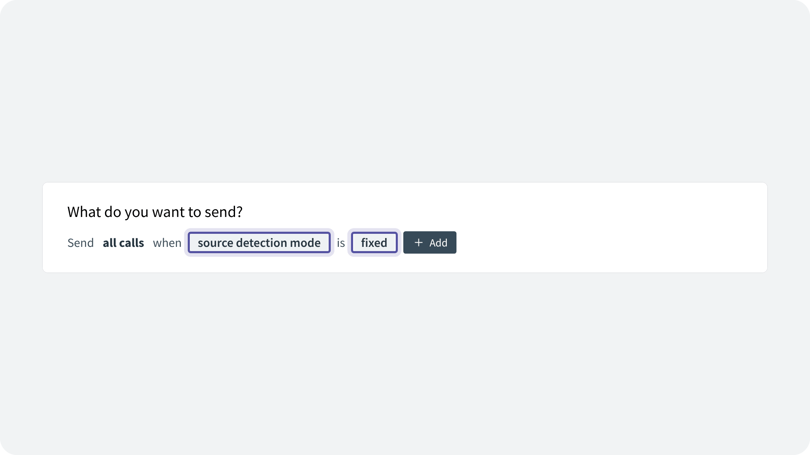
Next, amend the criteria for your existing integration so that it excludes the calls to fixed numbers. Otherwise you'll send them into Google Ads twice. Locate your existing integration and update its criteria to exclude fixed number calls using the source detection mode criterion. For example, if you were previously sending All Calls, update it to All Calls when source detection mode is not fixed.
Once this is complete, you can view all the conversion actions in Google Ads, and use these insights to optimise your marketing activities and bidding strategies.
Troubleshoot Google Ads call asset tracking: verify your numbers
Before you verify anything, know that Google checks call asset numbers. If the phone number you insert into your Google Ads account is a tracking number, or any other number you don't list on your website, you may see a message like this in your Google Ads account:
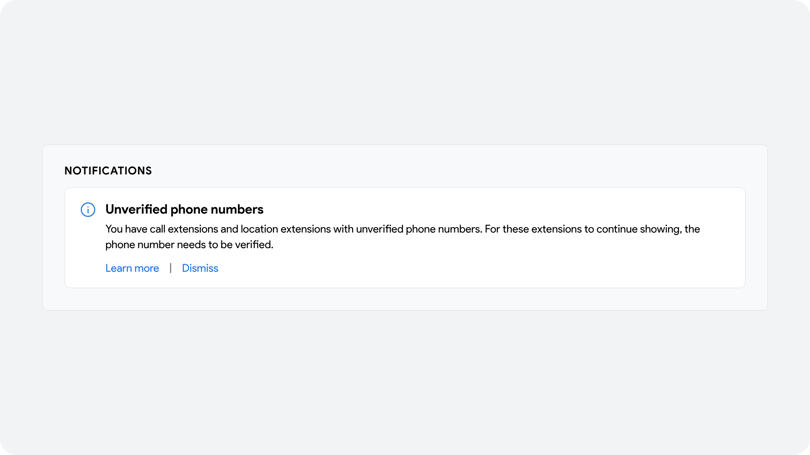
This happens because Google's systems have found that the domain's ownership hasn't been verified, or that the phone number appears on the ad but not on the website. Google provides two ways to verify your call asset phone numbers:
- Make sure the phone number used in the call asset appears in text on the website featured in your ad.
- Prove that you own your domain by linking Google Search Console to your Google Ads account. If you'd rather verify ownership without Search Console, you can add your unique Google Ads conversion tracking code snippet to the landing page featured in your ad.
After you link your Google Ads and Search Console accounts, the phone numbers can take several hours or days to show as verified. When you use Infinity, we recommend verifying a Search Console account to prove ownership of your ad's display URL. You can follow Google's help page to link Search Console and Google Ads.
Link Search Console to Google Ads
- In Google Ads, select Tools at the top of the page.
- Select Linked accounts from the Setup options.
- Click Details on the Search Console section.
- Click Link to start the linking process, enter the website URL you'd like to link, and click Continue.
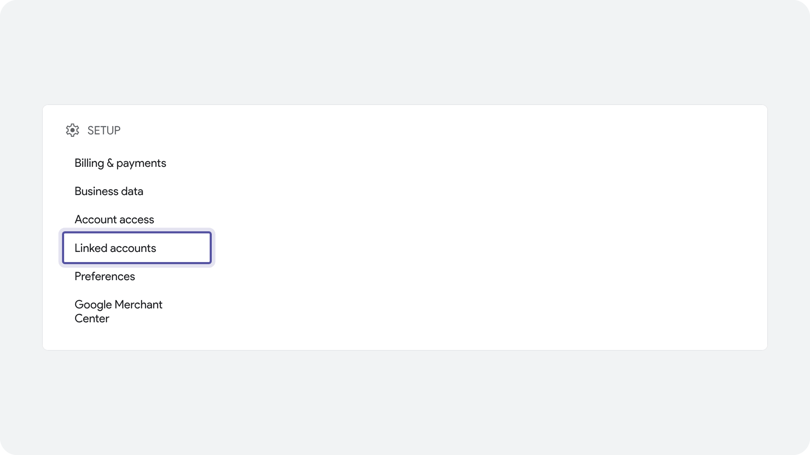
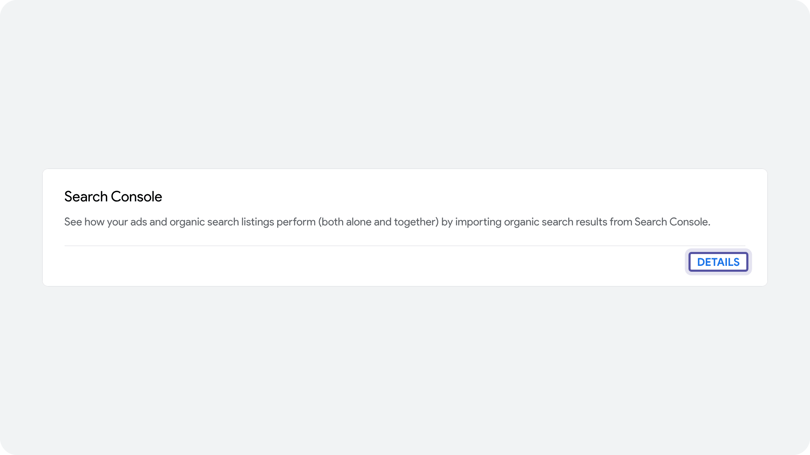
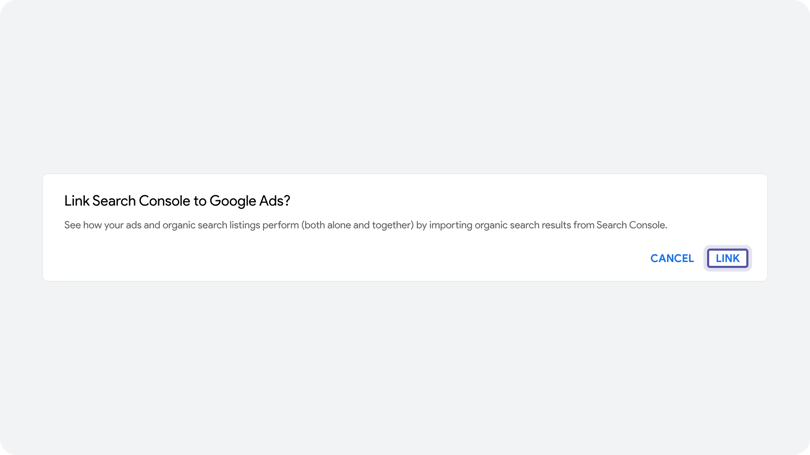
If the link is successful, you'll see Linked in the Status column. You may see other statuses if your account can't be linked to Search Console. For more help with troubleshooting, see Google's article on linking Search Console with Google Ads.
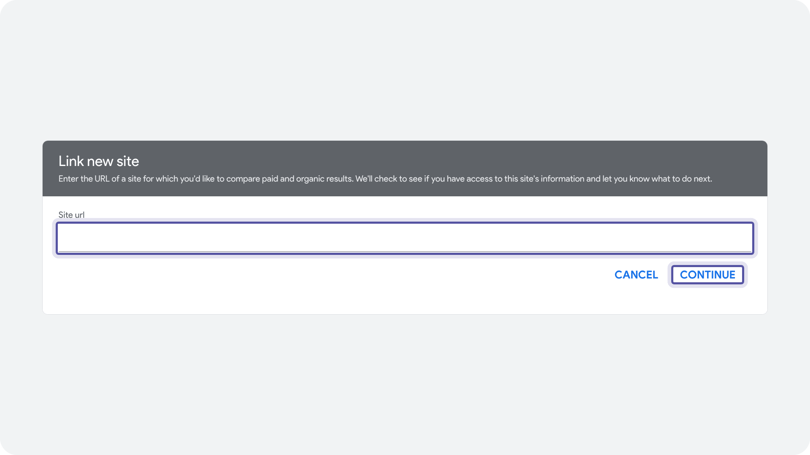
Verify a URL via Google Search Console
- Go to Google Search Console and click Start now.
- Enter the URL of the site you're verifying, then click Add property.
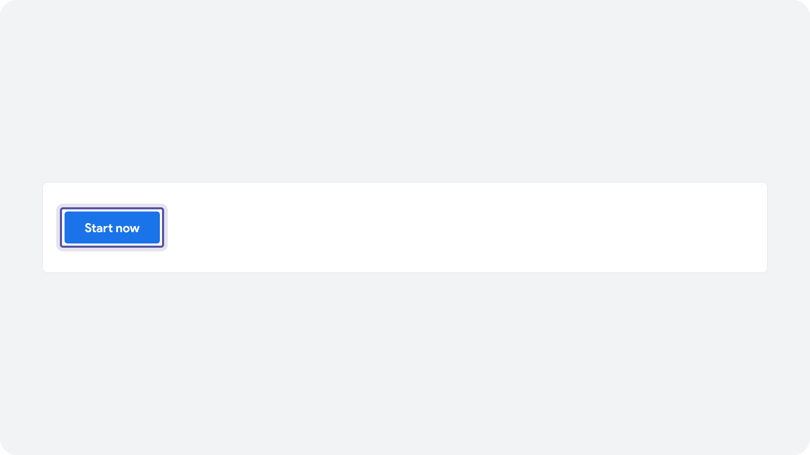
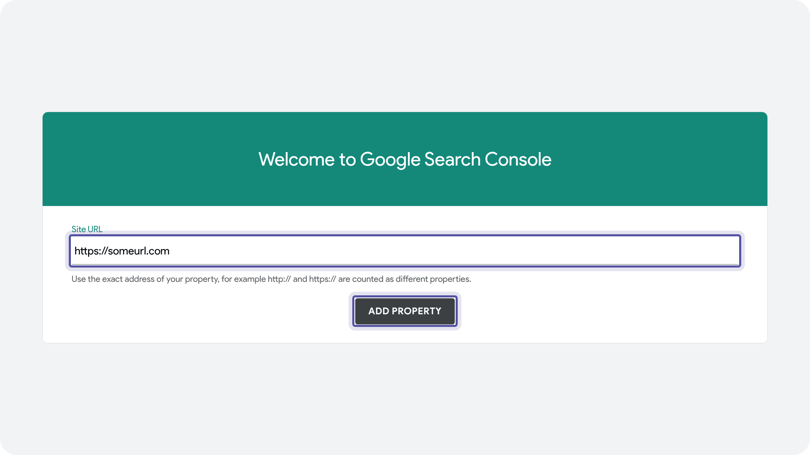
Your site may be verified automatically at this point. If not, verify ownership of your website using one of the other methods listed on the page, then click Done when complete. After verification is successful, return to link the account in Google Ads.
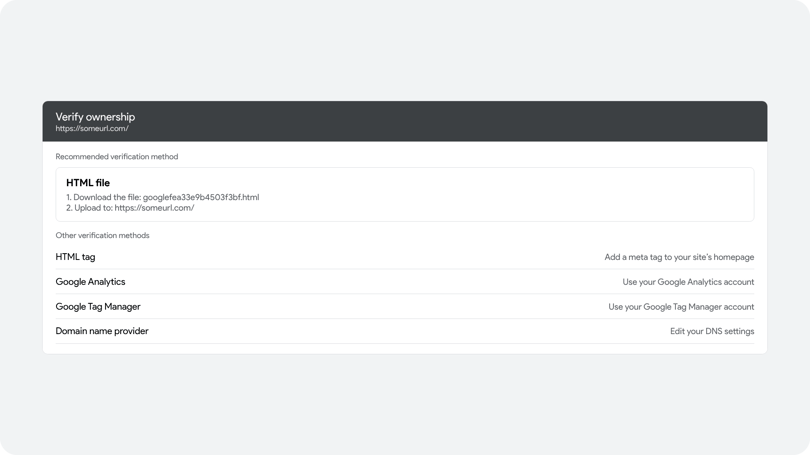
You can also see Google's article on phone number verification for call and location assets for other ways to verify your extensions.
Send call values with Google Ads call asset tracking
Send call values with Google Ads call asset tracking to see more than the call itself. The integration can send transaction data into Google Ads, so as well as seeing that a call took place, you can see its value. There are three options in the Infinity integration set-up: No value, Goal value or Transaction value. No value is sent by default, but sending a goal or transaction value adds a new dimension to your reporting.
Without transaction or goal values, the integration lets you use the Target cost per action (CPA) and Maximize conversions strategies for Smart Bidding. If you include transaction-based values, you can also use Target return on ad spend (ROAS) and Maximize conversion value. See Google's article on determining a bid strategy based on your goals.
You might report on several outcomes and use that insight to guide your bidding. Tie each outcome to a conversion action. Depending on the action, it can serve a different purpose in Google Ads. Adding a transaction or revenue value through Infinity is optional, but it is very useful for revenue and ROAS calculations.
You might have only one outcome of interest, and set up an integration for that alone, for example filtered by goal or action in the criteria. If you have more than one outcome, set up one integration for each, pushing to a different conversion action in Google. You can then choose within Google which conversion actions count towards the overall Conversions metric, and so form part of any bidding strategy.
Transaction values can be captured by a CRM integration, a post-call rating or Smart Match. Goal values need a goal to be created in the Infinity Platform.
Limits to know for Google Ads call asset tracking
These limits apply to every Google Ads call asset tracking set-up, so check them before you rely on the data.
- Call durations of less than 15 seconds for call assets won't pass a gclid into Google Ads.
- All fixed numbers for call assets need to be verified in Google.
- All fixed numbers used for Google Ads need the Network selected in the Infinity Platform.
- Repeat callers won't pass a gclid into Google Ads.
- To troubleshoot calls without a gclid, use the Passthrough Tags field when you export the logs in the Infinity Platform.
Frequently asked questions
Why does Google Ads show a message about unverified phone numbers?
Google can't match the phone number on your ad to your website, or it can't confirm you own the domain. Put the number in text on the page featured in your ad, or link and verify Google Search Console, and the numbers can then show as verified.
Will calls from call assets be sent to Google Ads twice?
Not if you follow Step 5. If you create a new conversion action for calls, update the existing integration so that it excludes fixed number calls. For example, change All Calls to All Calls when source detection mode is not fixed.
Why are some calls missing a gclid?
Calls under 15 seconds don't pass a gclid, and repeat callers don't either. To investigate, export the logs in the Infinity Platform and use the Passthrough Tags field.
Which bidding strategies can I use with call assets?
Without transaction or goal values, you can use Target CPA and Maximize conversions. With transaction values, you can also use Target ROAS and Maximize conversion value.
Need more help?
To send Google Ads conversions from your ads, see the Google Ads integration guide. To add tagging parameters to your Google Ads links, see Google Ads tagging with custom ValueTrack parameters. For fixed numbers, see order a new fixed number. If you're still stuck, get in touch with your account team or email support@infinity.co and we'll help you get set up.