Infinity's Looker Studio connector brings your Infinity call, visit, goal and metrics data into Looker Studio, so you can build Looker Studio call tracking reports and combine them with your other data sources. This guide explains what Looker Studio is, how the connectors work, and how to set up a data source.
What is Looker Studio?
Looker Studio (formerly Google Data Studio) is a data visualisation platform. Infinity's integration with Looker Studio lets you see your Infinity data in Looker Studio, so that you can easily combine it with other data sources and share it with stakeholders.
How the Infinity connectors work
Looker Studio is a data visualisation tool that brings all your reporting requirements together. Infinity's data connectors let you connect a wide variety of data points with Looker Studio, giving you complete control over the data you'd like to see.
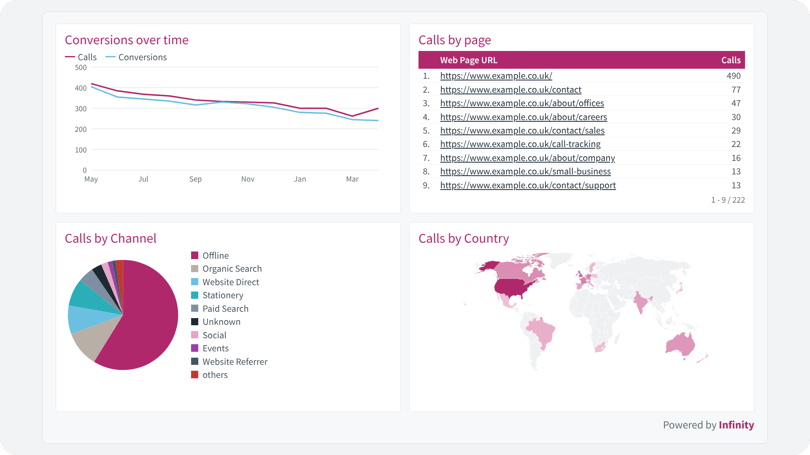
You can create your own Looker Studio call tracking charts and reports using the Infinity call data, and combine them with your other connected data sources to give a new perspective on what's happening within your marketing ecosystem.
Easily share your reports with stakeholders, whether they are internal colleagues or agency clients. For example, you can build new reports to uncover new insights.
Using the Infinity Looker Studio connector
Linking your Infinity data to Looker Studio call tracking reports is quick and easy. Add the Infinity connectors as new data sources to your Looker Studio account.
Note: You'll need API Access user permissions in Infinity to use the Infinity connectors in Looker Studio.
To open Infinity's connector, use this link.
Resources
Infinity previously had separate connectors for calls and metrics. With Looker Studio these are now combined into a single connector, but you need to select the resource you want to use. The choice is as follows:
- Calls
- Visits
- Goals
- Transactions
- Smart Match Uploads
- CA Keywords
- Source Metrics (current Metrics Connector)
- Channel Metrics
Data source setup for Looker Studio call tracking
Once you have added a data source to the connector, follow these steps:
- Choose a resource for the data source. This is required; see the list above.
- Select the target installation. This is required; it is the Infinity installation you want to retrieve data from.
- Choose whether or not to redact PII data.
- Choose whether to include void data. This does not apply to metric resources, which never include voids.
- Choose whether to fetch all data. This continues to make API requests until all data has been fetched. It can be susceptible to timeouts if you target a large date range.
- Set a lookback window (optional). This can be used if you join data with transactions or Smart Match uploads, and it extends the date range by the number of days entered. We recommend leaving this blank and instead ticking Allow 'Lookback Window' to be modified in reports. This lets you look back only where needed, rather than fetching extra data for all requests.
- Click Next. Once it has finished loading, five new options appear at the bottom. These can be used to target specific facets if you want. We recommend ticking all of these so they can be modified in reports, which lets you use them for API level filtering. You do not need to enter a value for these if you don't need any filtering by default.
- Note: if you change the resource or installation after clicking Next, the form resets because the available options become invalid. If this happens, click Next and you will see an error about missing data.
- Dismiss this and you will see a button to refresh authorisation.
- Click this button. The form refreshes without losing anything you've already selected.
- Click Connect in the top right.
- You will see a summary of all the data fields available in the data source, so you can familiarise yourself with the field names. Click the blue Create Report button in the top right to continue.
- Click Create Report in the dialogue box that pops up. You will be taken to the Infinity report template, if you selected that option.
- You will be in edit mode, so you can edit the data if you wish, or click the blue View button to switch to View mode.
- You can now click on the charts and interact with the data as you wish.
Use of the Infinity Looker Studio connector
Use of the Infinity Looker Studio connector is subject to Infinity's privacy policy. Using Infinity data is also subject to Infinity's Terms and Conditions.
Frequently asked questions
Do I need any special permissions to use the connector?
Yes. You'll need API Access user permissions in Infinity to use the Infinity connectors in Looker Studio.
Can I combine Infinity data with other data sources?
Yes. You can combine your Infinity call data with your other connected data sources in Looker Studio to give a new perspective on what's happening within your marketing ecosystem.
What happens if I change the resource after clicking Next?
The form resets, because the available options become invalid. Click Next again, and you will see an error about missing data. Then follow the steps to refresh authorisation and continue.
Need more help?
For more on the call data behind your Looker Studio call tracking reports, read our guide to the Calls Log. If you're still stuck, get in touch with your account team or email support@infinity.co.