Google Campaign Manager call tracking with Infinity sends your phone call data into Google Campaign Manager, so you can see how your display ads contribute to calls and to customer acquisition. This guide covers both halves of the set-up: creating a user role and user profile in Google Campaign Manager, then configuring the integration in the Infinity Platform. It also covers the differences between the two platforms and the February 2026 update.
How Google Campaign Manager call tracking from Infinity works
Google Campaign Manager provides advertisers and agencies with a web-based ad management system. Its features cover targeting, ad serving, verification and reporting, so teams can manage the whole scope of their digital marketing.
Our Google Campaign Manager call tracking integration shows you the real impact your display ads have, online and offline. This includes measuring how effectively your ads generate offline conversions, such as phone calls. The integration reinforces the data you already have in Google Campaign Manager with phone call activity. After phone call data is posted through the integration, you can create lists that include or exclude users who have called from different campaigns. For example, visitors who have called can be excluded from certain ads, or retargeted with cross-sell and upsell offers.
Before you start
You'll need the following for Google Campaign Manager call tracking:
- Your new Google Campaign Manager user login details, to hand. As part of the set-up, you'll log in to this Google account to give the Infinity Platform access to your chosen Google Campaign Manager profile and to pick values for other settings.
- An Infinity subscription that allows an additional integration. If you're not sure, contact your CSM or the Infinity support team, who will be able to advise.
Step 1: set up access in Google Campaign Manager
Contact your Google Campaign Manager to tell them you want to enable Google Campaign Manager call tracking with Infinity. You'll then receive an email from Google Campaign Manager asking you to confirm that Infinity can send data into your account. Without this access, we won't be able to send data to your Google Campaign Manager profile.
You'll also need to create a new user on your Google Campaign Manager account, so that Infinity can insert offline conversions via the API. To keep things tidy, Google recommends that you create both a user role and a new user specifically for this purpose.
Create a new user role
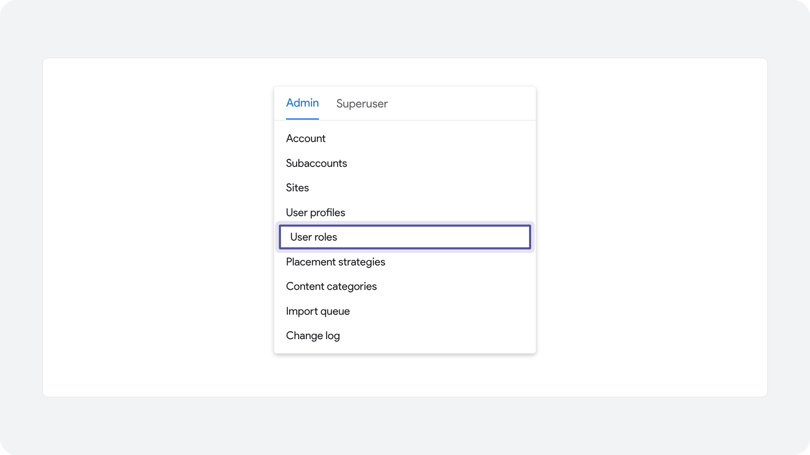
Navigate to Admin > User roles > New.
Enter the user role name Offline API Access.
Select Advertiser/Reporting Login as the source user role.
Deselect all boxes.
Select Insert offline conversions.
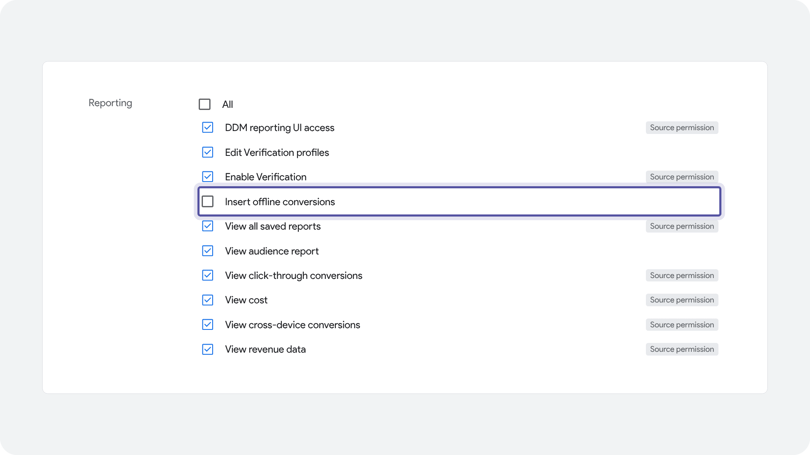
Click Save.
Create a new user profile
- Navigate to Admin > User profiles > New.
- Enter the email address you'd like to use.
- Enter the profile name Infinity Access.
- Select your new Offline API Access role.
Note: If the profile ID does not have permissions to insert offline conversions, you will need to work with your Google account administrator to update your user profile. Please check for the prerequisites in this conversion guide.
Step 2: configure the Google Campaign Manager integration in the Infinity Platform
Now that Infinity is tracking visitors and storing information about clicks and post-impression activity with your Google Campaign Manager ads, you'll need to specify which events should be pushed and populated in your reporting, such as calls, conversions and goals.
Connect your account
- Log in to the Infinity Platform and navigate to Settings.
- Select Integrations > Homepage.
- On the Create Integration page, select Google Campaign Manager from the Integration Type drop-down. The page content changes to suit your integration type. Give your integration a name you'll remember it by.
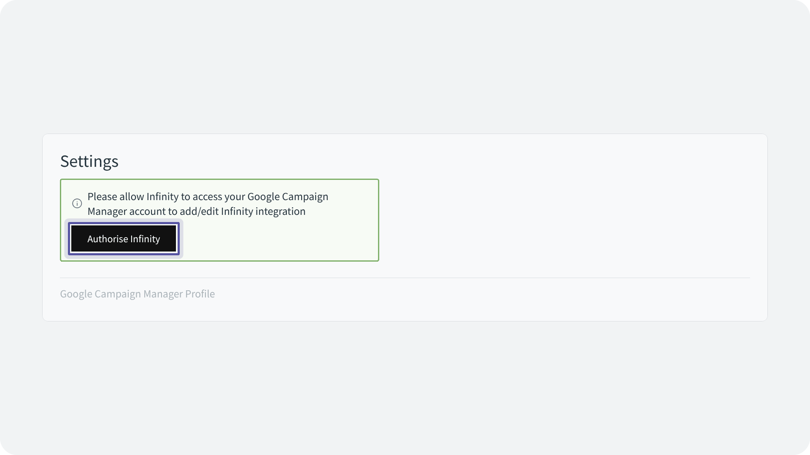
You'll now need to authorise Infinity to access Google Campaign Manager. To do this, log in to the Google account that's associated with it. Click the Authorise Infinity button.
Sign in and allow access
A new window will appear, listing any Google accounts you're currently signed in to. If you're logged out, you may need to log in.
Enter your username and password for the new user profile you set up earlier.
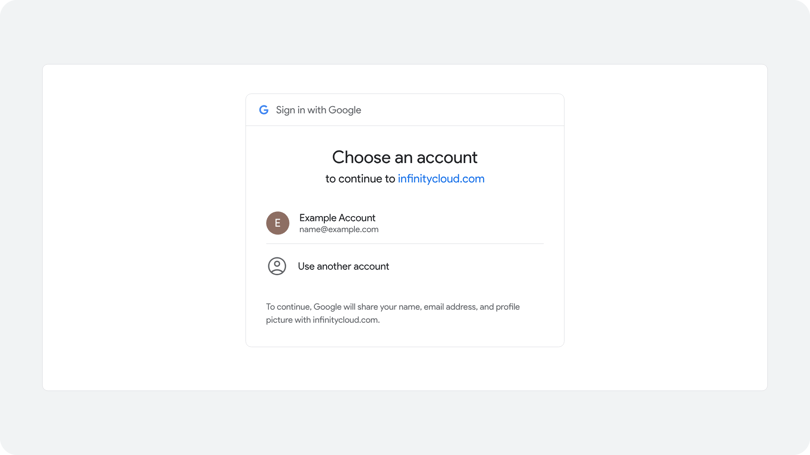
Confirm that you're happy for Infinity to have access to your associated account.
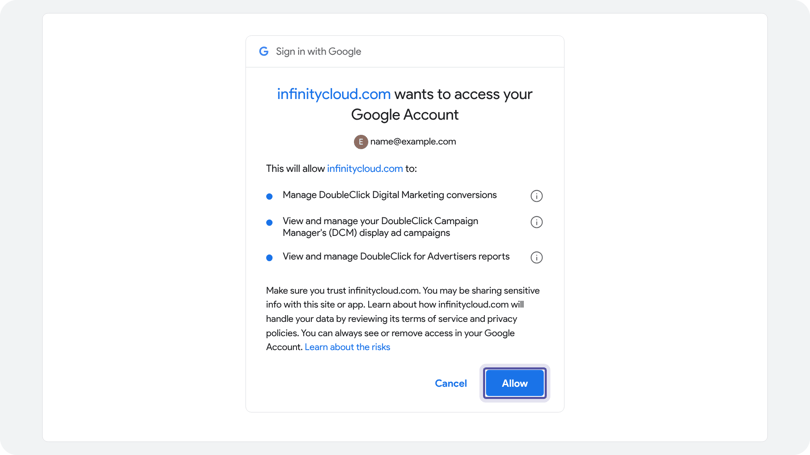
Click Allow. The window refreshes and shows a confirmation if it was successful. The window then closes automatically, and the previous Authorise Infinity button disappears.
Choose the profile, advertiser and Floodlight activity
If you have multiple Google Campaign Manager profiles, select the one you want to send Infinity data to from the Google Campaign Manager Profile drop-down. You'll still need to do this even if you only have one profile.
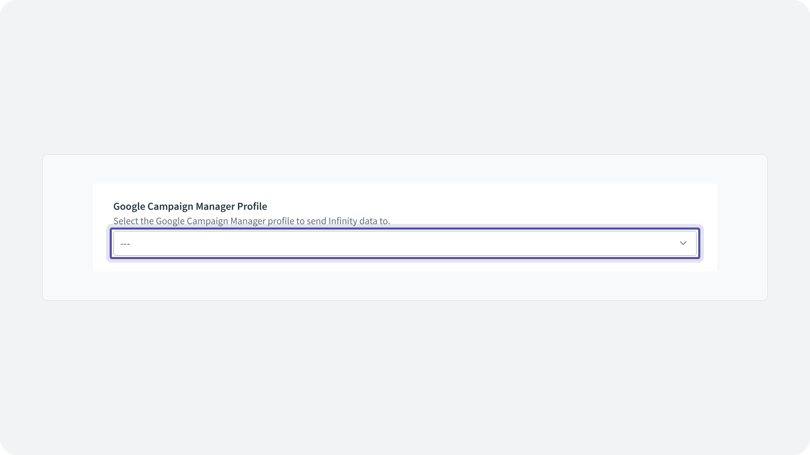
With your Google Campaign Manager profile selected, Infinity looks up the advertisers configured within that profile and shows them in the Google Campaign Manager Advertisers drop-down. This decides which advertiser is attributed click and post-impression data when calls occur.
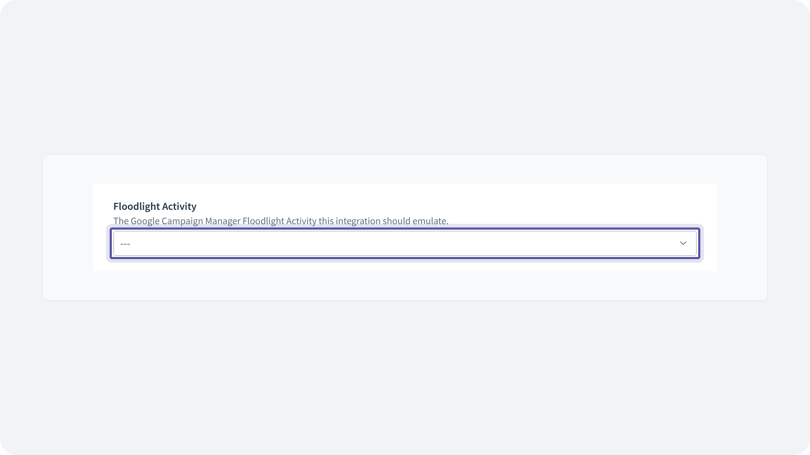
Infinity then looks up any Floodlight activities you've set up previously. Select a value from the Floodlight Activity drop-down. This decides which activity takes credit for offline conversions, and it acts as an identifier if you want to pass this data to other Google platforms, such as Search Ads 360. For more information on Floodlight activities, visit the Google Campaign Manager support centre. We recommend setting up a specific Floodlight activity for Infinity offline conversions.
Set the conversion value and what to send
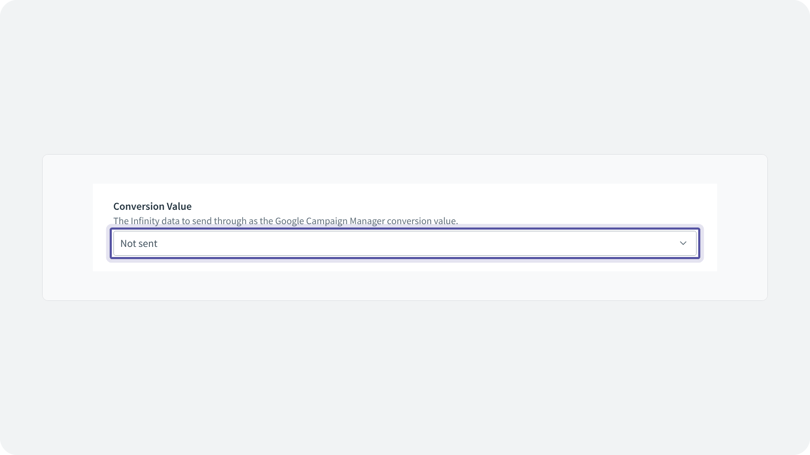
The final setting is Conversion Value. Here, you can choose to send an Infinity stored value as the conversion value, or use the goal value. Choose Not sent if you don't want to send anything. Choose Transaction Value if you're populating the Infinity call data after call rating or from CRM integrations. Choose Goal Value if you prefer to use the value assigned to the associated goal.
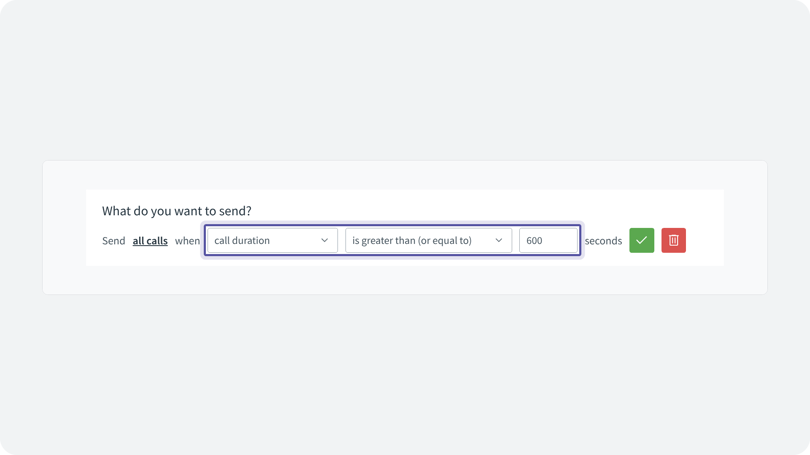
Decide what triggers this integration to send its data. This can be all calls, certain types of calls or call behaviour, or various parts of the visitor journey. For example, you may want to send only calls that are qualified by certain parameters, such as calls that lasted longer than a certain duration, or calls that have met particular goals along the way. When an event that meets the criteria occurs, Infinity sends the associated data to your profile and tags it with the Floodlight activity and advertiser you selected earlier. Use the What to send filtering controls to define these rules.
Map custom variables
As a final step, you can configure your custom variable mapping. Infinity can send other custom dimensions and metrics into Google Campaign Manager, such as tracking pool name, visitor ID or any other field that Infinity captures with our tracking.
- Navigate to the Custom Variable Mappings section.
- Select Add Custom Dimension.
- Select an option from the drop-down list, for example Visitor ID or Custom Field.
- Enter the Google Campaign Manager variable you would like to populate. These are in the format u1, u2 (case sensitive). You only need to add the number, as Infinity adds the u for you.
- Repeat to add as many dimensions as you need, up to a maximum of 100 per Floodlight configuration.
- Click Save for the new integration. This returns you to the list of integrations in the Infinity Platform, where your new Google Campaign Manager integration is automatically enabled.
Using Google Campaign Manager and Search Ads 360 together
If you use both Search Ads 360 and Campaign Manager 360, we recommend setting up separate Floodlights to track paid search and display call conversions independently. Then, within Infinity, configure each integration to use the corresponding Floodlight for more accurate and granular reporting. Click here to set up your SA360 integration.
Differences between Google Campaign Manager and Infinity
Within our Google Campaign Manager call tracking integration, we only send call data, not visitor data.
We would never expect the clicks in Google Campaign Manager to match the number of visits in Infinity. There are many reasons for this, but essentially it comes down to the way the two platforms attribute and assign clicks and visits. Google Campaign Manager assigns a click every time the ad is clicked, even if the site does not load or the link does not work. Infinity only assigns a visit when the page is fully loaded and the Infinity script runs. For example, someone clicks an ad but closes the browser before the page loads. This is attributed a click in Google Campaign Manager, but not a visit in Infinity, because the page and the tracking script never loaded. Another example is a page that does not load because of a bad link. Google Campaign Manager still sees the click, but Infinity does not see a visit.
February 2026 integration update
We've completed an enhancement to our Google Campaign Manager integration that expands the range of identifiers we process. In practice, this means improved match rates, more complete signal coverage and more robust reporting across your campaigns.
In addition to the encrypted user ID, we now support MatchID, GCLID and DCLID, plus a lookback for both GCLID and DCLID. We support MatchIDs through iframe Floodlight tags configured in Google Tag Manager, and MatchIDs sent in GTAG events. Further information on MatchIDs can be found here.
Note: We do not support MatchIDs shared through GTM image tags at present.
Need more help?
Related guides: SA360 Integration and SA360 Troubleshooting. If you're still stuck with Google Campaign Manager call tracking, get in touch with your account team or email support@infinity.co and we'll help you get set up.