In short
- The Infinity Integrations Run Report lists every event sent to a third-party integration, showing which integrations were triggered and whether each one succeeded.
- Open the Integrations Run Report under Settings > Integrations in the Infinity Platform, where it is filtered by integration type with Google Ads as the default.
- In the Infinity Integrations Run Report, retry a single event from the more menu, or select several events with the checkboxes and select Retry Integrations to retry them in bulk.
- Infinity integration statuses in the 200 series show a successful outcome, 4XX statuses show resolvable errors usually linked to permissions or credentials, and 5XX statuses show temporary errors.
The Integrations Run Report shows every event sent to a third-party integration, and what happened to it. You can see which integrations were triggered, whether they succeeded, and where an error needs fixing. This guide explains what the Integrations Run Report is, how to use it to retry events, what the status codes mean, and where to find integrations data in the call and goal logs.
What is the Integrations Run Report?
The Integrations Run Report lets you see all events that have been sent to third-party integrations, and submit or resubmit those events to the integrations.
The report shows a list of every event sent to an integration. It shows which integrations were triggered and what happened to each one, so you can see whether it was successful.
A key feature of the report is the ability to retry integrations. If a third party does not receive an event successfully, you can see the error, go to the relevant integration to update its settings and fix the error, then resubmit the event from the report.
Using the Integrations Run Report
Using the report is quick. Select Integrations under Settings in the left-hand navigation.
The Integrations Run Report is a log. It shows a chronological list of integrations that have run, together with the events that triggered them and their outcomes.
To limit the data shown, the report is filtered by integration type. Google Ads is the default. To change it, use the drop-down and choose the integration you want. You can also filter by Marketing Journey and Source.
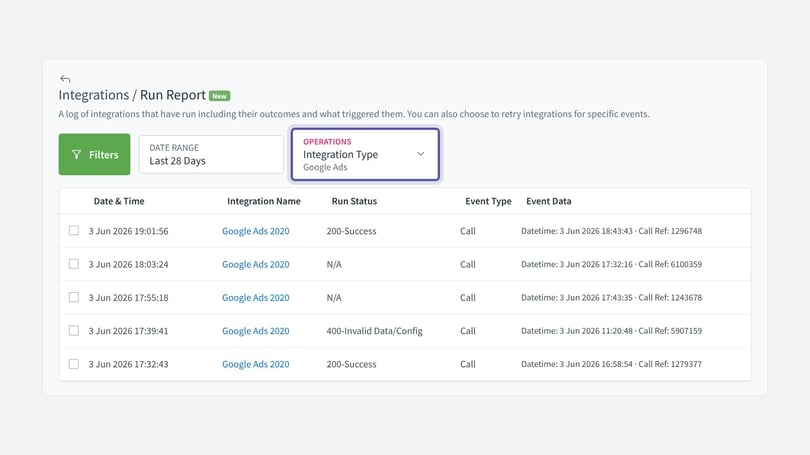
The report has six columns:
| Field | Description |
|---|---|
| Checkbox | lets you select events. |
| Last Run Date & Time | the timestamp of when the event was submitted to the third party. |
| Integration Name | the name of the integration. |
| Last Run Status | the response from the integration for the event. |
| Event Type | the type of event that triggered the integration activity, typically a call or a goal. |
| Event Data | the timestamp of the event that triggered the integration, plus the call reference where relevant. |
Select any row to expand its details. The expanded row has two tabs. Overview shows the details for the event. All Integrations shows any other integrations the event triggered.
Hover over a date to see how long ago the event happened. To retry a single event, use the more menu on the right-hand side. To retry several events, select them with the checkboxes, or use the toggle in the left-hand column to select every event on the page. Then select Retry Integrations to retry them in bulk.
What do the status codes mean?
Statuses beginning 2XX are positive and show a successful outcome.
Statuses beginning 4XX show errors that can be resolved. They usually relate to permissions or to the credentials used to submit the event to the third-party platform.
Statuses beginning 5XX show temporary errors.
Integrations data in the call and goal log
You can look in the call log and the goal log to see integrations data for each event. This shows which integrations to third-party platforms were triggered by each event. It also helps you answer questions such as "which calls have been passed into Google Ads?"
Using the data
The call and goal logs have an Integrations tab. There are also integration filters to help refine your view of the logs.
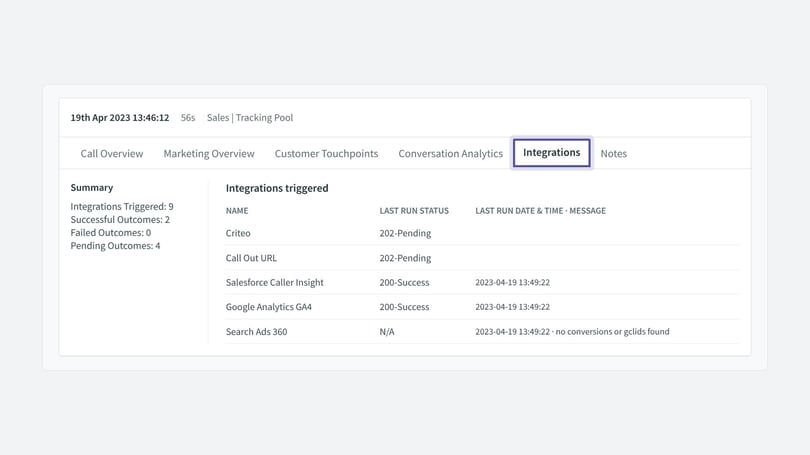
The Integrations tab has six columns:
| Field | Description |
|---|---|
| Summary | a summary of the integrations activity for this event. |
| Integrations Triggered | a list of the integrations triggered for this event. |
| Last Run Status | the response from the integration for the event. |
| Last Run Date & Time | the timestamp of the most recent activity. |
| Message | any messages for the integration and event combination. |
| Failed Attempts | a count of the failed attempts. |
You can look at the details and quickly see which integrations were triggered by this event, together with any error messages that might point to a problem with a specific integration.
You can also use the filters in the log to refine your view. There are five integration filters. To find them, type "int" in the search.
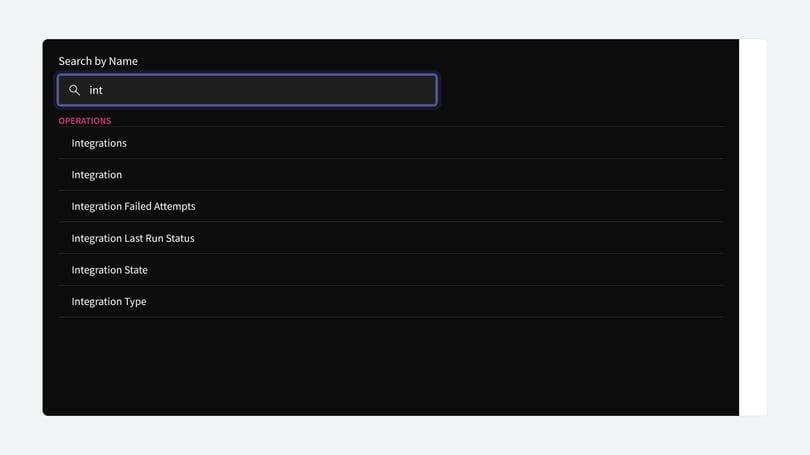
| Field | Description |
|---|---|
| Integration | filter by a named integration. Use this to target one or several integrations. |
| Integration Failed Attempts | use this to target integrations that are repeatedly failing. |
| Integration Last Run Status | use this to target a specific status code. |
| Integration State | use this to target successful or unsuccessful states. |
| Integration Type | use this to target a specific integration type, for example Google Ads or Facebook. |