Infinity Smart Match enriches your call data with outcomes from your CRM, such as sales and bookings. It matches a CSV file of those outcomes to calls or visits, using the caller ID or visitor ID and the date and time. This ties the cost of your marketing to the value of the outcomes it produces, without the IT work a full CRM integration can involve. This guide covers how matching works, how to upload and map your file, how to fix errors, how to set preferences, and how to view, export and schedule the matched data in the Infinity Platform.
What Infinity Smart Match does
CRM integrations in the Infinity Platform link the cost of marketing activities with the value of the resulting outcomes. An outcome can be a completed sale (a conversion or transaction) or a logged follow-up activity, such as the booking of an appointment.
Infinity Smart Match enriches call data with these outcomes and matches them to calls or visits, using data already available in your CRM. When you provide the details of your calls and their outcomes, Infinity matches them back to the visitor journeys that led to those calls. You can then see the inputs and outcomes of your marketing activity together, which gives you a simple way to assess return on investment.
Infinity Smart Match gives you the benefits of a CRM integration without some of the IT and integration challenges that make a full integration impractical for many teams.
Watch the video: Smart Match overview video
How Infinity Smart Match works
Infinity Smart Match matches events to calls or visits using either the Caller ID (the caller's phone number) or the Visitor ID, together with the date/time, from a comma-separated values (CSV) file exported from your CRM system. To look up a visitor ID, see how to find your Infinity visitor ID.
Upload the details of the calls or visits with their outcomes, and Infinity looks for each corresponding call or visit and enriches it with details of the outcome. This in turn enriches the matching visitor journey, giving you a clearer view of what each journey led to.
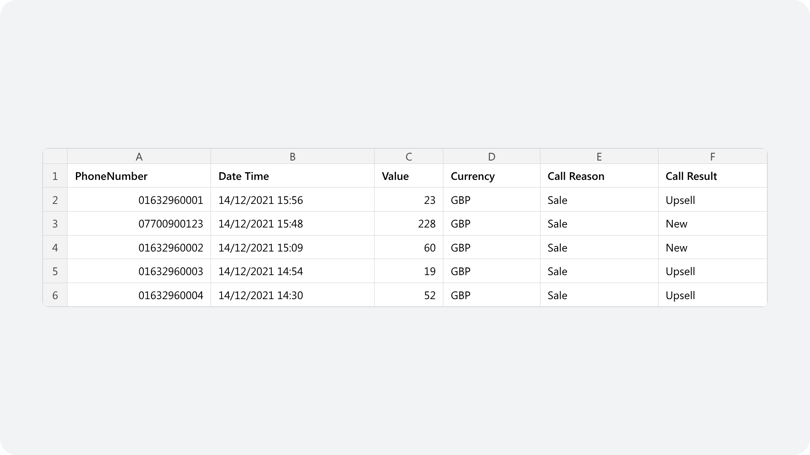
The example CSV file below contains the caller ID (Phone Number), Date/Time, a transaction value and currency, plus the Call Reason and Call Result.
Before you start
You'll need:
- A CSV file exported from your CRM that includes the caller ID or visitor ID and the date and time of each call or visit. Dates and times can't be in the future.
- Access to Settings > Smart Match in Infinity.
- For automatic uploads with the Event FTP Upload option, a user in Infinity with the API Access role, and some development work from your team.
Upload your CRM data to Infinity Smart Match
You can share your data via API or FTP, but most customers upload it through Infinity. You can also send us your data on an agreed schedule and we'll upload the outcomes on your behalf (additional charges apply).
- In Infinity, select Settings at the bottom of the left-hand navigation, then select Smart Match. A dropdown shows Upload, Upload History and Preferences.
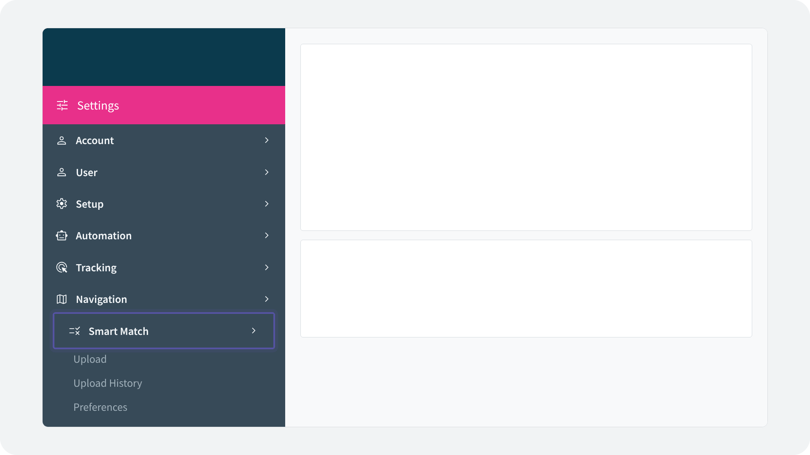
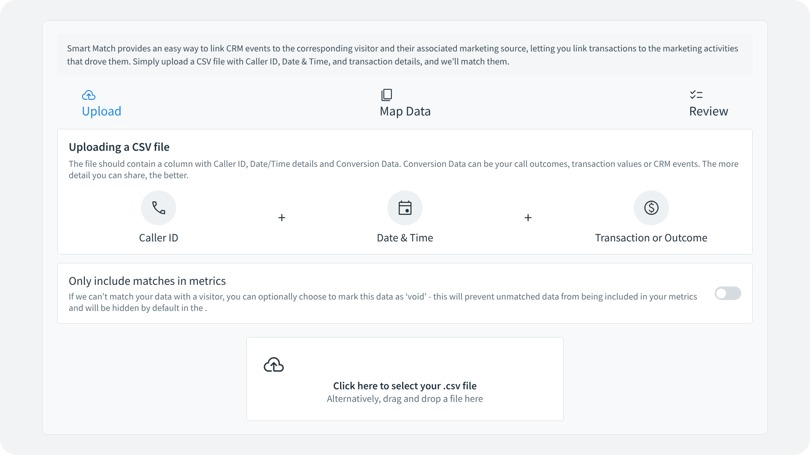
Upload is pre-selected, because most people visiting the page want to upload a file.
Choose how unmatched data is handled (void behaviour)
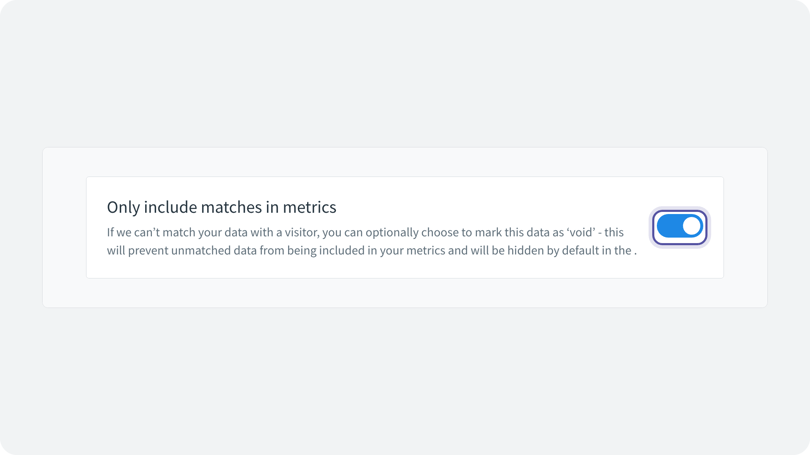
Where your Infinity call data and your CRM data can't be matched, we recommend marking that data as Void. This means unmatched data is not included in your metrics, and it is hidden by default from the logs in Infinity. By default, unmatched data is included. You can change this by enabling the Only Include matches in Metrics setting.
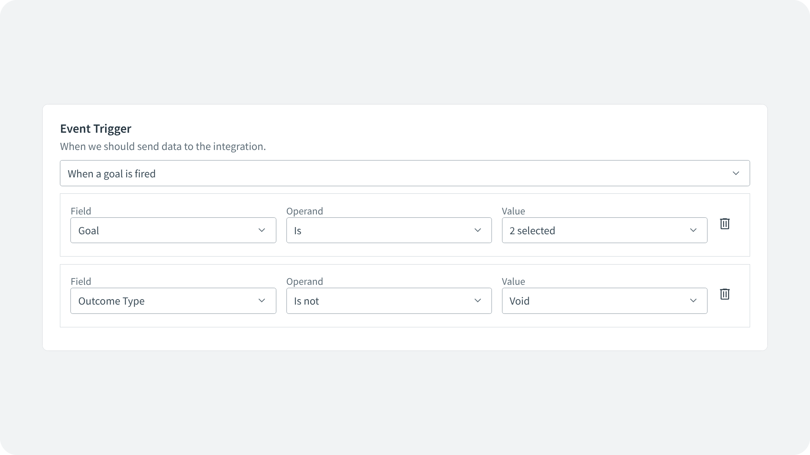
Note: If you plan to trigger integrations after a Smart Match upload, always set a filter to only fire on non-void Goals.
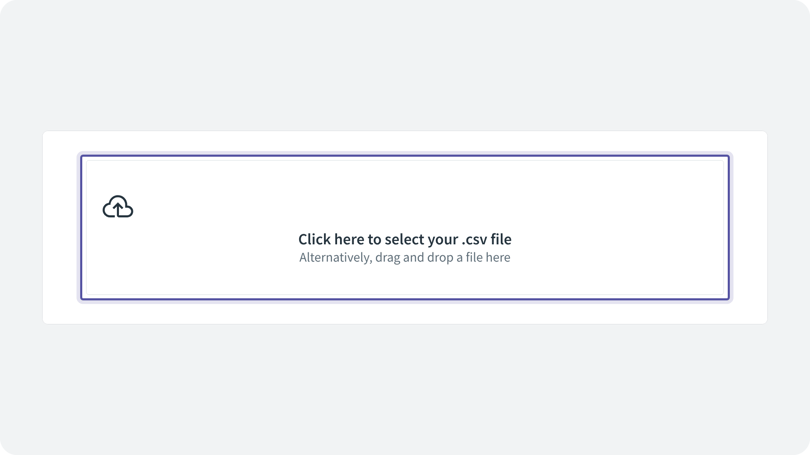
Upload your CSV file
To upload the CSV file containing your CRM data, click the upload tile, or drag and drop your file onto it. Infinity uploads the file automatically and scans its contents.
Map your CSV columns to Smart Match fields
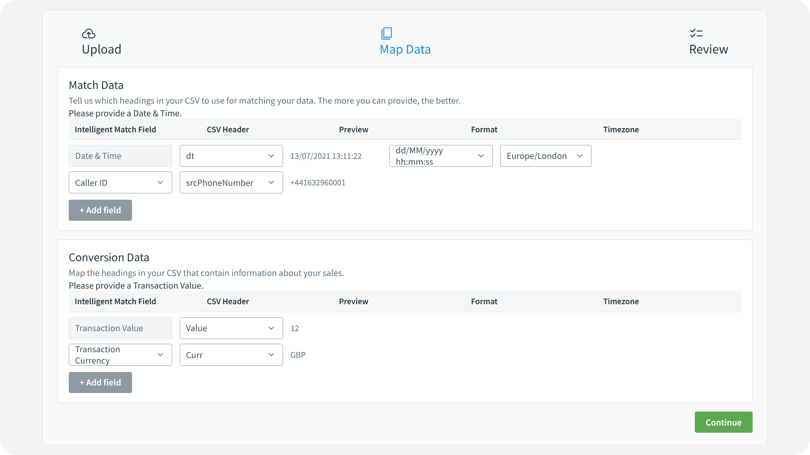
Once you've uploaded your CSV file, the next step is to map the data. Infinity Smart Match needs several data fields to work. Use the mapping section to tell Infinity which column in your file corresponds to each field it needs, such as the Caller ID and the date/time, as shown below.
You can also map your outcome (sales or conversion) data, such as the sales value and currency, to the corresponding columns in your file.
Map the match data
- In the Match Data section, use the dropdown labelled CSV Header to select the column in your file that contains the date and time of the call.
- Use the format and timezone dropdowns to tell Infinity the date format and timezone of your data, so it interprets your file correctly. You can't map a Date/Time that is in the future.
- Click + Add field. Caller ID is selected automatically.
- Use the CSV Header dropdown to select the column that contains the caller ID, which is the phone number of the caller.
- Use the format dropdown to say whether the caller numbers are in Local or E164 format. E164 is a plus sign (+) followed by the country code, area code and caller number.
In Local format, all numbers must be local to your account's timezone. If you're uploading caller numbers from different countries, you must upload them in E164 format.
Map the outcome data
- In the Outcome Data section, Transaction Value is already selected. Use the CSV Header dropdown to select the column that contains the outcome data, such as the sale or booking amount.
- Infinity also needs the transaction currency. Click + Add field. Transaction Currency is selected automatically.
- Use the CSV Header dropdown to select the column that contains the transaction currency.
- Map any further fields you need. The more fields you provide for matching, the better the match quality will be.
A mapping that should match well uses Date/Time and Caller ID in the Match Data section, and Transaction Value and Transaction Currency in the Outcome Data section.
Validate and submit your file
- Once you've mapped the required Infinity Smart Match fields to the columns in your CSV, click Continue to upload and validate your file.
- Review the summary. It shows the number of rows in your file and a data-quality percentage: the share of rows with enough data for Infinity to import them.
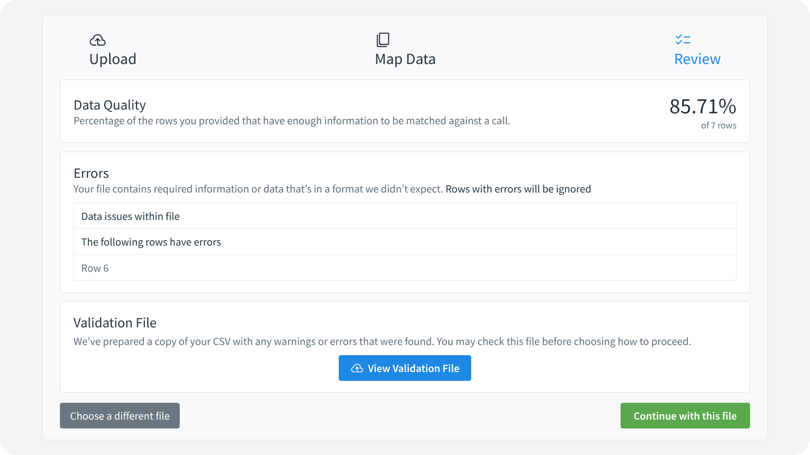
Any errors found in the file are shown in the summary. You can edit the file to correct the errors, or ignore them and continue. Continuing uploads the file but leaves out the rows with errors, which is useful if you're short of time.
You can choose a different file, or submit this one for matching by clicking Continue with this file.
Map dates for long sales cycles
The mapping above suits outcomes that happen on the same day as the call. The date in the mandatory Date & Time field is used both as the start of the lookback period and as the date of the event and any goals in Infinity reports.
For long sales cycles, where outcomes can happen weeks after the first call, provide both the date of the initial phone call and the date the outcome or event occurred. This reports the event date correctly in Infinity, and it gives the right behaviour when data is sent to integrations. For example, the Google Analytics 4 (GA4) integration needs a timestamp, which comes from the event date. GA4 only accepts timestamps from the previous 72 hours and ignores anything older.
In this case, map Call Start Date & Time to the date from which we should start looking for the call, and Date & Time to the date of the outcome.
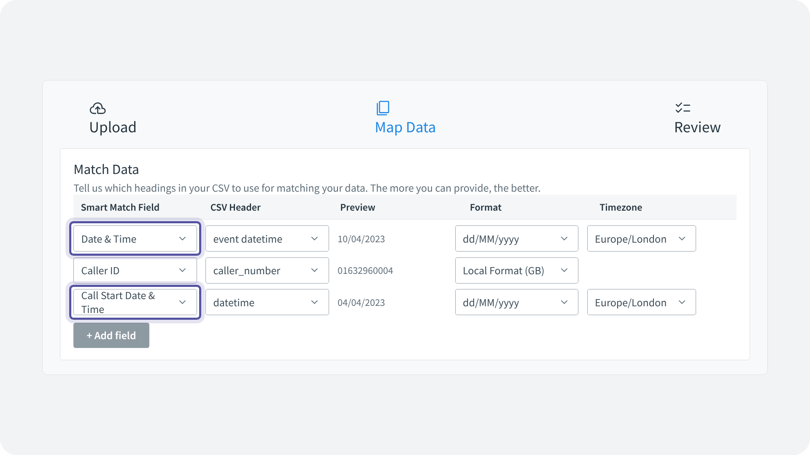
- If you have a long sales cycle and can only provide the date of the outcome, not the date of the initial call, bear in mind that Infinity looks back to the first call it finds. If the caller rang several times, the outcome may be attributed to the last call.
- If you can only provide the date of the initial call, not the dates of later outcomes, attribution will still be correct, but the date of the event won't be, which may affect integrations.
Fix Smart Match errors
After mapping, Infinity Smart Match scans every row in your file to check that it contains all the elements in the mapping. For example, some rows might be missing caller IDs or transaction amounts. Rather than upload the file, Infinity shows you those errors so you can correct them if needed.
The example below is a poor data file. Infinity found errors in every row. Because there were no valid rows, Infinity won't let you upload the file, which protects your data from being polluted. Click View Validation File to review your data. Infinity adds two new columns to the end of your dataset:
- Warnings: minor issues that you can correct quickly or ignore as you see fit.
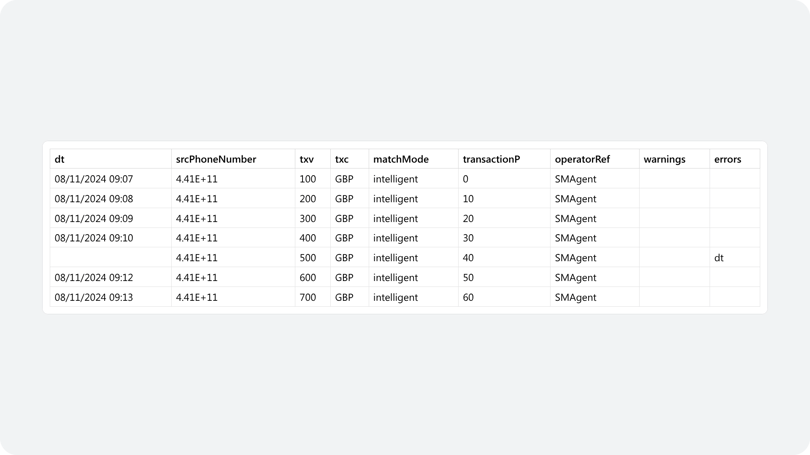
- Errors: major issues that compromise the integrity of that row. The error names the column that contains the invalid data.
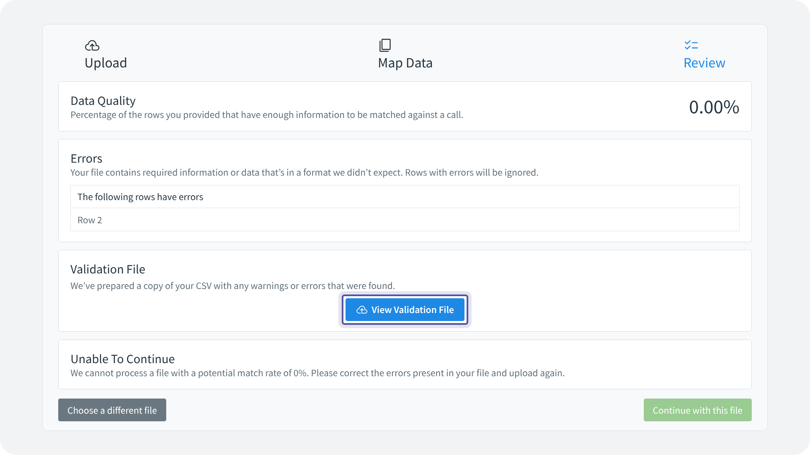
Depending on how serious the issues are, you can continue, amend the file and submit it again, or choose another file. If you continue without correcting the errors, the rows with errors are left out of your upload.
In the validation file, each error message is shown against the relevant row, and the Errors column shows where the error has come from.
Review your Smart Match upload history
Upload History keeps a record of every upload you've made to Infinity. Use it to review the data you've uploaded through the interface and to track the quality of each upload by comparing the total rows with the matched records.
The table shows the start and end dates of the data in each upload, so you can see the period the call events relate to, together with the upload date, which is the date and time you uploaded the file.
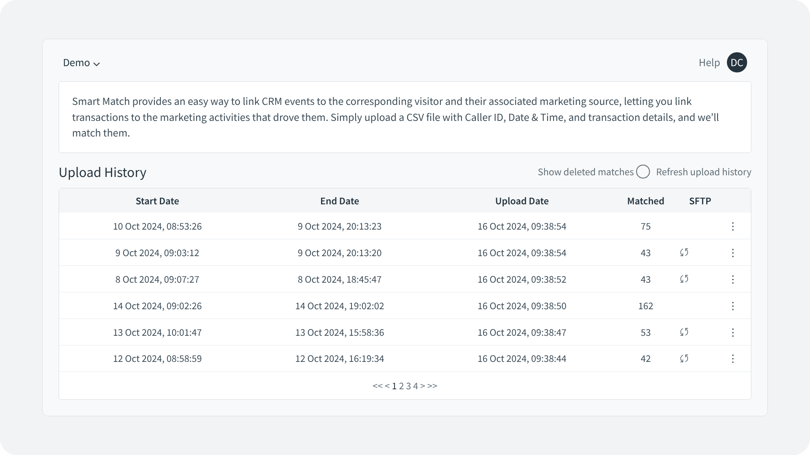
You can also see the number of matches, which you can compare with your file to see how well your data is matching. A folder icon in the SFTP column means the file will be uploaded via SFTP, rather than manually in Infinity.
Each page of the history shows 20 rows. Use the pagination buttons at the bottom of the list to move forwards and backwards through the history.
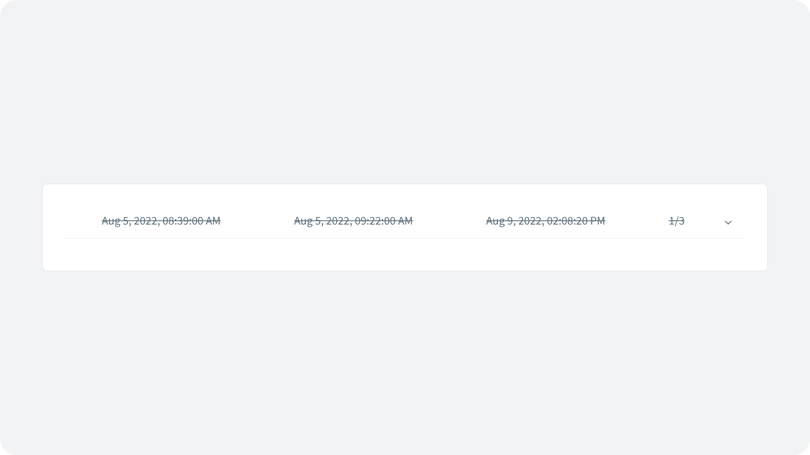
A toggle lets you show or hide deleted matches. It's turned off by default. Turn it on to see batches that were uploaded and then deleted. A message confirms when you turn the setting on or off, and the page refreshes to show or hide the deleted rows.
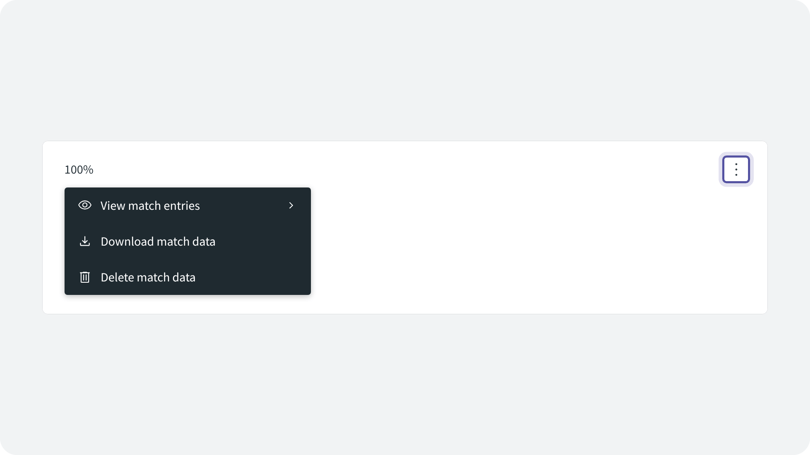
Click the ellipsis (the three dots at the far right of each row) to see more options: View match entries, Download match data and Delete match data.
Each upload is itemised with the following information:
For each upload you can:
- View match entries: opens the Smart Match log, filtered by the batch ID of that data set.
- Download match data: downloads the annotated file from the validation step.
- Delete match data: useful if you're new to Smart Match or not sure how matching works. You can upload test files, then remove them once you've validated the match data.
If Show deleted matches is on and you delete a data set, it appears in the upload list with a strikethrough.
Set your Smart Match preferences
Preferences lets you configure how Infinity Smart Match matches uploaded calls. Three tick-box options are shown first:
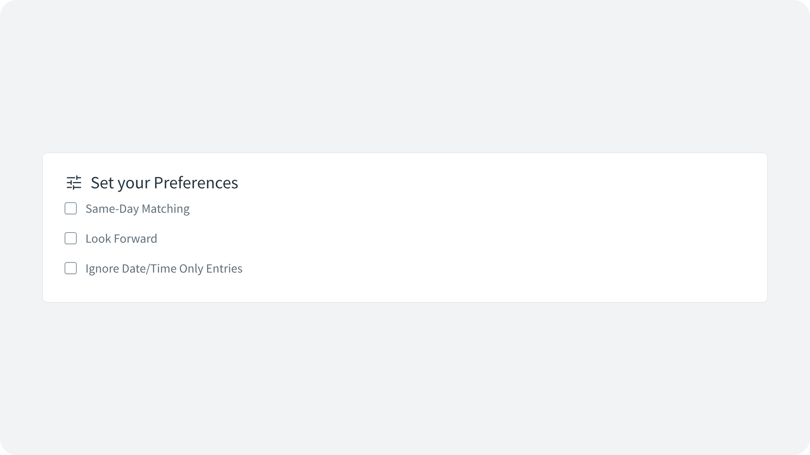
- Same day Matching: look back to the start of the day for a match, then look forward to the end of the same day.
- Look Forward: if no match is found within the set lookback window, look forward 24 hours.
- Ignore date/Time Only Entries: if an entry has no Caller ID or Visitor ID and only a date or date/time to search on, don't try to match it.
The first dropdown sets the lookback window for call events. In other words, it sets how far back in your call records Infinity looks for a match.
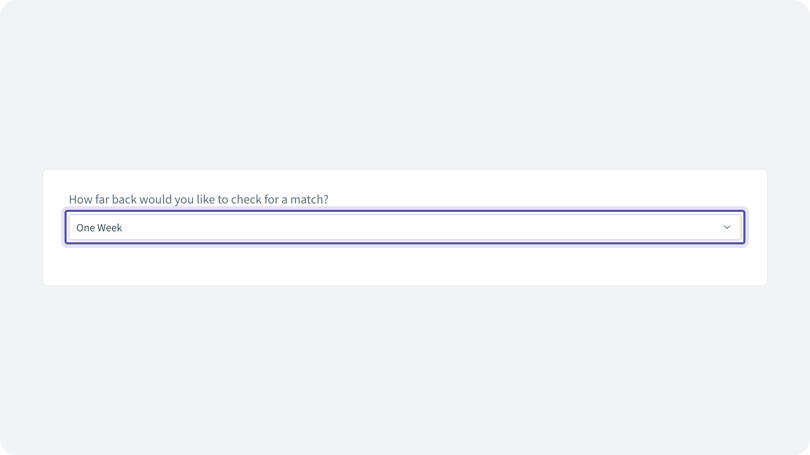
Options range from One Hour to 30 Days. If you'd like to use an option that isn't shown, contact the Infinity Support team.
The second setting determines which of your Infinity tracking pools and fixed numbers are included in matching.
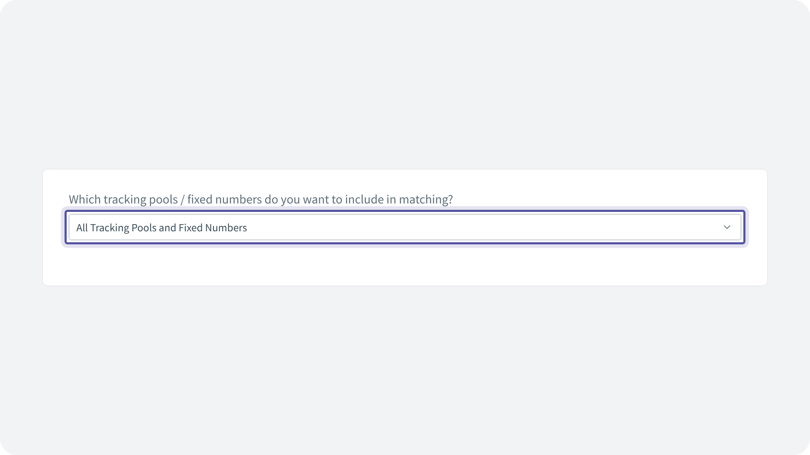
By default, all your pools and numbers are included. You can choose to use only the tracking pools (excluding fixed numbers), only the fixed numbers, or specific pools and numbers. When you've made your selection, click Save to store your preferences.
View Infinity Smart Match data in your reports
Viewing Infinity Smart Match data is straightforward. Select Reports at the bottom of the left-hand navigation, then select Smart Match from the Logs section.
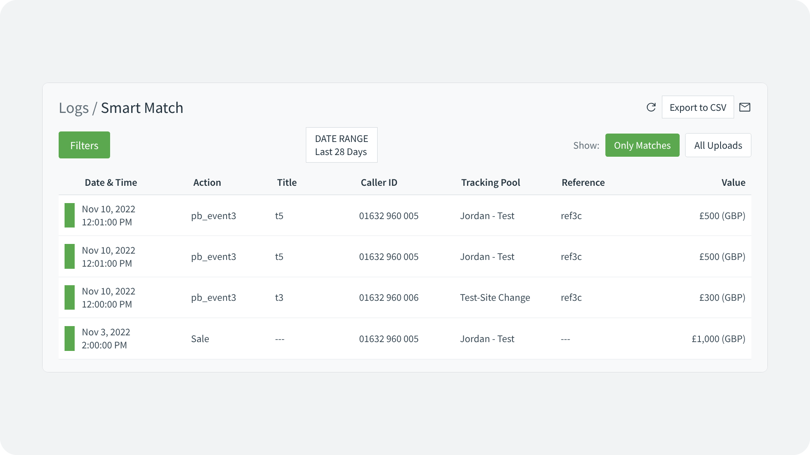
The Smart Match log shows all the outcomes or transactions for the date range you select. The columns include Action (which defaults to sale if none is provided), Title, Caller ID, Tracking Pool, Reference and Value.
The report is sorted in chronological order by default, shown by the blue downward arrow next to the Date & Time column header. Click the arrows next to any column heading to sort by that column. Click once for descending order, and a second time for ascending.
Click the chevron (>) on the left of a row to expand it. The Details tab shows all the details of the upload. The Call tab shows the call the event links to, together with any marketing information for the visitor in question.
Use the icons on the right of each row to open the Visitor Trace (globe icon) or the call details page (eye icon) for that outcome. The call details page shows everything Infinity holds about the call. The Visitor Trace shows the visitor's journey, which can include land events, page views, calls and transaction data.
A toggle on the right of the log switches the view between Only Matches and All Uploads. Only Matches is the default and shows all the matches linked to a call. All Uploads shows every event generated from the upload, whether or not it matched a call. Use it to find the events that didn't match, so you can work out how to improve the match rate in later uploads.
Export and schedule Smart Match data
You can export Infinity Smart Match data and set up scheduled reports from the Smart Match log. Three buttons sit at the top right of the log, from left to right: Refresh, Export and Scheduled Report. They're common to all logs in Infinity.
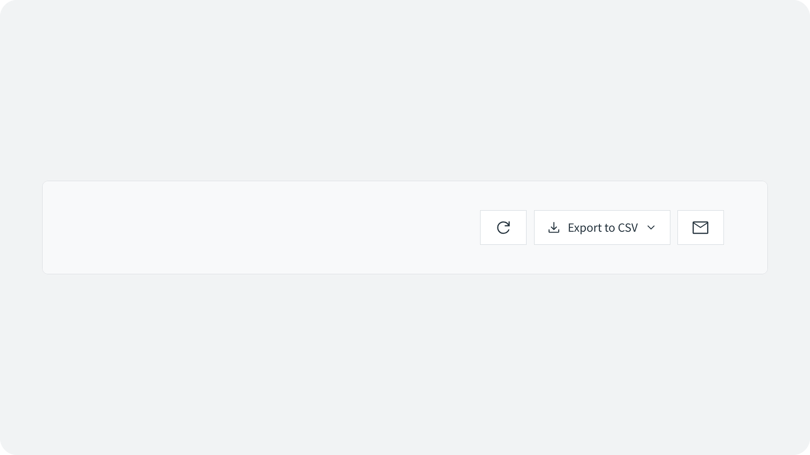
- Refresh updates the data in the log without reloading the whole page.
- Export to CSV gives two options. All Sales downloads a CSV of all the data in the Only Matches view. Custom Export lets you choose the fields to include. Use the search bar to find a field quickly.
- The envelope icon sets up a scheduled report of the Smart Match data. It emails a CSV of the log data to the recipients you add, on the schedule you set, for example weekly or monthly to your department.
For more on scheduled reports, see our scheduled reporting guide.
Use Smart Match to view agent ID in Infinity
Seeing which agent handled a call helps you monitor call distribution and agent performance. You can use Infinity Smart Match to view this data in Infinity.
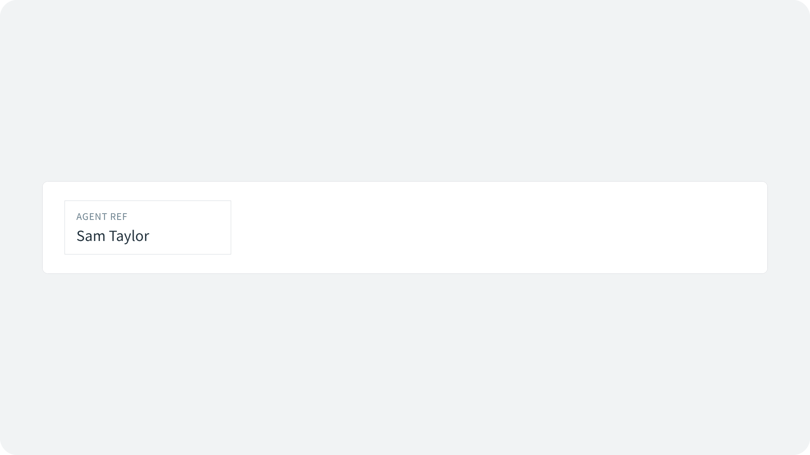
Share a timestamp of when the call started, the caller ID of the call, and the agent name or reference.
- Go to Smart Match, upload your CSV and map the data as described above.
- Map the date/time and Caller ID in the Match Data section, plus Agent ID from the Conversion Data, as shown below.
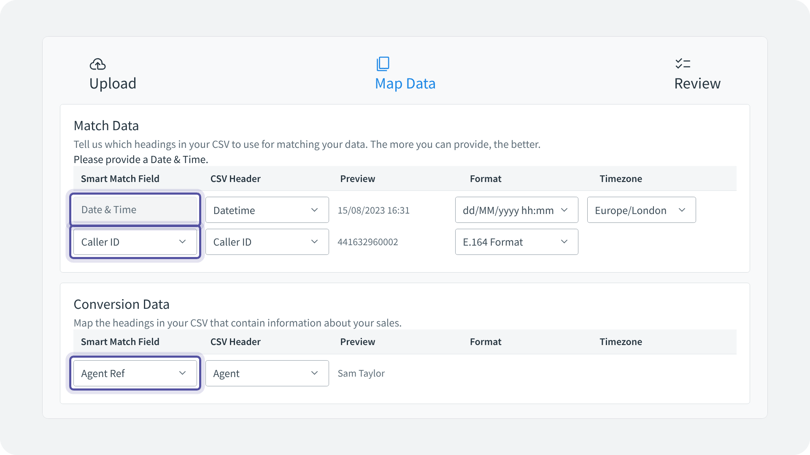
Once uploaded, the agent ID is added to the call log and the call log export, and it's supported in filters. To search by reference or agent, go to Filters > Call Details > Agent Ref/Call Reference, then choose an agent from the list.
Frequently asked questions
How far back will Smart Match look to match transaction data?
The default lookback period in Infinity is one day. You can change it in the Preferences section of Smart Match, to a minimum of 1 hour and a maximum of 30 days. Lookback periods longer than 30 days can't be set in the Smart Match interface. If you need one, raise a request with Infinity.
I don't want to upload data manually. How can I upload Smart Match data automatically?
You can upload your conversion data automatically with the Event FTP Upload option or the newer SFTP feature. The Event FTP Upload option needs some coding by your development team, and a user in Infinity with the API Access role assigned.
Does my CRM data have to be in CSV format? Do you support any other formats?
Yes. Data uploaded through Smart Match must be in a comma-separated values (CSV) file. For manual uploads, match your column headings and formats to the required data fields, as described in the mapping section above. For automatic uploads with the Event FTP Upload option, use the column heading names given in the specification.
Does Smart Match give me a live, continuous integration between my CRM and Infinity?
No. Smart Match is designed for CRM data to be uploaded to Infinity in batches at regular intervals, for example once a day. If you need a live CRM integration, contact Infinity and we'll talk you through the options.
Can I upload CRM data securely to Smart Match via SFTP?
Yes. Infinity supports secure uploads of CRM data to Smart Match via SFTP. Once it's enabled, you can enter an email address in Smart Match Preferences to receive SFTP upload notifications. SFTP uploads are marked with an icon in the Upload History. For details, see Smart Match SFTP uploads.
Watch the video: On-demand Smart Match webinar
Need more help?
To automate your uploads, read Smart Match SFTP uploads. To connect your CRM directly, see our CRM integrations overview. If you're still stuck, get in touch with your account team or email support@infinity.co and we'll help you get set up.