LinkedIn Ads call tracking with Infinity sends the calls and goals from people who clicked your LinkedIn ads into LinkedIn as offline conversions, through LinkedIn's Conversions API. You can then see each conversion against the campaign that drove it, alongside your other campaign results. Set-up takes two steps: create a Conversions API conversion in LinkedIn Campaign Manager, then configure the integration in the Infinity Platform.
How LinkedIn Ads call tracking works
LinkedIn Ads is one of the world's leading online advertising platforms. Infinity's integration with LinkedIn Ads shows you the offline conversions your LinkedIn Ads activity drives, so you get a more complete picture of the impact of your paid social activity.
When someone who clicked a LinkedIn ad completes a conversion activity, such as a call or a goal, Infinity passes that offline conversion event into LinkedIn automatically. You can then see the conversion against the LinkedIn Ads activity that helped drive it, and get a full picture of that activity's impact.
There are two steps:
- Create the conversion in LinkedIn Ads.
- Configure the integration in Infinity.
Step 1: create the conversion in LinkedIn Ads
Start by creating a conversion for offline conversions in LinkedIn Ads. Go to ads.linkedin.com, log in to your account in Campaign Manager, then select Conversion Tracking from the Measurement menu.
Click the blue Create conversion button and choose the second option in the dropdown, Conversions API.
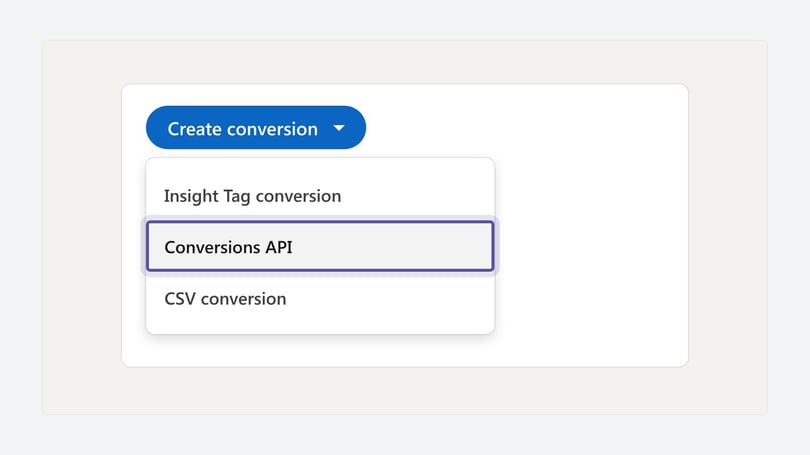
As with most ad platforms, you'll then see a form to define the conversion. It has three stages: Settings, Sources and Review.
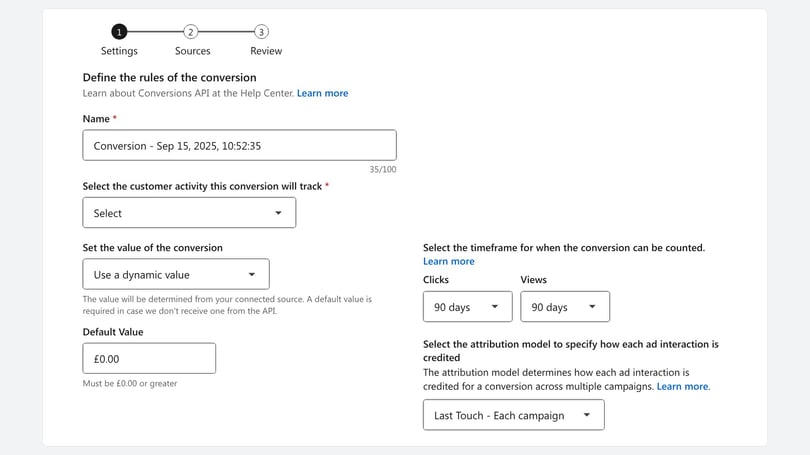
Note: The form changes according to the selections you make. For example, if you choose not to use a value in the conversion, the Default Value field disappears.
Settings
First, give the conversion a name. LinkedIn uses a date stamp of when you created the conversion as a placeholder. Choose a name that's easy to identify later: something like Infinity Calls or Infinity Goals is a good place to start.
Next, open the Select the customer activity this conversion will track dropdown.
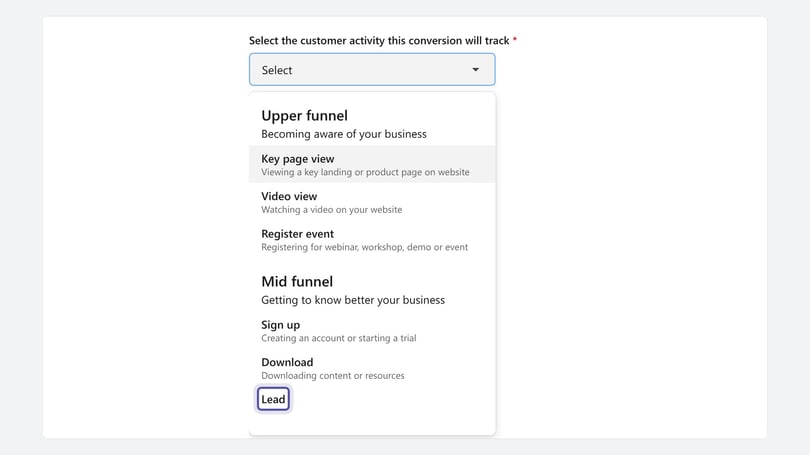
The dropdown is split into four sections: Upper funnel, Mid funnel, Lower funnel and Closed deal, each with its own activities. There isn't a dedicated option for a call or a goal, which will usually be the trigger on the Infinity side.
We recommend mapping calls to Lead, in the Mid funnel section, and using Purchase, under Closed deal, for call outcomes such as sales or bookings.
Next, choose how to Set the value of the conversion. The options are:
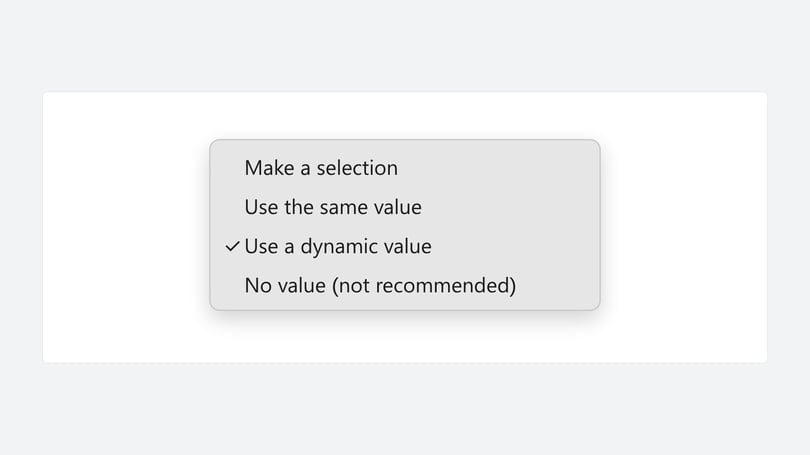
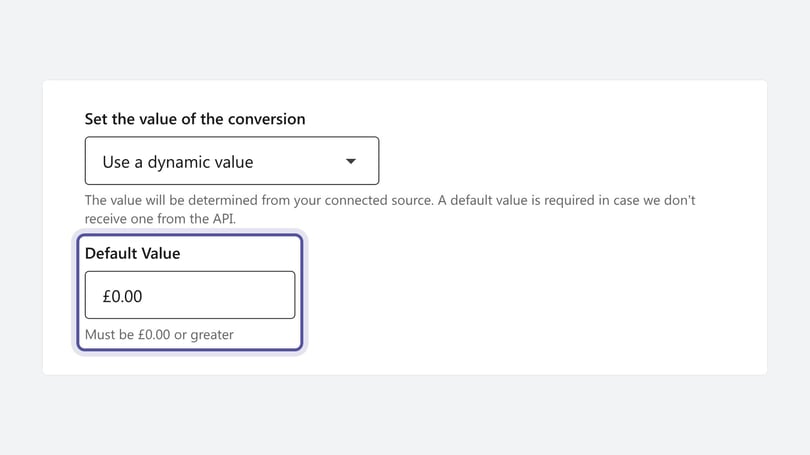
If you choose to include a value, you'll see one more field. If you select Use a dynamic value, LinkedIn asks for a Default Value, which is used if the event doesn't include a value.
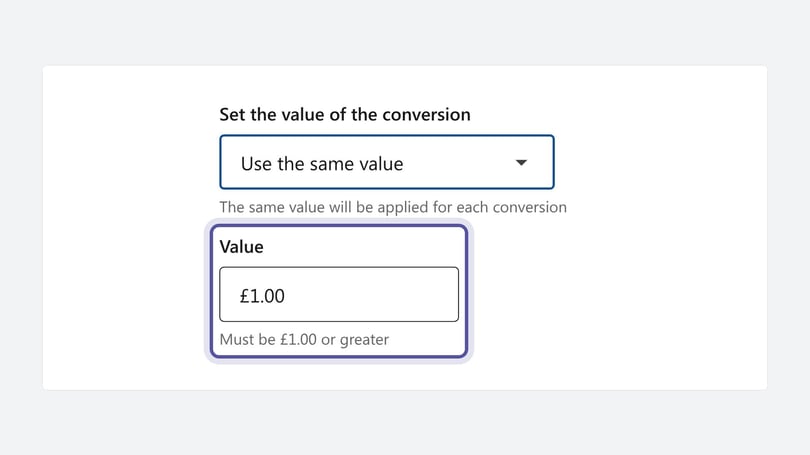
If you select Use the same value, LinkedIn asks you to enter that Value.
The last two settings are the timeframe and the attribution model. First, set the timeframe for when conversions can be counted. There are separate dropdowns for Clicks and Views, and both are set to 90 days by default.
Then set the attribution model, which decides how each ad interaction is credited. It's set to Last Touch - Each campaign by default, but you can change it to Last Touch - Last campaign if you prefer.
Once you've made your selections, click the blue Next step button.
Sources
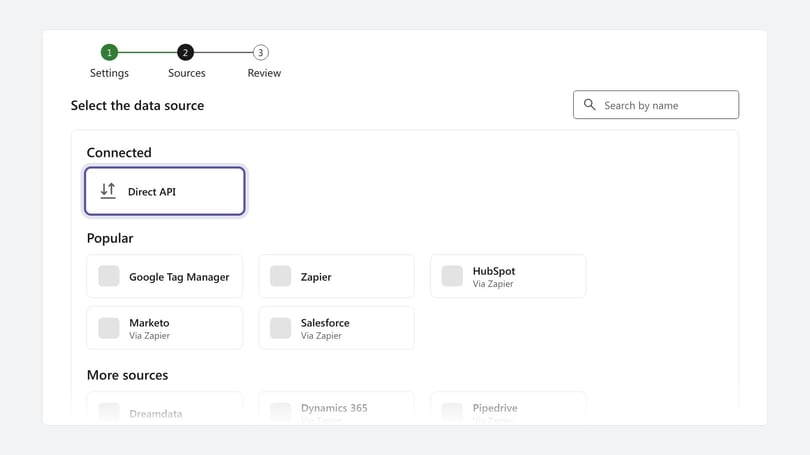
Next, choose the data source. LinkedIn shows a wide range of options. As you selected Conversions API as the conversion type at the start, select Direct API, the first data source in the list, under Connected.
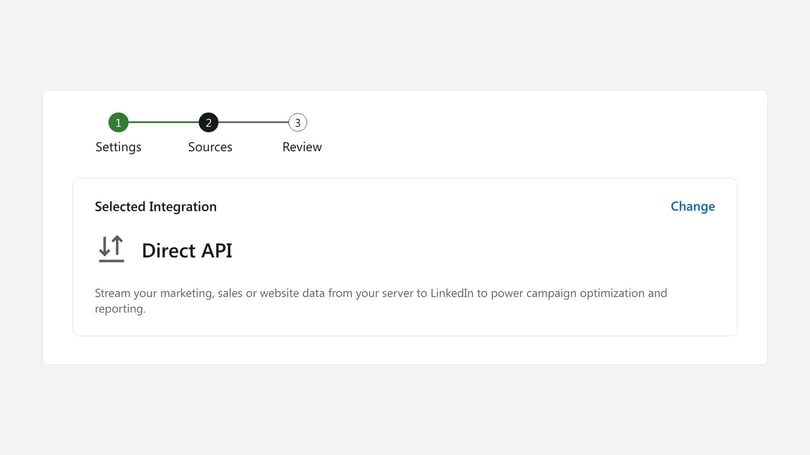
LinkedIn then shows Direct API as the Selected Integration.
Click the blue Next step button to continue.
Review
The third and final stage is Review. You'll see a summary of your selections, and you can change anything you need to.
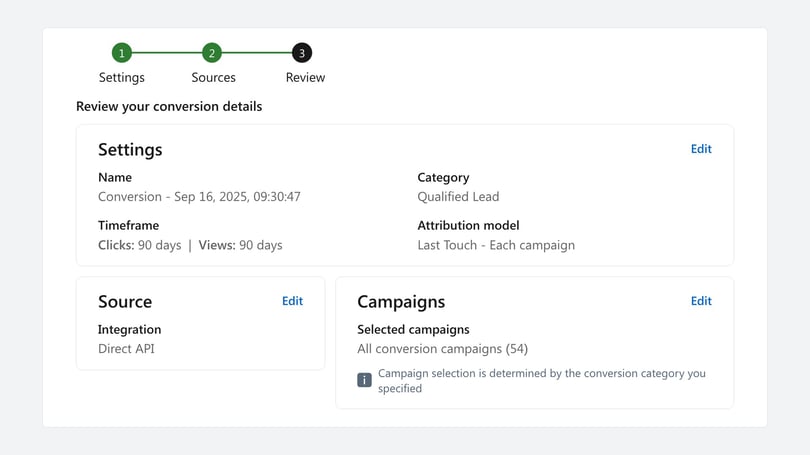
When you're happy, click the blue Create button to create the conversion. That completes step 1. Step 2 takes place in the Infinity Platform.
Step 2: configure LinkedIn Ads call tracking in Infinity
Log in to the Infinity Platform and select Settings at the bottom of the left-hand navigation, then click Homepage in the Integrations section. Click the LinkedIn tile to select the LinkedIn integration.
Click the green + Add LinkedIn Conversion Tracking button. You'll see a screen like this:
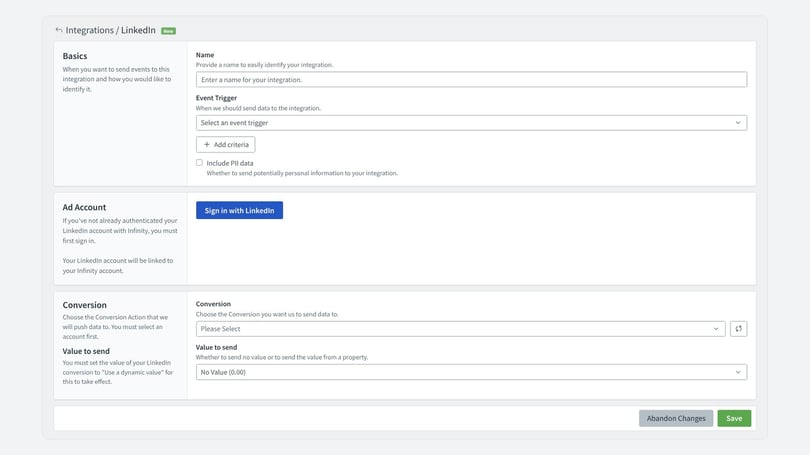
There are three sections to complete: Basics, Ad Account and Conversion.
Basics
Start by giving your integration a Name you'll easily be able to identify later.
Next, choose the Event Trigger for the integration. This is usually either when a call has happened or when a goal is fired. Choose the best option for you, then refine the firing criteria.
Use Add criteria to add more criteria to your event trigger. Search for a field, add an operand and then a value. You can choose from a wide range of fields, such as Call Duration, Channel, Tracking Pool and Goal. Operands include Is, Is Not, Is Empty and Is Not Empty, so you can trigger events on a specific value, or on whether a value has been captured for that field.
Ad Account
Next, sign in to your LinkedIn Ads account to connect it to Infinity, so Infinity can pass conversion events into LinkedIn.
Click the blue Sign in with LinkedIn button. Select the LinkedIn Ads account you want to link, and enter your LinkedIn Ads username and password to continue. You'll probably see a two-factor authentication challenge. Once you've confirmed your identity, you'll see a confirmation like this one:
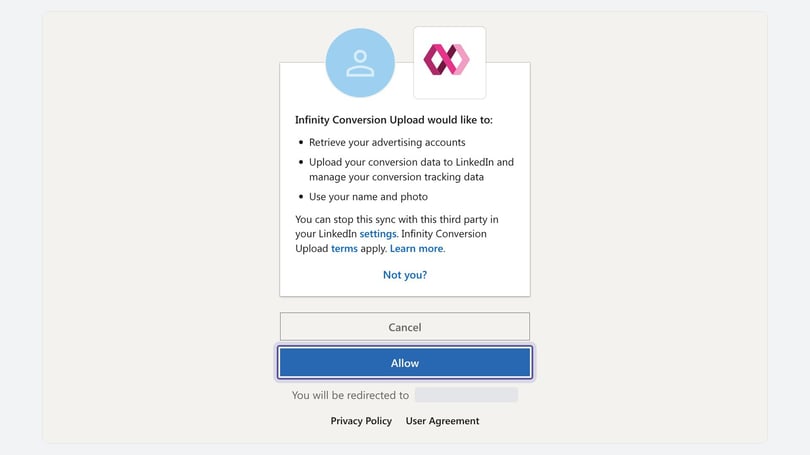
Click Allow to continue. You'll be taken back to the integration set-up page in Infinity.
Conversion
Use the Ad Account dropdown to select the LinkedIn Ads account you want to send conversions to. Then use the Conversion dropdown to select the conversion you want to send them into: the one you created in LinkedIn Campaign Manager in step 1.
Finally, you can pass a value for each conversion event into LinkedIn Ads using Value to send. There are three options: No Value, which is the default, Transaction Value or Goal Value.
Note: Make sure the value option in Infinity matches the choice you made in LinkedIn. If you send an Infinity value, such as a Transaction Value or Goal Value, the conversion in LinkedIn Ads must be set to Use a dynamic value for it to take effect.
This setting decides which Infinity value is used in the conversion. You also need to make sure you're capturing that value, for example through goals, call rating, a CRM integration or Smart Match.
Click Save to complete the set-up. Infinity passes conversion events into LinkedIn Ads in real time, though they may take some time to be processed and appear in LinkedIn.
View LinkedIn Ads call tracking data in Infinity
By default, calls and goals from LinkedIn appear under the Social channel in Infinity, based on the referrer domain being linkedin.com.
As well as the li_fat_id, if you tag your landing pages with utm_medium=social, Infinity also pulls in the utm_source and utm_campaign values to fill the publisher and campaign fields, for more detailed reporting. For example:
https://www.example.com/landing-page?utm_source=linkedin&utm_medium=social&utm_campaign=campaign1
https://www.example.com/landing-page?utm_source=linkedin&utm_medium=social&utm_campaign=campaign1
LinkedIn's help centre explains how to add URL tracking parameters.
View the data in LinkedIn
From your LinkedIn homepage, click Advertise on the left-hand side to open Campaign Manager. On the Campaigns and Ads tabs, you can select Conversions as a Breakdown option. This shows how many of each conversion type your campaigns delivered, alongside other metrics you choose with the Columns dropdown. For more detail, see LinkedIn's Campaign Manager reporting article.
Need more help?
If you also advertise on Facebook or Instagram, the Facebook integration guide covers a similar set-up. If you need help with the LinkedIn Ads integration, get in touch with your account team or email support@infinity.co.