Infinity's Acquisio integration links phone calls back to the Acquisio campaigns that drove them. With Acquisio call tracking, when someone who clicked on your Acquisio activity visits your site and then calls, Infinity records the call as an offline event and passes it to Acquisio. Set-up takes two steps: add Infinity tagging to your paid search accounts, then set up the integration in the Infinity Platform.
What is Acquisio?
Acquisio is a bid management platform. It lets you launch, manage, optimise and report on paid search, social and display campaigns. Infinity's integration gives you a more complete view of the impact of your Acquisio campaigns.
How Acquisio call tracking works
When a visitor who has clicked on your Acquisio activity visits your site and then makes a phone call, Infinity records that call as an offline event and passes it to Acquisio. You can then link the call back to the Acquisio activity that helped drive it, and see its full impact.
Step 1: Add Infinity tagging to your paid search accounts
As Acquisio is a bid management tool, tagging must be set up correctly so that Infinity has all the data it needs for reporting, and so that Infinity's tags don't conflict with Acquisio's tags.
The most straightforward way to do this is with an account level template. It's applied automatically to each activity, without having to run Infinity's tagging check again. Use the template for each ad platform:
Google Ads
trkid=V3ADW[ACQ_ACCOUNT_ID]_{adgroupId}_{targetId}_{placement}_{creative}_{network}_{device}_{adType}_{target}
Microsoft Ads (formerly Bing Ads)
trkid=V3ADC[ACQ_ACCOUNT_ID]_{AdGroupId}_{OrderItemID}_{AdID}_{Device}
Important notes: Enter the tags in the account level Final URL Suffix field, so they don't trip up Infinity's PPC tagging checks. [ACQ_ACCOUNT_ID] is a placeholder for your Acquisio Account ID: replace it with your actual Account ID, and leave out the square brackets. There's no automatic replacement for {trkid}, so it has to be done manually.
For Infinity's standard paid search tagging, see Google Ads tagging and the Microsoft Ads integration.
trkid=V3ADW[ACQ_ACCOUNT_ID]_{adgroupId}_{targetId}_{placement}_{creative}_{network}_{device}_{adType}_{target}
Step 2: Set up the integration in Infinity
- Log in to the Infinity Platform, go to Settings and select Integrations Homepage in the left-hand menu.
- Find Acquisio in the drop-down options and click Add Integration.
Note: Acquisio is a chargeable integration, so additional charges may apply. If you're not sure, check with the Infinity Support team.
Then fill in the form:
- Name: your integration is called Acquisio by default, but you can change it. Choose something you'll be able to identify later.
- Account Name: enter your Acquisio account name. This links the call events to your Acquisio account when Infinity sends them.
- FTP Host, FTP Username and FTP Password: enter the FTP details Acquisio gave you.
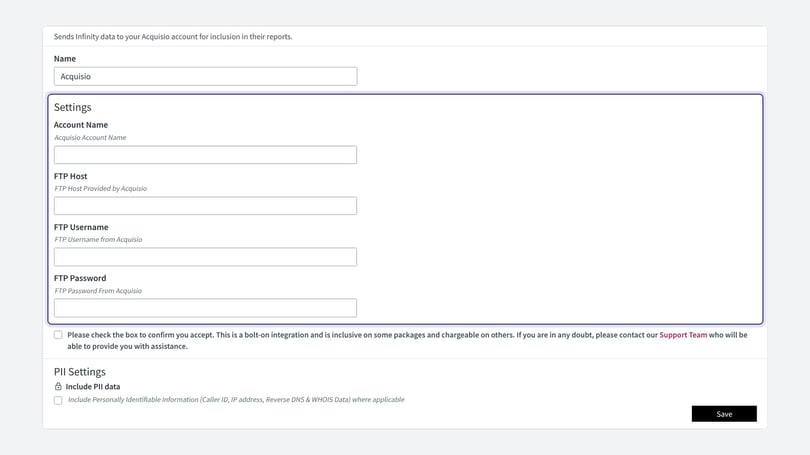
Infinity sends all calls to Acquisio by default. The call events are uploaded to Acquisio's FTP once a day and then imported, so your Acquisio call tracking data shows the previous day and earlier.
Need more help?
If you're still stuck, get in touch with your account team or email support@infinity.co.