Infinity's Outbrain integration links phone calls back to the Outbrain campaigns that drove them. With Outbrain call tracking, when someone who clicked an Outbrain link visits your site and then calls, Infinity records the call as an offline event and passes it to Outbrain. This guide covers the two set-up stages: creating the conversion event in Outbrain, then setting up the integration in the Infinity Platform.
What is Outbrain?
Outbrain is a discovery platform that connects marketers with their target audience through personalised recommendations on publishers' websites. Infinity's integration gives you a more complete view of the impact of your Outbrain marketing.
How Outbrain call tracking works
When a visitor who has clicked an Outbrain link visits your site and then makes a phone call, Infinity records that call as an offline event and passes it to Outbrain. You can then link the call back to the Outbrain activity that helped drive it, and see the full impact of your Outbrain campaigns.
Step 1: Create the conversion event in Outbrain
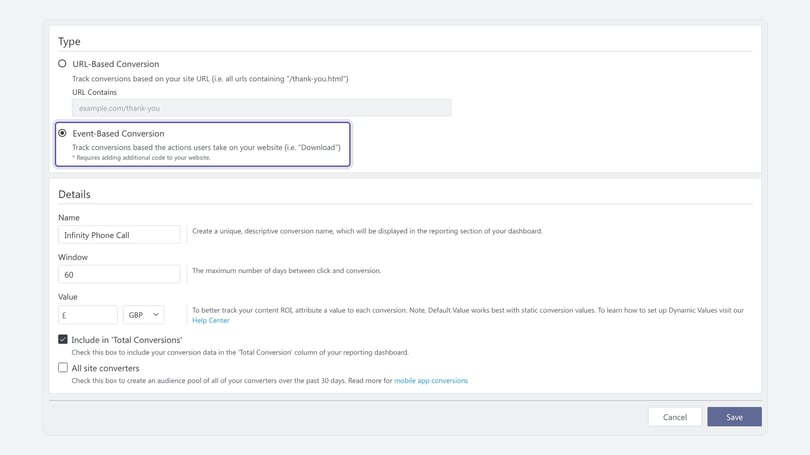
- In the Amplify Dashboard, click Pixels and then Conversions in the left-hand menu.
- Click Add Conversion and choose Event-Based Conversion.
- Give your event a unique Name, for example 'Phone Call'. The name is case sensitive. We've used Infinity Phone Call in the example below.
- Choose a Window. It's 60 days by default, but you can change it. Add a Value if you need one.
- Make sure Include in 'Total Conversions' is ticked.
- Click Save.
Note: You don't need to change your Outbrain pixel code for this event. You only need to create the name.
Step 2: Set up the integration in Infinity
- Log in to the Infinity Platform and go to Settings.
- Select Integrations > Homepage.
- Choose Outbrain from the drop-down.
Note: Outbrain is a chargeable integration, so additional charges apply.
Then fill in the form:
- Name: your integration is called Outbrain by default, but you can change it. Choose something you'll be able to identify later.
- Marketer ID: enter your Outbrain Marketer ID. This links the call events to your Outbrain account when Infinity sends them.
- Event Name: enter the name of the event you created in the Amplify Dashboard in step 1. The name is case sensitive.
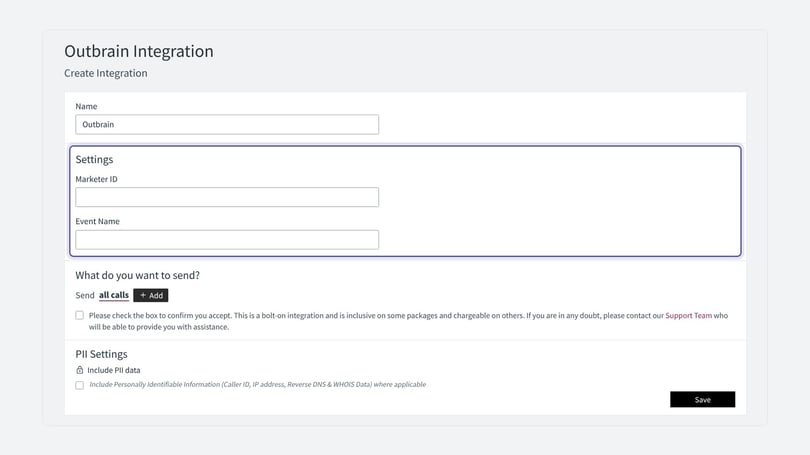
Infinity sends all calls to Outbrain by default. You can change this in What do you want to send?, for example to send only calls that meet a goal.
Your Outbrain call tracking conversion events should appear in Outbrain shortly afterwards, but this can take a few hours.
Need more help?
If you also advertise on social media, the Facebook integration guide covers a similar set-up. If you're still stuck, get in touch with your account team or email support@infinity.co.