Meta call tracking with Infinity sends the phone calls your Meta ad activity drives into Meta as events, through the Meta Conversions API and your Meta pixel. You can link each call back to the Meta activity that helped drive it, see calls alongside your other campaign results, and use that data to optimise campaigns and build audiences. This guide covers the set-up in the Infinity Platform and in Meta, then how to use the call data once it arrives.
How the Meta integration works
Meta is widely used by marketers for its micro-targeting. You can reach people by age, interests, behaviour and location, which helps your budget, conversion rates and return on investment. Meta call tracking with Infinity shows you the phone traffic your Meta activity drives, so you get a complete picture of the calls your activity produces.
After each call, Infinity automatically sends an event into Meta. Meta can then match that event to the visitor journey that led to the call. This lets you link phone calls back to the Meta activity that helped drive them and see its full impact. You can use the call data to increase your Meta return on investment and optimise your marketing spend.
The Meta pixel can collect data for both the Facebook and Instagram advertising platforms, so you can use this integration with either. This guide refers to Meta throughout.
Before you start
You'll need:
- Access to Settings in the Infinity Platform.
- A Meta pixel in Events Manager in Meta Business Manager. This guide assumes you use one pixel across your website. If you use more than one, see Using multiple pixels below.
- Access to the Meta Conversions API. This is where the integration sends events, and it isn't enabled by default. Step 2 shows you how to check.
- Your pixel ID and ad account ID, in case you need to ask Meta for Conversions API access.
Important: This can be a chargeable integration, and additional charges may apply. It's included on our Enterprise and Professional packages and is £25 per month on our SMB package.
Step 1: add the Meta code to your tracking script
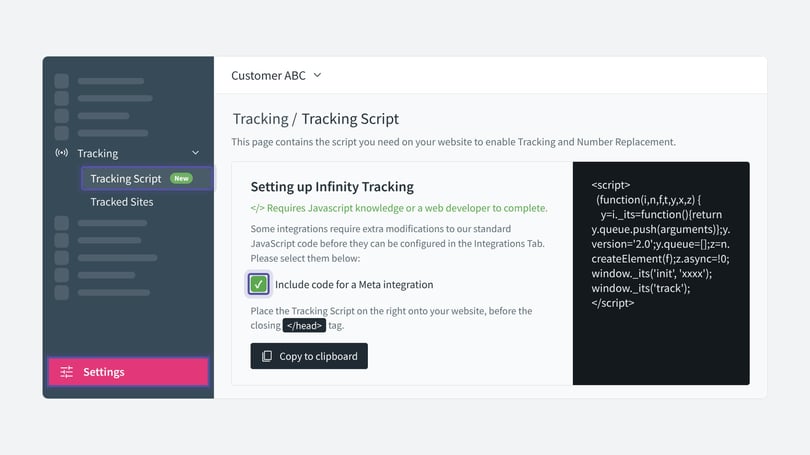
If you're happy for Infinity to handle the set-up on your behalf, go to Settings in the Infinity Platform, click Tracking > Tracking Script, and tick the checkbox next to 'Include code for a Meta integration'.
This makes sure we capture the values the Meta integration needs, generate the UUIDs (unique identifiers) and update the Meta pixel to submit those UUIDs back to Meta.
Step 2: check you have access to the Conversions API
The integration sends events to the Meta Conversions API. Access isn't enabled by default, but it's quick to check whether you already have it.
- Go into Meta Business Manager, open Events Manager, locate your pixel and click Settings.
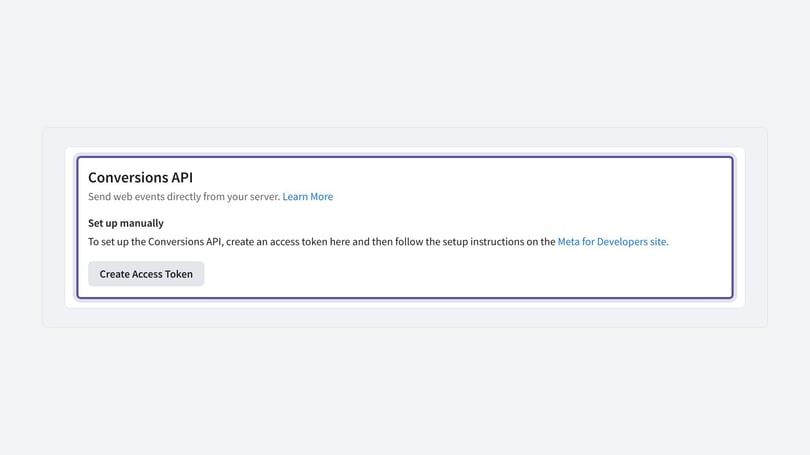
- If you can see a section named Conversions API, as shown below, you have access to the API.
- If you can't, contact your Meta Business Manager administrator and send them your pixel ID and ad account ID. They can arrange for your account to be whitelisted for API access.
Step 3: create an access token in Events Manager
You need an access token to share with Infinity, so that we can pass events into the Meta Conversions API on your behalf.
- Go to Events Manager, then Data Sources, select your Meta pixel and click the Settings tab.
- Scroll down to the section called Conversions API.
- Click Create Access Token. Meta generates the token.
Important: The access token is sensitive, so Meta won't store it. Copy it and keep it somewhere safe. You'll need it in Step 4.
That completes the steps in Meta. The rest of the set-up happens in the Infinity Platform and on your website.
Step 4: configure Meta call tracking in the Infinity Platform
Once you've ticked the checkbox and the code changes are on your site, finish the Meta call tracking set-up by configuring the integration in Infinity. This is also where you decide which data to send into Meta.
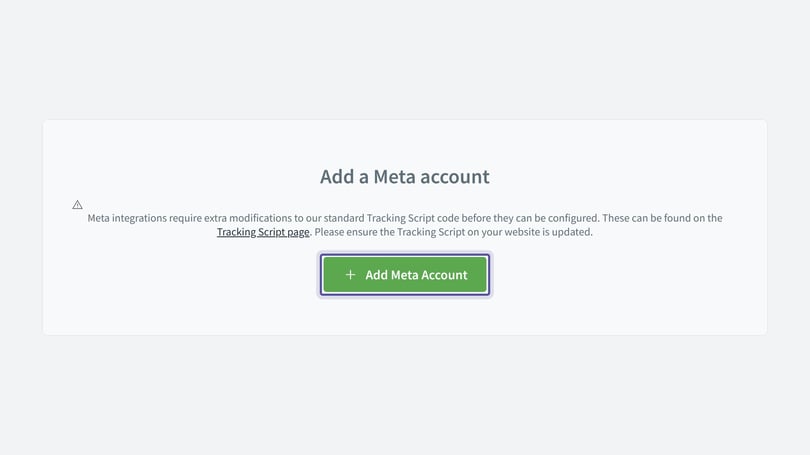
- Log in to the Infinity Platform and select Settings from the bottom of the left-hand navigation. Then click Integrations > Homepage in the left-hand menu.
- Locate Meta and select Add Meta account.
Then complete the integration form:
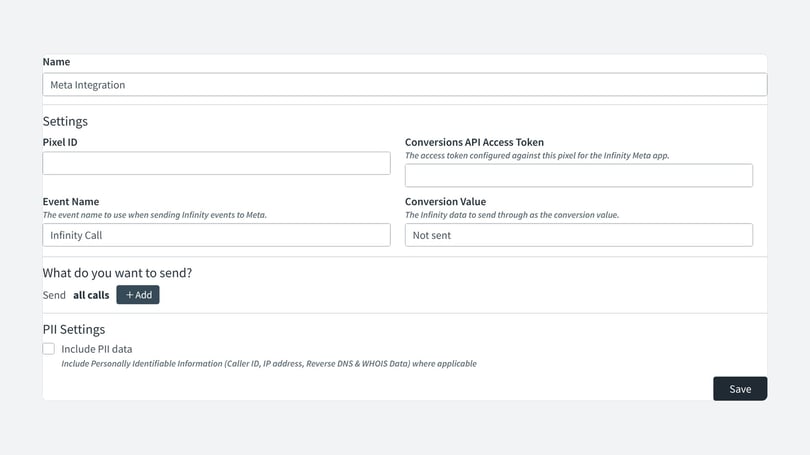
- Give your integration a name. It's called Meta by default, but you can edit it. Choose a name you'll easily identify later.
- Enter your Pixel ID. This is the pixel you want to send events into, and it must match the one you used in the JS Generator.
- Enter your Access Token. This is the token you generated in Meta in Step 3.
- Enter the name you want to give these events in Meta. We'd recommend Infinity Phone Call.
- Optionally, choose an option from Conversion Value to pass a value into Meta. This can be a transaction value, a goal value or no value, which is labelled Not Sent in the dropdown. Transaction and goal values need to be captured in your Infinity installation using Call Ratings (see post-call rating) or CRM events.
- Choose which calls to send. We pass all calls into Meta by default. You can change this using the options under What do you want to send. For example, you might send only calls that meet a goal.
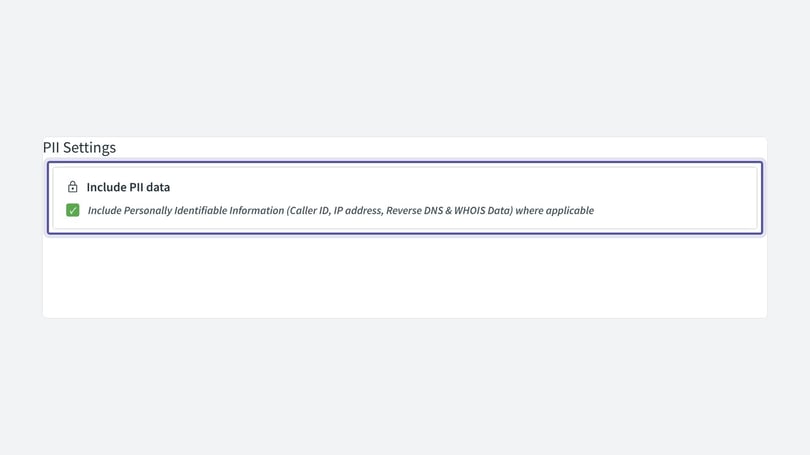
- Decide whether to send PII data. PII data helps Meta match events. It includes the visitor's Caller ID, IP address and user agent. It's disabled by default, so PII isn't passed out of Infinity into Meta, but you can turn it on if you want to.
- Click Save to complete the set-up.
Conversion events should appear in Meta shortly afterwards.
Using multiple pixels
This guide assumes you have a single Meta pixel across your website. In the unlikely event that your site uses more than one, you'll need to update Infinity's JavaScript code for each pixel:
- Use Infinity's JS Generator to generate a code snippet for each pixel ID, then add the updated code to each page that uses that pixel. Our guide to install the Infinity JavaScript code covers adding code to your site.
- Repeat Step 4 for each pixel. You'll need an access token for each pixel.
Why Meta call tracking event match quality scores are lower
Meta scores every event out of 10 for match quality, based on the match keys in the data. An online visitor journey can include a name, address and email address, which Meta uses to improve matching. A phone call event doesn't have those extra data points.
The highest score Infinity can achieve with a Meta event is around 6/10. We consider anything above 4/10 a high score for Meta call tracking events.
To achieve better scores, make sure you've enabled sending in PII Data in Settings > Integrations > Integrations Homepage > Meta Integration. This lets us capture Caller ID, IP address and other data parameters that improve the match rate.
Check call events are arriving in Meta
Once the set-up is complete, check that Meta call tracking events are reaching Meta. Go to Meta Business Manager, select Events Manager and select your pixel.
On the overview tab you should see an activity trace for Infinity Call events, as shown below.
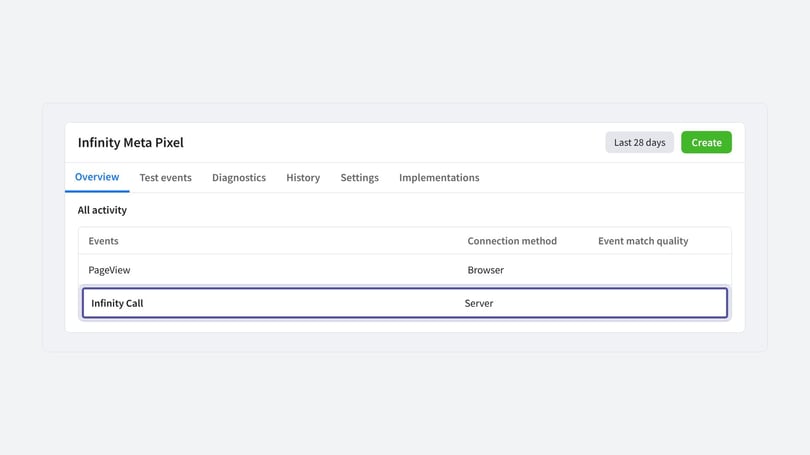
Infinity calls pull through to Events Manager via the Meta pixel data source. You can see a summary of the total number of call events there, regardless of campaign.
Report on calls with a custom conversion
The event data Infinity sends into Meta is a custom event, not part of the core data. It isn't visible in campaign reporting automatically, so you need to create a custom conversion to see it.
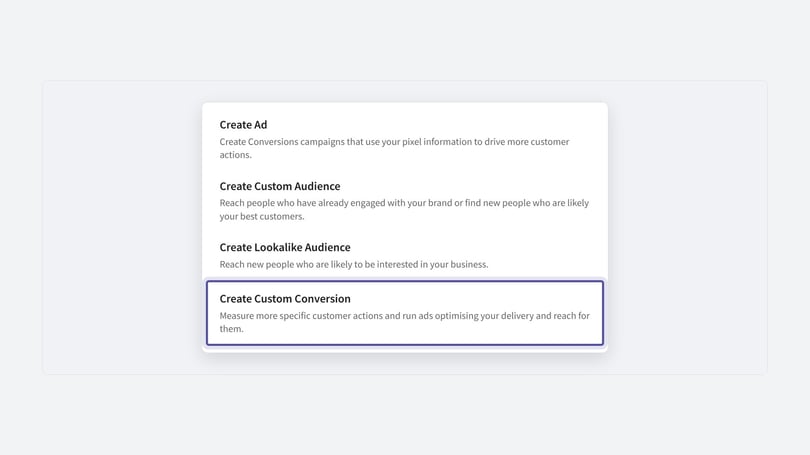
- In Events Manager, click the green Create button and select Create Custom Conversion.
- Give your conversion a name. We'd recommend Infinity Call. Your Meta pixel is pre-selected as the data source.
- Select the Infinity Call event from the Conversion Event dropdown, add any rules and values you need, and click Create.
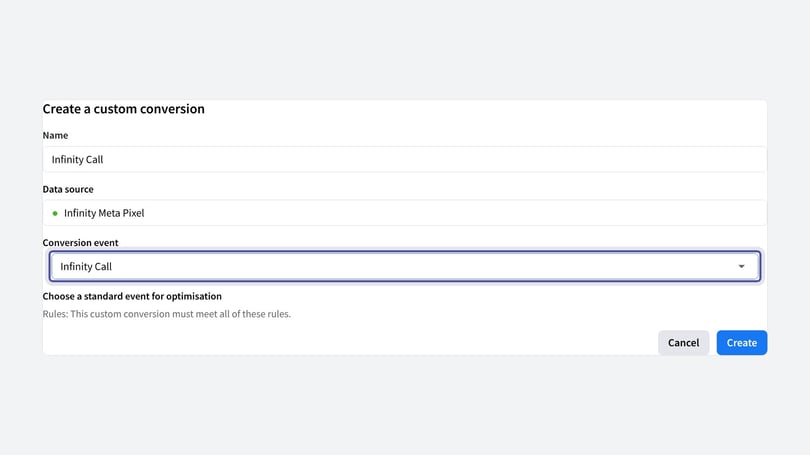
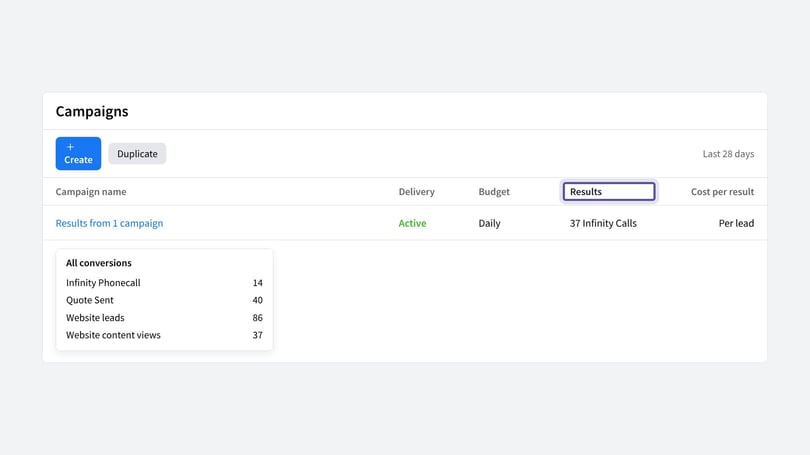
You now have native reporting of Infinity data in Meta. You can view calls alongside other data in Meta. When you look at campaign performance in Ads Manager and hover over the Results column, you can see the Infinity Calls each campaign drove, alongside other events.
Optimise campaigns for calls
With Meta call tracking, you don't need calls to be the outcome of a campaign for them to appear against it. You can, however, choose to optimise the campaign for the custom conversion. Click Edit on the campaign and change the optimisation options to call. This is useful for a call campaign, for example, where people ring to get a special offer.
Build custom and lookalike audiences from callers
Meta call tracking data also supports two main audience types: a custom audience and a lookalike audience.
- To create a custom audience, go to Events Manager, click the green Create button and select Create Custom Audience.
- Your Meta pixel is pre-selected. Click the audience dropdown and choose the Infinity Call event as the criteria for the audience. You can add to this as you wish.
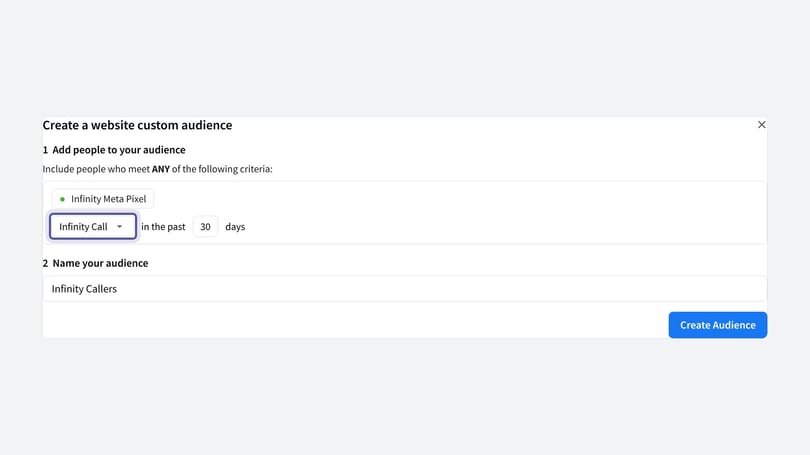
Creating an audience from your callers lets you target people you know call, so you can build a campaign that encourages them to call again. You can also exclude past callers from ads aimed at new leads or online conversions, which helps optimise your online efforts.
To reach new customers, build a lookalike audience of people you think are likely to call.
Frequently asked questions
Does Meta call tracking work with Instagram ads?
Yes. The integration uses a Meta pixel, which can collect data for both the Facebook and Instagram advertising platforms, so you can use it with either.
Is the Meta integration included in my package?
It's included on our Enterprise and Professional packages and is £25 per month on our SMB package. It can be a chargeable integration, so additional charges may apply.
Why are my call events' match quality scores lower than my other events?
A phone call event doesn't have the name, address and email address that online journeys can include. The highest score Infinity can achieve is around 6/10, and anything above 4/10 is a high score. Turning on PII data in the integration settings helps improve the match rate.
Do calls need to be my campaign outcome to appear in Ads Manager?
No. Once you've created a custom conversion, calls are visible against a campaign without being its outcome. You can still optimise the campaign for the custom conversion if you want to.
Need more help?
To add Infinity's code to your site, see how to install the Infinity JavaScript code. If you also advertise on LinkedIn, the LinkedIn Ads integration guide covers a similar set-up. If you're still stuck, get in touch with your account team or email support@infinity.co and we'll help you get set up.