Criteo call tracking links your phone calls back to the Criteo activity that drove them. The Infinity Platform records each call that follows a Criteo click and passes it into Criteo as an offline event. This guide explains what the integration does, how to set it up, and how to find your Infinity transactions in Criteo.
What is Criteo?
Criteo's performance display technology delivers personalised recommendations (via banners) to a user, based on intent data such as products they have previously viewed or purchased.
Infinity's integration with Criteo enables clients to link phone calls back to the Criteo activities that drove the call. This gives them a more complete view of the impact of their Criteo campaigns.
How the Criteo integration works
When an end user who has clicked a Criteo link visits that site and makes a subsequent phone call, we record that call as an offline event and pass it into Criteo. This lets you link phone calls back to the Criteo activity that helped drive the call, and see the full impact of your Criteo activity.
Configure Criteo call tracking in Infinity
- Log in to the Infinity Platform and select Settings from the bottom of the left-hand navigation. Click Integrations from the left-hand menu, then Homepage.
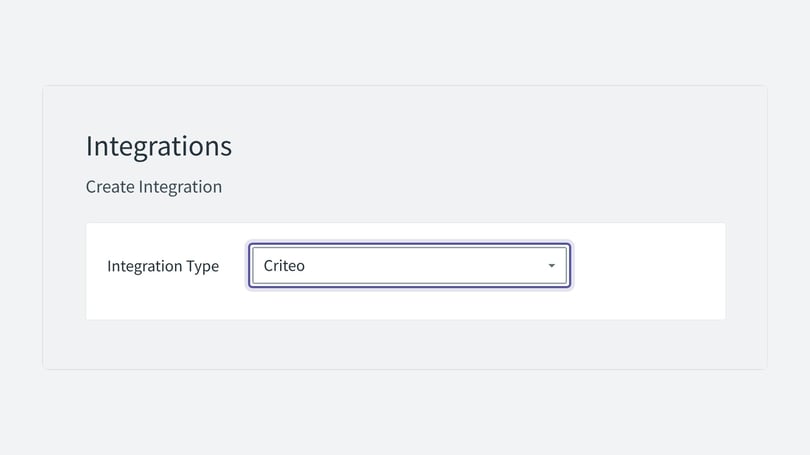
- Choose Criteo from the drop-down. This is a bolt-on integration and may incur an additional charge, depending on your package. For more information, contact our Support Team, who will be able to offer advice.
- Give your integration a name. It is called Criteo by default, but you can edit it. Choose something you'll easily be able to identify later.
- Enter your Account ID. This links the call events to your Criteo account when they are sent by Infinity.
- As an optional step, select an option from the Conversion Value field to pass a value into Criteo. This can be a transaction value, a goal value or no value, which is labelled Not sent in the drop-down. These transaction and goal values need to be captured in your Infinity installation using Call Ratings or CRM events.
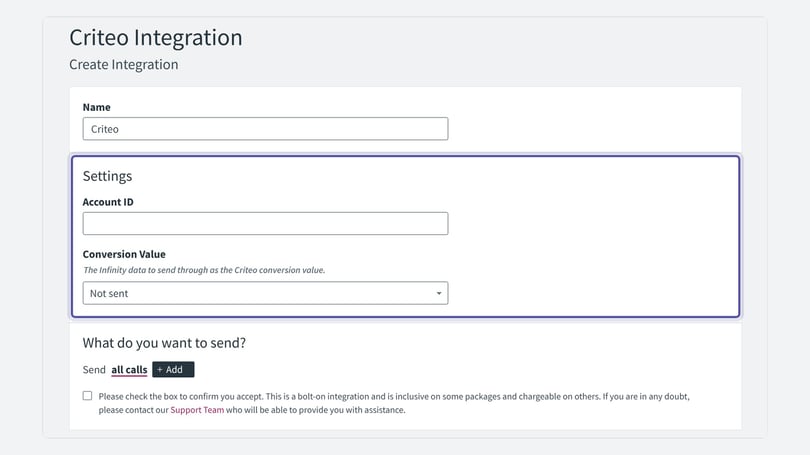
- We pass all calls into Criteo by default, but you can change this using the options in What do you want to send? For example, you may choose to send only calls that meet a goal.
- Conversion events should be visible within Criteo shortly afterwards, but this could take a few hours.
Viewing Infinity data in Criteo
Viewing the data in the Criteo dashboard is quick and easy.
- Log in to the Management Centre at https://marketing.criteo.com.
- If you have more than one account, select the one you want to view using the drop-down.
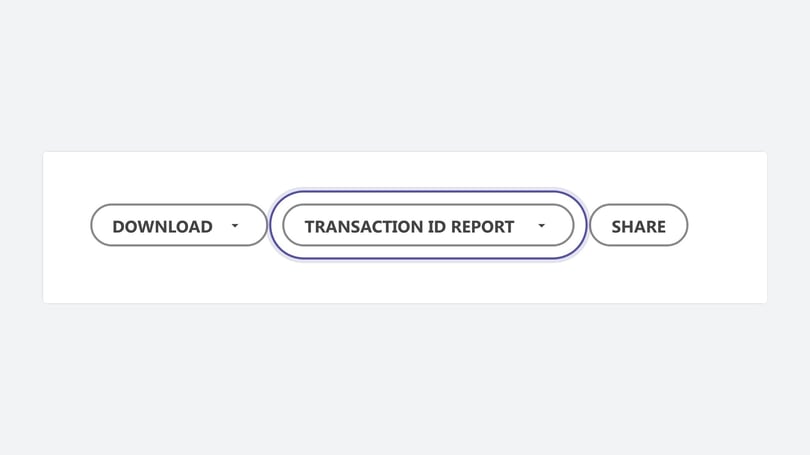
- Navigate to the bottom of the page and click Transaction ID Report. Choose Raw data (.csv) to download a csv export of all the transactions.
- Open the csv file and filter the Transaction ID column to view the Infinity transactions. They are easy to identify because they have the prefix Infinity.
Need more help?
If you're still stuck, get in touch with your account team or email support@infinity.co.