Qubit is part of Coveo, which acquired it in 2021. Qubit call tracking sends call data from Infinity to your Qubit account, so you can measure the phone traffic that each variant of an A/B test or personalisation project generates. This guide covers what you need before you start and how to set up the integration in the Infinity Platform.
What is Qubit?
Qubit brings together analytics, testing and personalisation to deliver targeted user experiences. The Qubit integration gives you the ability to use Infinity call tracking numbers alongside your experiments and personalisation projects.
Integrating your Infinity and Qubit accounts means that you can run split testing (often called A/B testing) or multivariate testing on your website, and measure the corresponding phone traffic that each variant generates.
Before you start
You need your Qubit Account ID to hand. This can be obtained directly from Qubit.
Check that your Infinity subscription allows for setting up an additional integration. This may be a priced bolt-on for Small Business packages, or inclusive for Enterprise packages, depending on the number of integrations you have already activated. For more information, contact the Infinity support team, who will be able to offer advice.
Set up Qubit call tracking
You choose which events are pushed into your Qubit account. Follow these steps in the Infinity Platform.
- Go to Settings at the bottom of the left-hand navigation in the Infinity Platform, then select Integrations > Homepage from the left-hand navigation.
- Select Qubit from the drop-down, then click the green Add Qubit Account button.
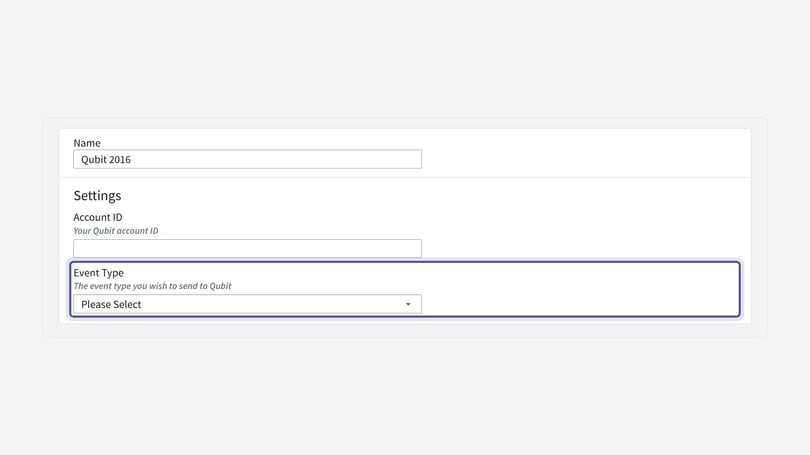
- Give your integration a name. It is Qubit 2016 by default, but you can edit it. Choose something you can easily identify later.
- Enter your Qubit Account ID. This can be obtained directly from Qubit.
- Choose the Event Type. Each Qubit account is assigned to a vertical, such as travel or publishing, which governs the events sent to Qubit. Confirm with your Qubit account manager which vertical is set in your Qubit account, and select it from the drop-down.
- Determine the data you want to pass through to Qubit. This is set using the Value Field and the What do you want to send? configurator.
- The default settings are Not sent in the Value Field and All calls. This passes all calls through to Qubit without any additional values. You can change this to send goal values or transaction values as you see fit.
Call scenarios
Send qualified calls with their goal values
In this scenario, Qubit call tracking sends all call events that meet your qualified goal criteria, together with their corresponding goal value.
- Click + Add, choose goal, is, and qualified call, then click the tick to add those selections.
- Choose Goal Value from the Value Field drop-down. This sends all calls that meet your goal criteria for a qualified call, together with the goal value you assigned in the goal set-up.
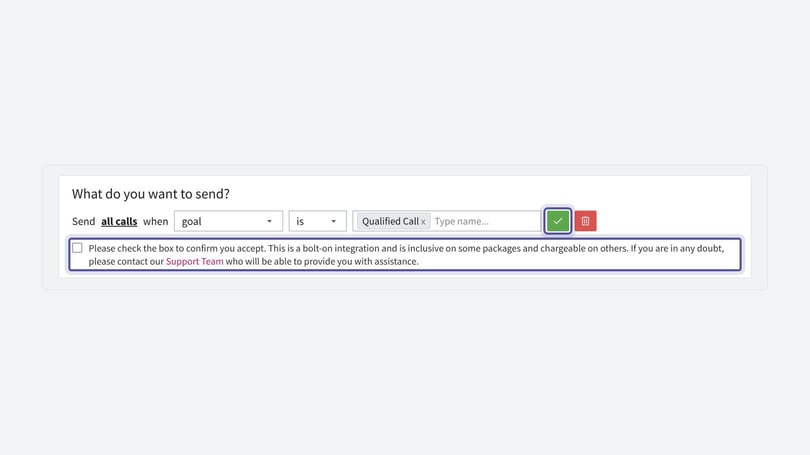
- Tick the checkbox to acknowledge that this may be a chargeable integration, then click Save to save your changes.
Qualified call is an example goal from our demo installation. Your installation will be different.
Send sales calls and their transaction values
In this scenario, you send all calls that were rated by the operator as a sale, together with their transaction value.
- Click All calls and choose all call ratings from the drop-down. Then click + Add, choose call rating, is, and sale, then click the tick to add those selections.
- Choose Transaction Value from the Value Field drop-down. This sends all calls rated as a sale, together with the transaction value for that sale.
Call ratings and transaction values are set up using the Operator Call Rating settings in the Telephony Settings area of the Settings section of the Infinity Platform.
Need more help?
If you have any questions, contact a member of the Infinity support team, or email support@infinity.co.