The Adobe Analytics call tracking integration sends phone calls and other data from your Infinity account into Adobe Analytics, so you can view them alongside your online activity. It uses Adobe's Data Sources feature and a transactionID to link offline calls to online transactions. This guide covers the four set-up steps, and it includes the Adobe Analytics parameters dictionary, which lists every parameter you can send.
About Adobe Analytics call tracking
Adobe Analytics is a set of tools for predictive and real-time analytics that can be integrated into third-party sources. Integrating your Infinity account with your Adobe Analytics account means that you can view phone calls and other data that you wish to share from your Infinity account in Adobe Analytics.
Adobe Analytics call tracking uses Adobe's Data Sources feature, which is designed to link offline events (such as phone calls) with online events.
A key element of Data Sources is the use of a transactionID, which is used to tie offline data to an online transaction (like a lead or purchase generated online).
Important: You will need to add some code to your site to generate a transactionID for each page view that takes place. Once this transactionID has been generated, it will then need to be set in the Adobe Analytics and Infinity JavaScript variables. Then you can configure Adobe Analytics call tracking from within the Infinity Platform.
Adobe Analytics integration checklist
A summary of the required steps for Adobe Analytics call tracking is as follows:
- Obtain the FTP details for your Adobe Analytics account.
- Enable transactionID storage in Adobe Analytics.
- Add code to your site to generate a transactionID for each page view that takes place.
- Configure the integration in the Infinity Platform.
Step 1: obtain the FTP details for your Adobe Analytics account
To set up Adobe Analytics call tracking, you'll need some FTP details for your Adobe Analytics account, namely the Host URL, your username and password. You may need to check the data source has been activated and mapped appropriately before getting the FTP details. Please read Adobe's transaction ID data sources article to check the properties of Transaction ID data sources. Uploads to your FTP location are carried out hourly.
The FTP host is typically something like ftp.omniture.com or ftp2.omniture.com, and is quite generic. Your username and password will be unique to you.
To locate your FTP Host, Login and Password for Adobe Analytics call tracking, access your Adobe Analytics account and select FTP Info next to the Data Source entry in the Data Sources Manage tab (Analytics > Admin > Data Sources). If you need any assistance, please contact your Adobe Account Manager.
You'll also need to make sure your Infinity subscription caters for setting up an additional integration. This will be a priced bolt-on for Small Business packages, and may be inclusive for Professional and Enterprise packages, depending on the number of integrations you've already activated. For more information, please contact the Infinity support team, who will be able to offer advice.
Step 2: enable transactionID storage
Before transactionID values are recorded for Adobe Analytics call tracking, Transaction ID Storage must be enabled for the report suite selected in the Report Suite Manager. This setting is located at Analytics > Admin > Report Suites > Edit Settings > General > General Account Settings.
To see whether transactionID Storage is enabled for a report suite, go to Analytics > Admin > Data Sources > Manage.
You are required to define the Transaction ID within Adobe.
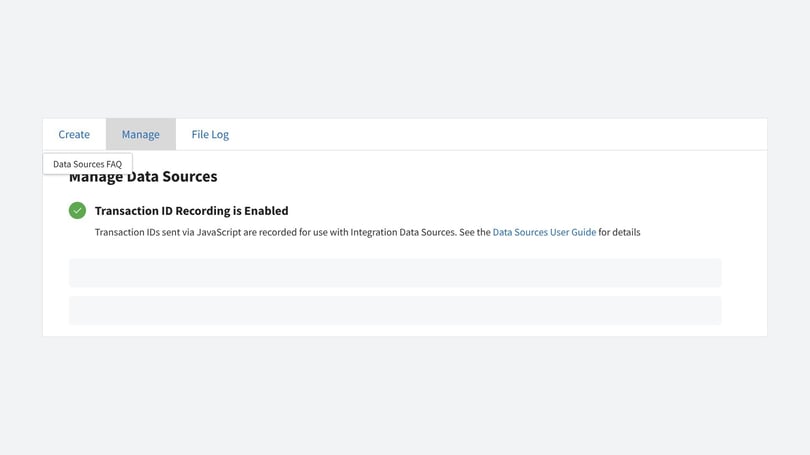
The Manage tab displays the status of Transaction ID Recording.
90-day expiry
By default, transactionID values are remembered within Adobe Analytics for 90 days. If your offline interaction process is longer than 90 days, you can contact Adobe to have the limit extended.
Step 3: add code to your site to generate a transactionID
Additional code is required for Adobe Analytics call tracking. You can find this code within the Infinity Platform, in Settings > Tracking > Tracking Script. Make sure Include code for an Adobe integration is ticked. If you are also using the Meta integration, please ensure that Include code for a Facebook integration is also ticked:
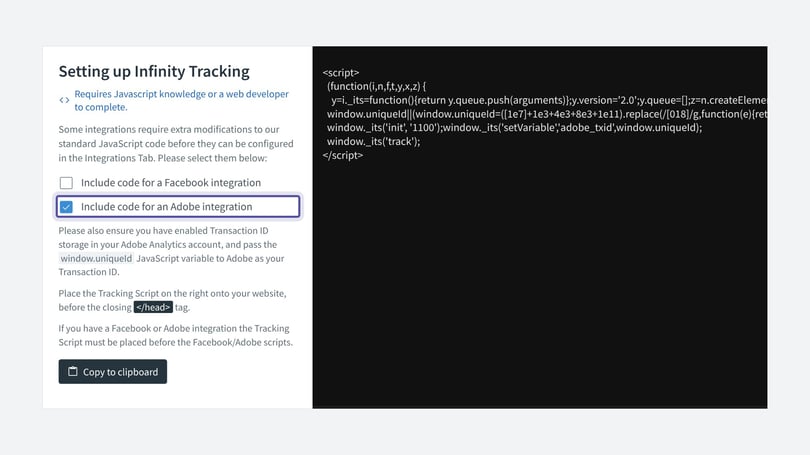
This additional code for Adobe Analytics call tracking will generate a UUID and assign it to a variable named window.uniqueId. window.uniqueId should be assigned to the Transaction ID within Adobe Analytics. Please read Adobe's short guide on transactionID if you need more information.
Step 4: configure the integration in the Infinity Platform
You need to configure Adobe Analytics call tracking from the Infinity Platform, and determine which events will be pushed into your Adobe Analytics account.
From the Infinity Platform, select Settings from the bottom of the left-hand navigation, and then click Integrations.
At the top of the list of your integrations, select Add Integration, and choose Adobe Analytics from the dropdown.
First, give your integration a name. It is Adobe Analytics by default, but you can edit it. Choose something that you'll easily be able to identify later.
Then enter your FTP details provided by Adobe. These are the host URL, together with your username and password. If you return to this page to edit your integration in the future, the password will be hidden. You can still amend it, but you won't be able to see it.
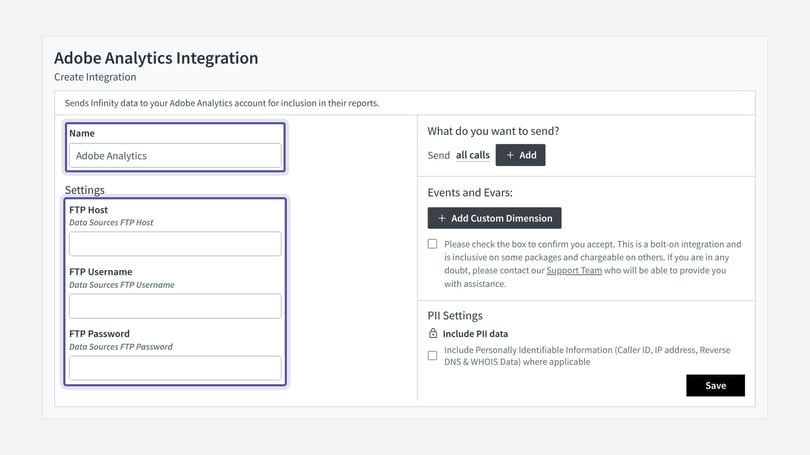
Next, determine what data is passed through to Adobe. All Calls is selected by default. You can refine this further by clicking the + Add button to add additional criteria.
In addition, specify what data is sent and how it is matched to your Adobe Analytics account by clicking the + Add Custom Dimension button.
Adobe Analytics has the concept of Events and eVars. Events are used to count interesting things that have happened, such as a form fill, a download or a login on a website. The Infinity integration uses Events to say that a phone call has happened, or a Goal, such as a sale. For further information about the parameters, see the Adobe Analytics parameters dictionary below.
While Events count 'interesting things', eVars are used to provide extra information about that Event. For example, you may want to send a call duration as an eVar for a phone call Event, or a transaction value for a phone sale Event.
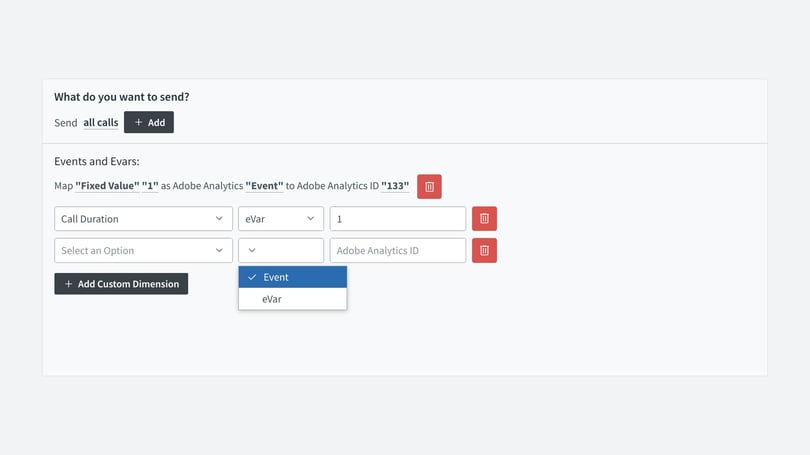
The screenshot below uses Event 134 to say that a sale has happened, and stores the value in eVar 10.
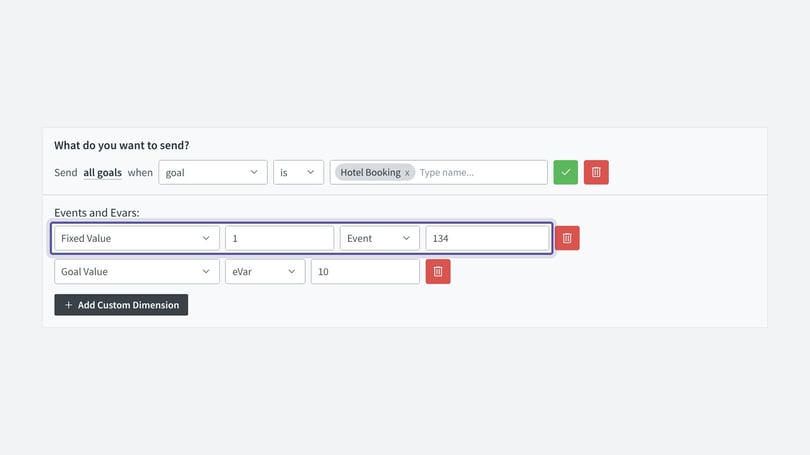
When specifying an Event, you should always use a Fixed Value of 1.
When you click the 'Add Custom Dimension' button, you'll be able to map Infinity data to Events and eVars. The Adobe Analytics ID on the right-hand side of the entry form refers to the Event ID or eVar ID to map the field to.
The screenshot shows a simple integration set-up, which will tell Adobe that Event 133 has happened and store the call duration in eVar 1.
To configure your integration, select a Custom Field (Custom Field, Pass-Through Field, Fixed Value) or choose from any of Infinity's Standard Metrics from the dropdown.
Next, select whether you wish this to be mapped as either an Event or an eVar from the second dropdown. We recommend you configure at least one Event as a minimum, and you can refine this further by adding in an eVar. The Adobe Analytics ID refers to the Event ID or eVar ID to map the field to.
Finally, enter your details and click Save to complete the integration.
Adobe Analytics parameters dictionary
Adobe Analytics call tracking allows the sending of Infinity parameters to their analytics platform for reporting. These are configured within the Adobe integration as eVars. The parameters available for the integration are listed below.
Need more help?
If you need to extend the 90-day transactionID limit for Adobe Analytics call tracking, contact your Adobe Account Manager. For help with your Infinity integration, get in touch with your account team or email support@infinity.co.