A call tracking API key is an identifier that authenticates you or a program to Infinity's APIs. It replaces the username and password you would otherwise use, so this guide explains how to create and delete an API key, how to use it, and how to switch from basic auth.
What is a call tracking API key?
An API key is an identifier used to authenticate a developer or program to an API. Authentication is the process of proving your identity, which means verifying that you are who you say you are.
It's a long string of letters and numbers, like this:
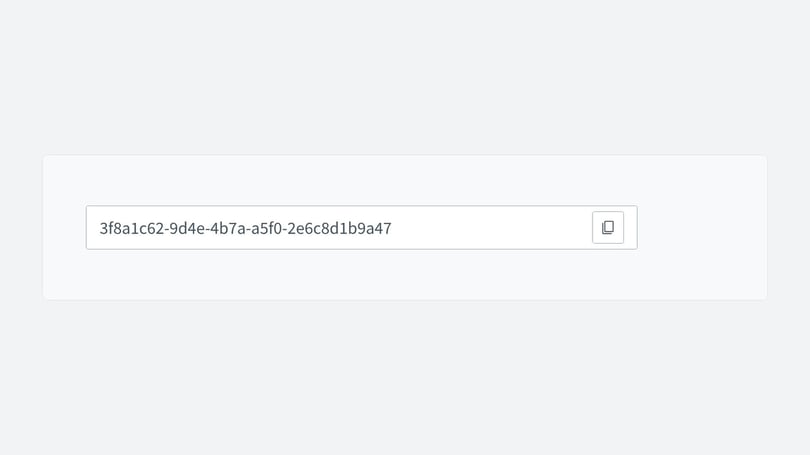
You can use an API key to interact with Infinity's APIs. It replaces the username and password that users typically use when interacting with the API.
Before you start
Only users with the API access permission on their User Profile can open the API Key Management screen. Keys are set up per user, so you can only access and manage your own user's keys.
Creating an API key
- Go to the Infinity Platform, click your avatar in the top right and select My Profile.
- Choose API Key Management from the left-hand navigation. The key is linked to the logged-in user.
If you already have an API key, you'll see its details, but not the key itself. Select Create API Key to get started.
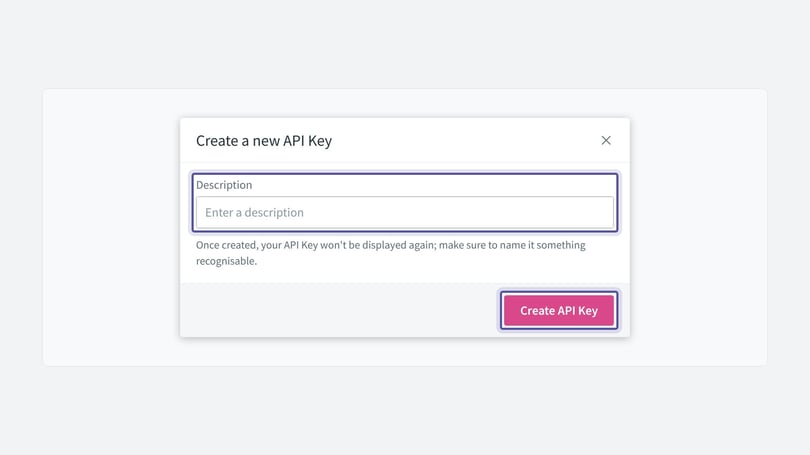
Give your key a name so you can identify it later, then select Create API Key to create it.
The key is not stored in the Infinity Platform, so you need to copy it and store it somewhere secure. Select the clipboard icon to copy it, then save it somewhere safe. Anyone who has the key could access the API with your credentials.
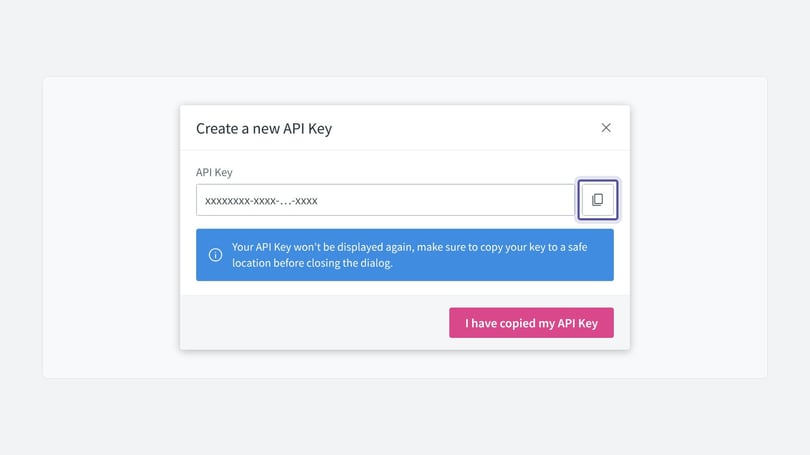
Select I have copied my API Key to continue.
You'll then see a list of keys, including the one you've just created. It shows the name and date, as shown below.
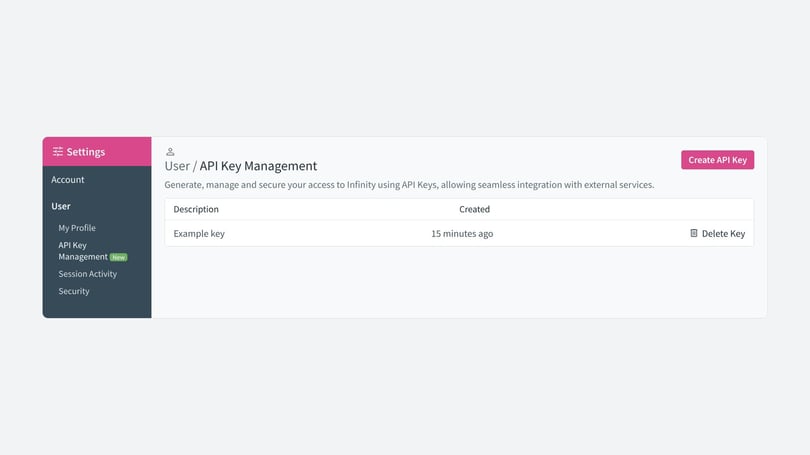
There is no option to view the key value again, and it is not stored in the Infinity Platform. The only options are to delete the key or create an additional one.
You can continue to create new keys as needed. It's good practice to use a separate call tracking API key for each application or integration.
Once you've created the key, you can use it to access the API. If you already have workflows that access the Infinity APIs, you can use the key to replace your username and password.
Deleting an API key
To delete a key, select Delete Key next to the key in question. You'll be shown a confirmation option.
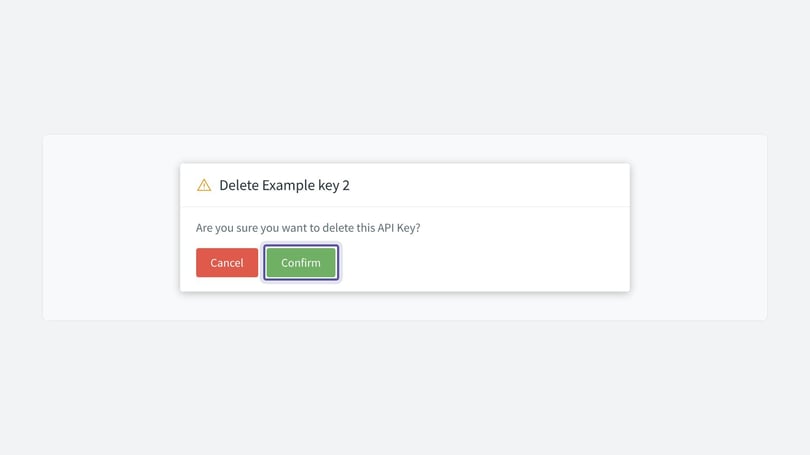
Select Confirm. A notification confirms the key has been deleted, and you'll be shown the list view again.
Using an API key
When making a request to Infinity's APIs, the Authorization header should have the value:
ApiKey xxxApiKey xxx
Replace xxx with the call tracking API key you generated.
Switching API users from basic auth to API keys
The public Infinity APIs have two main methods of authorisation:
- Basic auth: using the username and password you would use to log in to the Infinity Platform.
- API keys: a UUID that has been generated and linked to the user. The Authorization header in the request should have the value "ApiKey xxx", where xxx is the generated key.
API versions
Both v2 and v2.1 of the APIs support API keys for authorisation. However, v2.1 does not accept basic auth and will give an unauthorised response.
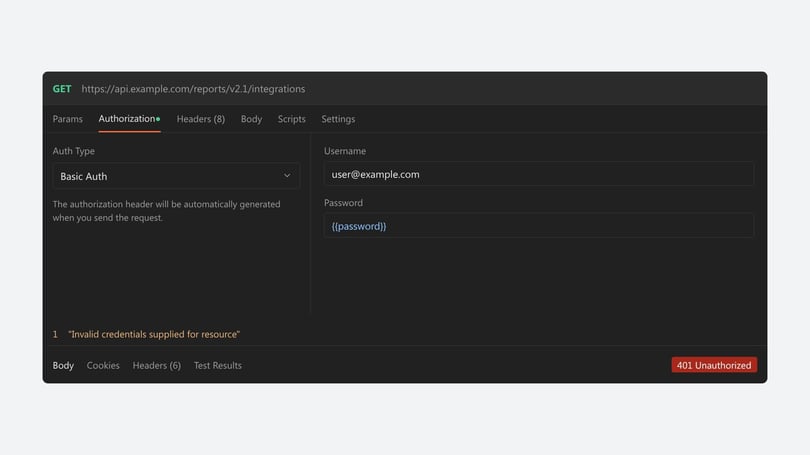
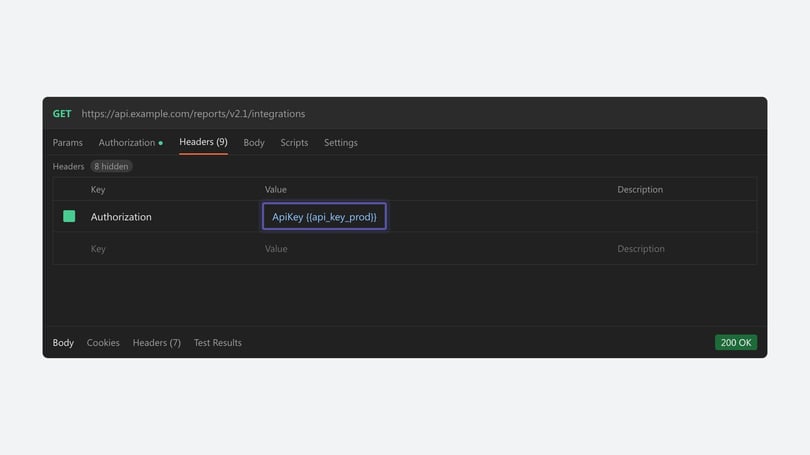
Otherwise, v2 and v2.1 are near identical in functionality. Full details for v2.1 are available in the API documentation.
Need more help?
You can access the Infinity Tracking Developer site here. If you're still stuck, get in touch with your account team or email support@infinity.co.