In short
- Call tracking segmentation in the Infinity Platform filters your data into subsets, so you can assess the performance of each area of your website in isolation.
- The three types of call tracking segmentation are Single Domain, Multiple Domain and Layered Segmentation, which uses segment groups to combine related segments into one division, region or country.
- Set up segments on a URL basis under Settings > Setup > Settings > Tracking Settings > Segments, using Page URL as the criteria field and 'Include (case insensitive)' as the operand.
- A visitor who called before segmentation was configured stays in the default segment for later calls, and Infinity cannot change this behaviour.
Call tracking segmentation is a feature within the Infinity Platform that filters and lets you review subsets of your data. This means you can drill into the different areas of your website and assess the overall performance of the chosen area in complete isolation. Segmentation gives you more granular detail into which areas of your site are proving to be most effective.
Types of call tracking segmentation
There are three types of segmentation which can be set up:
- Single Domain
- Multiple Domain: only possible if tracking pools are split out by domain
- Layered Segmentation
Single Domain Segmentation lets you focus on a single website and the sub-domains within it. You can use it to segment out a single website and monitor its different pages, services, products and geographical areas. Some businesses also set their segments to correspond with their dynamic tracking pools.
Multiple Domain Segmentation can incorporate multiple domains within one installation, and lets you filter using segmentation to review each domain individually. This is useful if your business uses multiple domains to cater for different countries, languages, or products and services that come under a different domain. This type is not available to set up through URL criteria. It can only be set up if tracking pools have been set up for each domain you want as a segment.
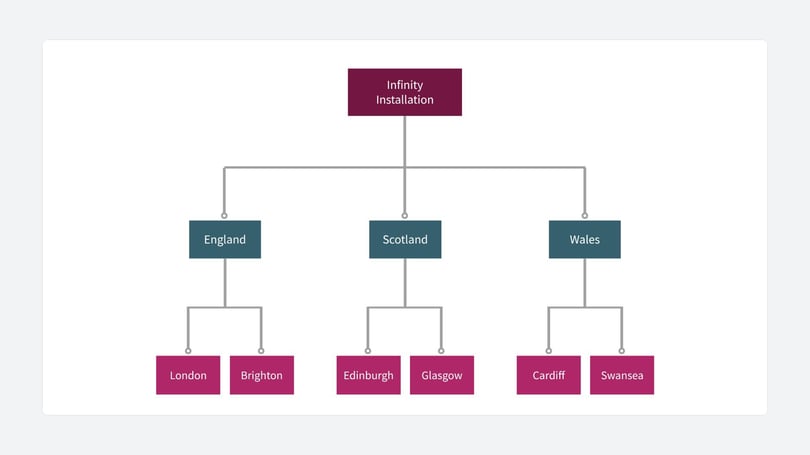
Layered Segmentation uses segments and segment groups to give you even more granularity and ease of reporting. This approach uses segment groups to combine related segments into one division, region or country.
Segment groups
Segment groups present the combined data of the segments within them. This is useful because it lets you use segments and also group them together, to get a broader understanding of the different areas of your business. Segment groups are often labelled as Regions or Departments.
A further example of how a segment set-up using segment groups works is shown below, with the labels 'England', 'Scotland' and 'Wales' representing the segment group layer.
Reporting on segmentation
You can report on call tracking segmentation in a number of ways in the Infinity Platform. You have access to your own Segmentation dashboard, where you can view visits, calls and missed calls, goals and channels by segment. The Segmentation dashboard gives you a full overview of each segment, so you can see high and low volumes, or filter to a specific segment.
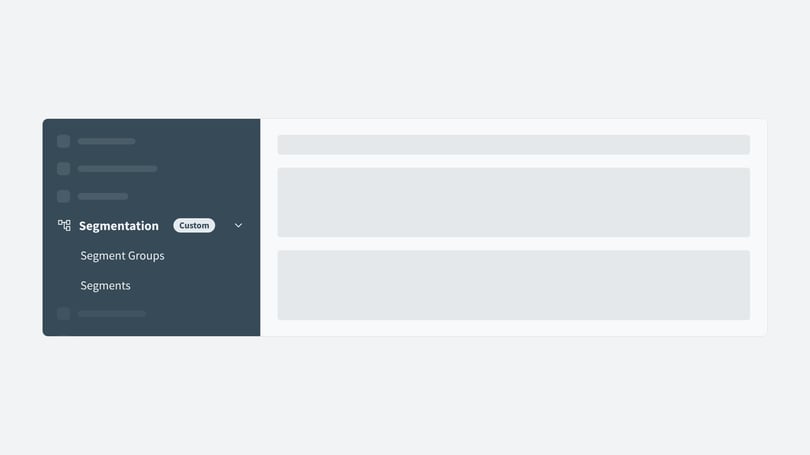
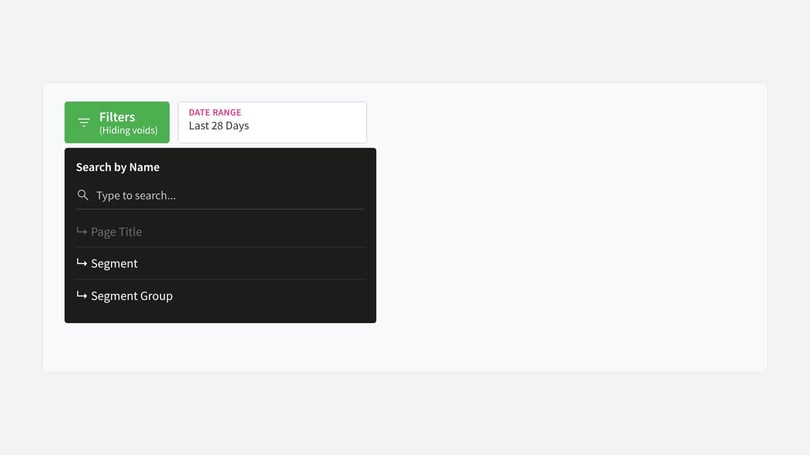
You can also filter other dashboards by your chosen segment or segments:
- From the Infinity Platform, navigate to your chosen report that you would like to apply a segment to.
- Then select the green Filter button.
- Select Journey and then Segmentation.
- Select Segment.
- Then select or search for the name of the segment you would like to apply.
- Once selected, click on Apply and your segment will be applied to your report.
From your Logs, you can filter by segment. For example, in the Calls Log you can filter your calls to show only calls from a specific segment, such as a location or service.
You can include segmentation in your scheduled reports, so that only the data of interest to you is captured and reported on.
Configuring segmentation
If you would like segment groups for your call tracking segmentation, we recommend creating all the segment groups you need first, before moving on to the segments themselves. This streamlines the process and makes sure every segment can be linked to a segment group.
- Log into the Infinity Platform.
- Select Settings.
- Select Settings from the Setup menu.
- Select Tracking Settings.
- Select Segment Groups.
- Click on Create Segment Groups.
- Name: pick a relevant segment group name for reporting. For example, a housebuilder client might choose a Region which they would like property segments to sit within.
- To Save, click Create.
If you would like to segment via tracking pools, contact support@infinity.co, who will configure this for you. If you would like to set up segmentation on a URL basis:
- Select Segments.
- Click Create New Segment.
- Decide on the following fields:
- Name: pick a relevant segment name for reporting.
- Reference: optional field for more internal notes.
- Segment Group: leave as 'none' or select a previously created group.
- Organisation: start typing the name of your call tracking installation. An option should appear in a drop-down menu. Select it.
- Criteria: choose Page URL as the field and select 'Include (case insensitive)' as the operand. For the value, enter the rest of the URL after the domain. For example, www.infinity.co/knowledge-base/home.
When these fields have been populated, select Save Changes.
Please note: If a visiting customer places a call before segmentation is configured, they automatically fall into the default segment. If the same visitor places another call later, after the segmentation configuration is completed, they will continue to fall into the default segment. This is because the visitor keeps the segment that was originally assigned to them. This behaviour cannot be changed, unfortunately, although over time the number of repeat calls linked to the 'default' segment should decrease.