In short
- In Infinity, the destination number is where tracked calls are routed, and the auto discovery number is the website number that Infinity finds and replaces with a dynamic number.
- Both numbers are set per tracking pool under Settings > Setup Settings > Telephony Settings > Tracking Pools Editor, and all destinations must be in E.164 international format.
- The auto discovery number must match the number on your website, or Infinity website call tracking will not activate, and each tracking pool needs its own auto discovery number.
- To update a default destination number, select Edit Config on the tracking pool in the Tracking Pools Editor, change the Default Destination field and select Save Changes.
- Infinity routes tracked calls to PSTN numbers or SIP URI destination points, but the host in a SIP URI cannot be an IP address.
Your destination number is where Infinity routes your tracked calls. Your auto discovery number is the number on your website that Infinity finds and replaces with a dynamic number. The two are sometimes the same, but not always, and the choice is yours. This guide explains each number, how the auto discovery number is set, how to update your default destination number, and how to route calls to a PSTN or SIP destination point.
Destination number
A destination number is the number your calls are routed to. Every dynamic and fixed number needs a destination number, because every Infinity number must route to an endpoint. You tell Infinity what the destination number is, for example your call centre, sales team or customer service team.
The destination number goes into one field in the tracking pool settings. To find it, go to Settings > Setup Settings > Telephony Settings > Tracking Pools Editor.
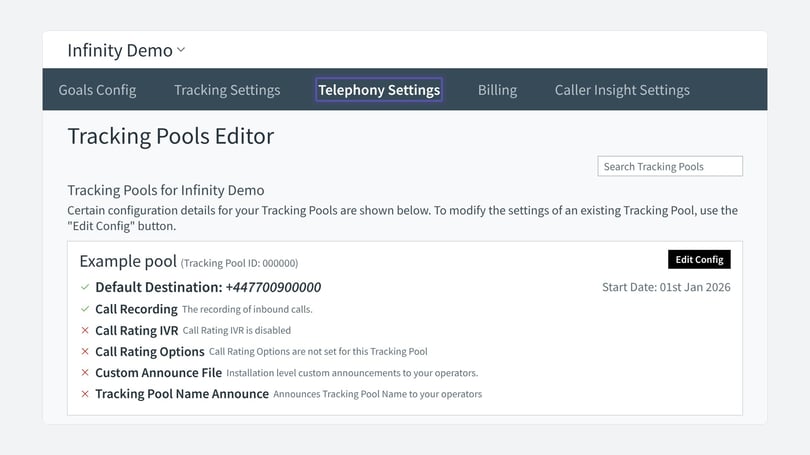
The Tracking Pools Editor lists all your tracking pools, with the destination number that each one routes to.
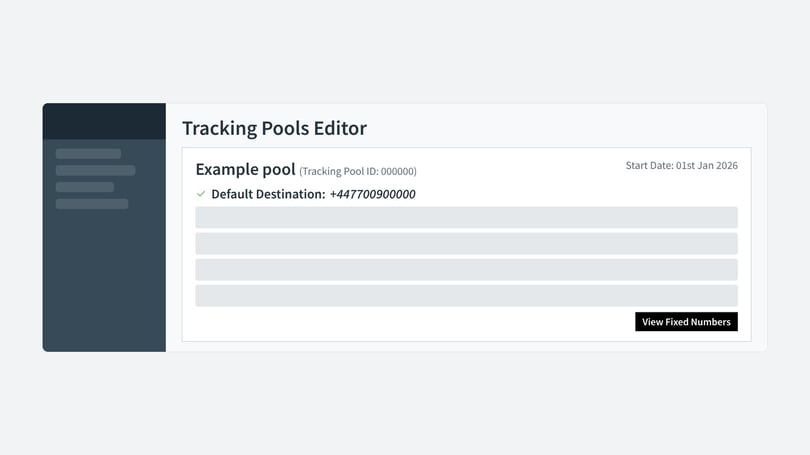
Every tracking pool has a default destination number. All destinations must be in E.164 international format. Dynamic numbers in a tracking pool usually route to the default destination number, but you can customise any dynamic number on its own if you need to. Fixed numbers in a tracking pool can have their own destination number, set for that fixed number or for the campaign it is linked to.
Auto discovery number
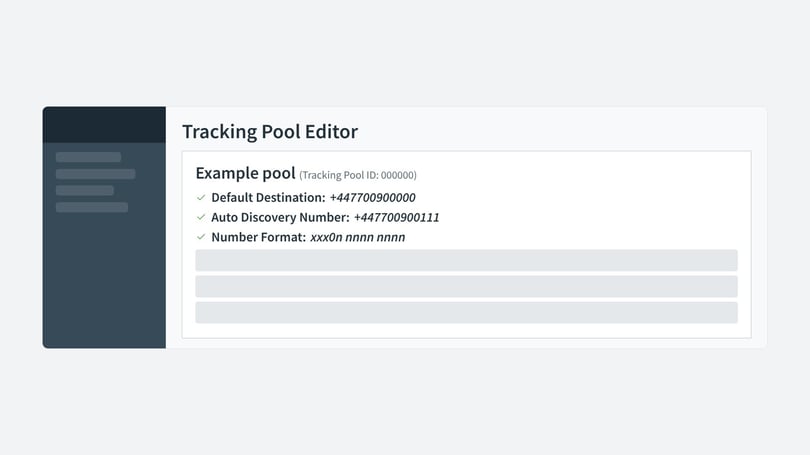
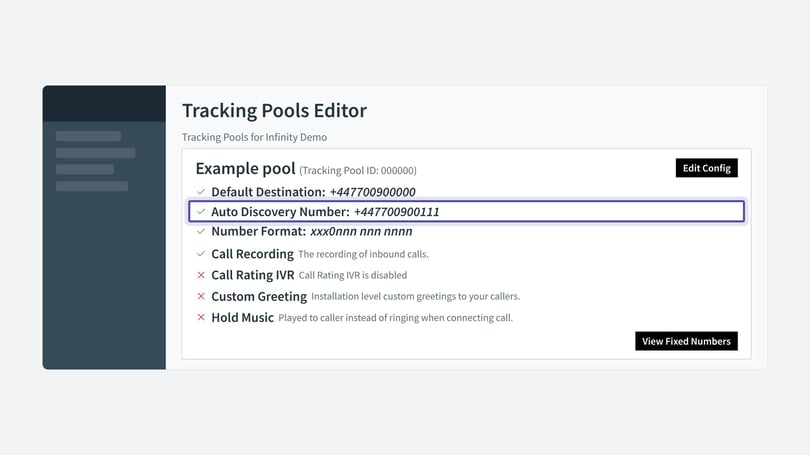
The auto discovery number goes into a different field. It tells our code which number to find on your website and replace with a dynamic number. The auto discovery number must match the number on your website, or website call tracking will not activate.
The tracking script scans pages for any phone numbers. It then tries to find a matching tracking pool and allocate a dynamic number.
To find your auto discovery numbers, follow the same steps as for destination numbers, using Settings > Setup Settings > Telephony Settings > Tracking Pool Editor.
Multiple tracking pools
If you have more than one tracking pool, you need more than one auto discovery number. This lets our JavaScript serve the correct phone numbers to the correct place.
Number formatting
We recommend entering all auto discovery numbers in E.164 format. This is the most flexible option. In most cases, the tracking script then works without any changes to the existing markup of your site.
You can use your destination number as your auto discovery number. If the dynamic number fails to load, the auto discovery number is what displays.
Fallback numbers
Calls that go directly to the destination number are not tracked by Infinity. Some clients therefore have an Infinity fallback number assigned. Embedding a fallback number makes sure every website call comes through Infinity reports. Calls to this number are tracked, because it is hosted by Infinity, but the marketing source shows as 'Unknown' due to lack of cookie data.
N.B.: A fallback number is a fixed number, designed purely for embedding in the Infinity number class. It should not be given out or used elsewhere, or the statistics for the 'Unknown' channel will be affected.
Fallback numbers can be created for your account by our Support Team on request.
Update your default destination number
You can update the default destination number of any tracking pool by following the steps below. This updates the destination of all dynamic numbers, and all fixed numbers in the pool that point to 'default'.
- From the Infinity Platform, select Settings.
- Then select Settings from the Setup menu.
- Select Telephony Settings
- Select Tracking Pools Editor.
- Search or scroll for your relevant tracking pool if you have more than one.
- Select Edit Config on your chosen tracking pool.
- Scroll down to the Default Destination field.
- Update your number. Enter it with no spaces, in E.164 international format, for example +44 for the UK or +1 for the US.
- Select Save Changes.
Place a test call to an Infinity number to make sure everything is connecting correctly.
We recommend using a geographical number rather than a freephone number as your destination number. This helps keep your call charges down. Most freephone numbers have an underlying geographical number, so it is worth finding out what that is.
Default destination numbers
It is important to keep your default destination numbers up to date, so that dynamic phone calls are routed to the correct area of your business.
If a destination number needs to change, you can make the change directly in the Infinity Platform. Certain permission levels are needed to do this. If you do not have them, contact support@infinity.co and our support team will assist you.
If you do not keep your default destination up to date, calls to your dynamic and fixed numbers that route to your default destination will not connect.
For the steps, see Update your default destination number earlier in this article. To change the destination of a fixed number, see the Edit your Destination for Fixed Numbers article.
Destination points
A destination point is where you want us to route your tracked calls. This might be an office, a team or a specialist.
Infinity lets you route tracked calls over traditional fixed lines, such as PSTN, or directly to a SIP endpoint in your telephony infrastructure. Infinity is compatible with most, if not all, hardware that transmits calls, including softphones. If you have questions, our Solutions Team can answer them.
You can add your destination points in several parts of your Infinity setup: the default destination on your tracking pools, the fixed numbers in your tracking pools, and any destination maps you have within Infinity IVRs or dial plans. The default destination number applies to the dynamic (website) numbers in a tracking pool, plus any fixed numbers where the destination is set to 'default'. Learn more about dial plan destinations in this article.
PSTN destinations
PSTN is the good old-fashioned copper phone line. Most of our clients route Infinity tracked calls via PSTN.
When you use a PSTN destination, Infinity recommends a number with geographic rate or toll charges. A mobile, Toll-Free (freephone) or premium-rate number as the destination point can cause these consequences:
- Additional telephony charges in general. There is usually a toll or geographic destination point that the Toll-Free or premium-rate number already routes to, so charges can be raised on both numbers on every call, before Infinity numbers are even added to the routing.
- Additional telephony charges with Infinity. It costs more to route Infinity numbers to a mobile, Toll-Free (freephone) or premium-rate number.
- Post-dial delay (PDD). This is the silence a caller hears between dialling and the call starting to ring, which can increase drop-off rates.
- More complex call management. If there is a connectivity issue, or a feature on one of the numbers needs changing, it can be hard to tell who to contact and resolve the issue quickly.
Enter your PSTN destination number in E.164 international format. This starts with the country prefix, so +44 for the UK, and drops the first 0 of the phone number.
SIP destinations
SIP (Session Initiation Protocol) uses the internet to connect calls.
A SIP URI (Uniform Resource Identifier) is what you use as a SIP destination point. It resembles an email address and usually contains a username and a host, in this format:
sip:x@y:PortWhere x is the username and y is the host (a domain or an IP address). Example SIP destination point:
0123456789@host123.netInfinity does not allow the host portion of the SIP URI to be an IP address, so you may need to create a DNS A or SRV record, if one does not already exist.
How to use a SIP destination point
To use a SIP destination point with your Infinity numbers, you need a SIP-capable entry point into your phone system.
SIP delivery options
Calls can be sent using UDP, TCP or, optionally, TLS over TCP. To force a call to be sent over TCP, add a transport flag to the destination URI.
Example SIP destination point with TCP transport:
0123456789@host123.net;transport=tcpExample SIP destination point with a custom port and TLS encryption:
0123456789@host123.net:5081;transport=tlsMaking the most of SIP delivery
You can retrieve more data from Infinity via SIP than via PSTN. Our Caller Insight Partnership Framework (CIPF) integrates Infinity with your phone system. SIP headers can carry data such as the caller ID, the page title the caller is on, the Tracking Container Name and much more.
If you integrate your phone system with your CRM, the possibilities are wide. From real-time caller information to fast-tracked record population, the customisation and results can become advanced. See the CRM integrations overview for more.