In short
- Dynamic number formatting in the Infinity Platform lets you choose how your tracking numbers display on your website, including digit spacing, punctuation and whether country codes show.
- To change dynamic number formatting, go to Settings > Setup > Settings > Telephony Settings > Tracking Pools Editor, select Edit Config on the tracking pool and edit the Number Formatting field.
- In an Infinity number format, use n for each digit to display, x to exclude a digit, and add xx at the start to remove the +44 or +1 country code shown by default.
- Changes to Infinity number formatting can take up to 15 minutes to take effect, so refresh your website to check the numbers display as you want.
Dynamic number formatting lets you choose how your phone numbers are presented throughout your website. It is important that your numbers are formatted correctly, and you can choose how the digits are spaced, add or remove punctuation, or show or hide country codes.
This article explains how to change your number formatting in the Infinity Platform, and gives examples for UK, US, French, Spanish and German numbers.
How dynamic number formatting works
It is important that your phone numbers are formatted correctly and presented the way you need them to be presented throughout your website. Using number formatting, you can choose how the digits are spaced, and add or remove punctuation or country codes from display.
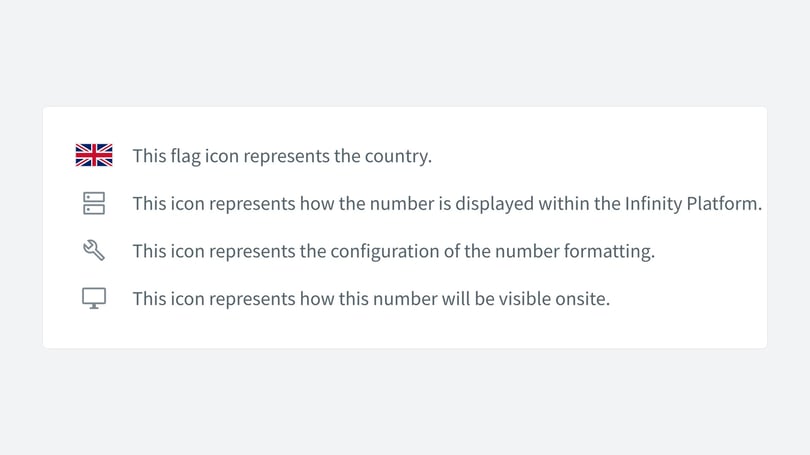
Examples of different ways your numbers can be formatted are shown below:
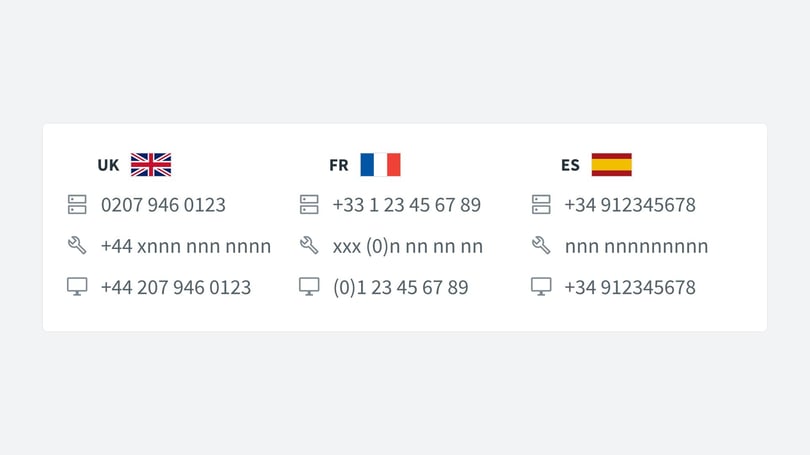
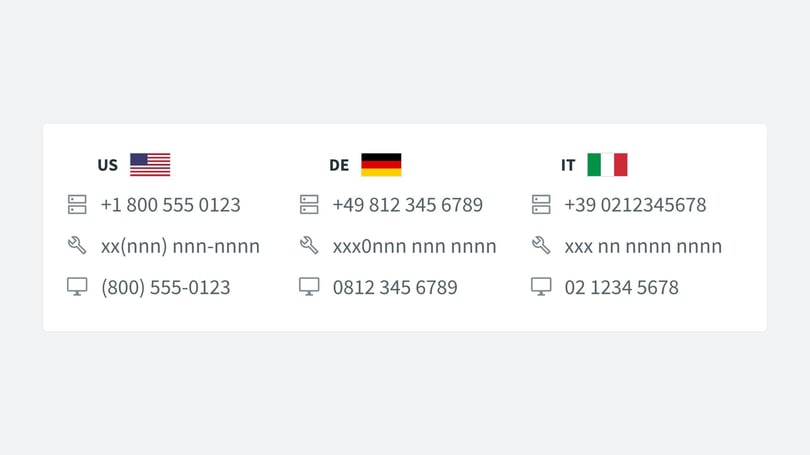
Your dynamic numbers have a default presentation. The steps below show you how to update the formatting if you need to.
How to change your number formatting
To change the format of your dynamic numbers, log in to the Infinity Platform, then follow these steps:
- Navigate to Settings.
- Select Settings from the Setup menu.
- Select Telephony Settings.
- Select Tracking Pools Editor.
- Search or scroll for your relevant tracking pool if you have more than one.
- Select Edit Config.
- Scroll down to the Number Formatting field.
- Make your changes.
- Select Save Changes.
To make changes to the formatting, use n where you would like a digit to display, spaces where you would like spaces, and x to exclude a digit (for example, the first 0). You can also add punctuation such as hyphens, full stops and brackets, as you wish.
Examples of number formats
UK numbers
By default, UK numbers display with a prefix of the UK country code (+44), for example +4412345678901. To remove the country code, add xx to the start of the number format. Here are some examples:
| Number format | Displayed dynamic number |
|---|---|
| xxnnn.nnn.nnnn | 234.567.8901 |
| xxx0nnnn nnn nnn | 01234 567 890 |
| nnnXnnnn-nnn-nnn | +441234-567-890 Note: adding an x removed the first 0. |
US numbers
By default, US numbers display with a prefix of the US country code (+1), for example +12345678901. To remove the country code, add xx to the start of the number format. Here are some examples:
| Number format | Displayed dynamic number |
|---|---|
| xxnnn.nnn.nnnn | 234.567.8901 |
| nn (nnn) nnn-nnnn | +1 (234) 567-8901 Note: without adding xx to the start of the format, the country code is displayed. |
| xn (nnn) nnn-nnnn | 1 (234) 567-8901 Note: without adding x to the start of the format, the plus of the country code is displayed. |
France
| Number displayed in the Infinity Platform: | +33 1 23 45 67 89 |
| Number format: | xxx (0)n nn nn nn |
| Displayed dynamic number: | (0)1 23 45 67 89 |
Spain
| Number displayed in the Infinity Platform: | +34 912345678 |
| Number format: | nnn nnnnnnnnn |
| Displayed dynamic number: | +34 912345678 |
Germany
| Number displayed in the Infinity Platform: | +49 812 345 6789 |
| Number format: | xxx0nnn nnn nnnn |
| Displayed dynamic number: | 08123456789 |
Save and check your changes
Don't forget to select Save Changes once you have updated your dynamic number formatting.
Note: It may take up to 15 minutes for changes to take effect. Refresh your website to check that the Infinity numbers display as you want.
Need more help?
For more on dynamic numbers, see Dynamic Numbers and Tracking Pools. If you're still stuck, get in touch with your account team or email support@infinity.co.