In short
- Infinity lets you block a nuisance caller from anywhere you see a caller ID, including the call log, the call detail page, the Visitor Trace and the Call Playback bar, by selecting Block Caller.
- Blocked callers are listed in Infinity under Settings > Telephony > Blocked Numbers, which needs the Administrator role, and you unblock a caller with the delete button next to the number.
- The Anonymous Call Blocking toggle in Infinity blocks all callers who withhold their number, and the Anonymous Call Blocking Message, on by default, asks them to redial without withholding their number.
- Infinity marks blocked calls as void by default so they do not count towards call metrics, and View Calls on a blocked number opens the call log filtered by that number with show void enabled.
- Robo-diallers dial number ranges in sequence, and Infinity reduces their impact with randomised pools and by changing number types to 03 or Lo-call in the UK, or to toll numbers in the US.
- Infinity removes charges for calls identified as spam from your monthly billing, and calls from blocked caller IDs never reach the Infinity Platform, so they generate no costs.
Block nuisance calls in Infinity so you can focus on the callers that matter. This guide explains how to block nuisance callers, how to review blocked callers and blocked calls, and how to block anonymous calls. It also explains what robo-diallers are and how Infinity helps to reduce their impact.
What are nuisance calls?
While the vast majority of calls to your business are welcome, there might be rare occasions when you receive calls that are unwanted and create a nuisance. Help is available: you can block callers in Infinity, which lets you focus on serving the callers that matter, saving time and money.
There are two parts to the nuisance call blocking feature: blocking the calls, and seeing the blocked calls. When you block a caller, you can add notes to capture why the caller was blocked. You can also choose to block anonymous calls, where the caller is withholding their phone number. You can see calls that have been blocked in the call logs, so you can see how many attempts the caller has made to contact you again, and understand how often those calls come in.
How to block nuisance calls
Blocking nuisance calls in Infinity is straightforward. You can block a call from anywhere you see a caller ID, including the call log, the call detail page, the Visitor Trace and the Call Playback bar.
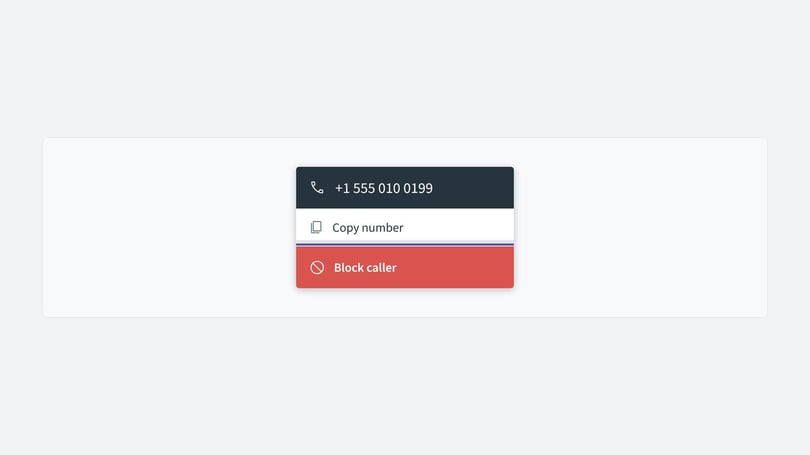
Select the caller ID and choose Block Caller. The example below is from the call log.
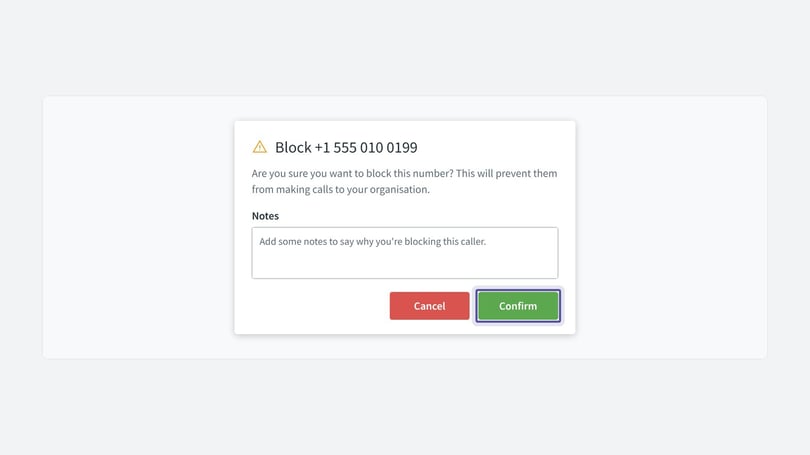
You'll see a confirmation step, so that you don't block a caller by accident. You can add notes to capture why the caller is being blocked, then select the green Confirm button to proceed.
You'll then see a confirmation that the caller is now being blocked.
Viewing blocked callers
You can review the list of blocked callers in Infinity, which helps you check which nuisance calls you have blocked. Select Settings at the bottom of the left-hand navigation, then select Blocked Numbers from the Telephony menu. You need the Administrator role to access the page.
The list shows the blocked numbers together with any notes. To unblock a caller, select the delete button next to the number. You'll see a confirmation message that highlights the impact of the change. Select Confirm to proceed, and you'll see a notification that the change has been made and that the caller is now unblocked.
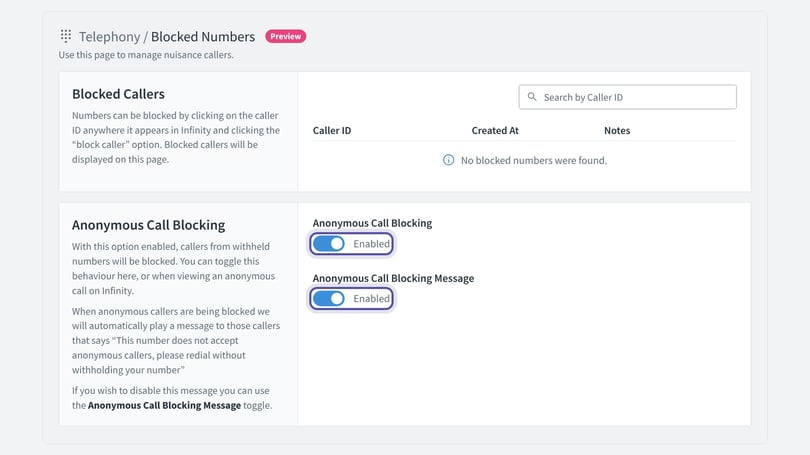
From the Blocked Numbers page, you can also manage the behaviour for anonymous callers, which is described in the next section.
Blocking anonymous callers
Blocking anonymous callers can also help you block nuisance calls from withheld numbers. Most callers to your organisation display their caller ID, but some choose to withhold their number. You can block all anonymous callers from within Infinity. Because this could affect legitimate contacts, we play a message to those callers to let them know that your organisation isn't accepting calls from anonymous callers. The message says:
"This number does not accept anonymous callers, please redial without withholding your number"
You can turn the blocking of anonymous callers on and off using the Anonymous Call Blocking toggle. It's also turned on automatically the first time you block an anonymous caller. The message to callers is turned on by default. You can turn it off by switching off the Anonymous Call Blocking Message toggle.
When the message is off, calls from anonymous callers won't connect to your organisation, and no announcement is played to the caller. We recommend that you leave the message on, so legitimate callers understand what they need to do to reach you. By default, the announcement is played with a British voice. If the dialled number is a US phone number, we use an American voice for the announcement.
Viewing blocked calls
Once you block nuisance calls, you can view the blocked calls in Infinity to see how well blocking is working. This shows how many attempts the blocked caller is still making to contact you, and so how effective the blocking has been. By default, blocked calls are marked as void, so they don't count towards call metrics. To see them in the call log, turn on voids in the filters. You can identify blocked calls by moving your mouse over the void reason icon to the left of the blue void pill in each call row. You can also use the filters to view only the blocked calls.
To see the impact of blocked calls quickly, go to the blocked callers list (Telephony > Blocked Numbers), select the blocked number, then choose View Calls from the dropdown menu. This takes you to the call log, filtered by that number, with show void enabled. You can take the same step from anywhere you see a phone number in Infinity. Select the dropdown, then select View Calls.
What are robo-diallers?
This section explains what robo-diallers are, how they affect our clients, what is being done to stop them, and what financial implications they may have for your business. It also shows how to block nuisance calls they generate.
What is a robo-dialler?
A robo-dialler (also called an auto-dialler) is an electronic device or software that automatically dials telephone numbers. Once the call is answered, the robo-dialler either plays a recorded message or connects the call to a live person.
How robo-diallers affect our clients
Because of the automated nature of their spamming technique, robo-diallers go through number ranges in sequence, trying to contact consumers to sell their business to. If you have a call tracking system with hundreds of numbers, you'll notice this far more than if you had just one number. Robo-diallers affect numbers in all countries, but they're more prevalent in the UK and US. In the US, toll-free traffic pumping has become a growing problem within the telecoms industry.
What is being done to stop robo-diallers?
In the UK, the Government has an action plan for tackling nuisance calls, which emerged from ongoing work with Which?, the ICO and Ofcom. This means these techniques are no longer allowed to be carried out in the UK. We are seeing these businesses set up in other countries outside UK legislation, most often in India, where UK law is not enforced. The issue has been widely discussed in the media, including in the House of Commons.
In the US, the Internet Crime Complaint Center, a partnership between the Federal Bureau of Investigation (FBI) and the National White Collar Crime Center (NW3C), runs a task force that investigates all internet crime complaints. If you feel you have been targeted, report it to your telecoms provider and file a complaint with the Internet Crime Complaint Center.
What is Infinity doing to help reduce the impact?
Infinity uses the following approaches to help you block nuisance calls from robo-diallers and reduce their impact:
- Randomised pools to reduce the impact of robo-diallers calling a sequential block of numbers.
- Number type flexibility: robo-diallers typically target geographic and freephone numbers in the UK, and toll-free numbers in the US. We can change your number type to 03 or Lo-call in the UK, or to toll numbers in the US.
We currently offer the following spam avoidance features:
- Platform wide alerts and blocking
- Self-service nuisance call blocking
- Nuisance caller IVR
- Anonymous caller nuisance caller IVR
- Spam call hang up
What are the financial implications of spam calls?
Once calls are identified as spam, Infinity removes the charges relating to those calls from your monthly billing, including cost per call and call charges. Any calls from caller IDs that have been blocked never reach the platform, so they don't generate any costs.
Further information
If you're fed up of receiving these calls, there are a range of options to help you block nuisance calls or reduce how many you receive. Contact our Support Team.
Need more help?
If you have any questions about how to block nuisance calls, or need help, contact the Infinity Support team.